Publish Programme
To publish a programme of work:
-
In the Navigation menu, in the Overview section, select Planning.
-
In the Overview tab, select View against the relevant programme.
-
In the programme details select Publish.
-
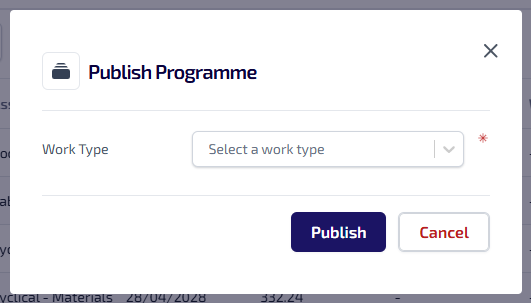
The Publish Programme dialog appears.
-
Select the Work Type dropdown list, then select the type of work. This dropdown list is populated by the active Code Templates, and determines the type of work order created for each of the assets in Job Management (Connect). Click System Data - Code Templates for more information about Code Templates.
-
Select Publish.
-
The programme details page refreshes.
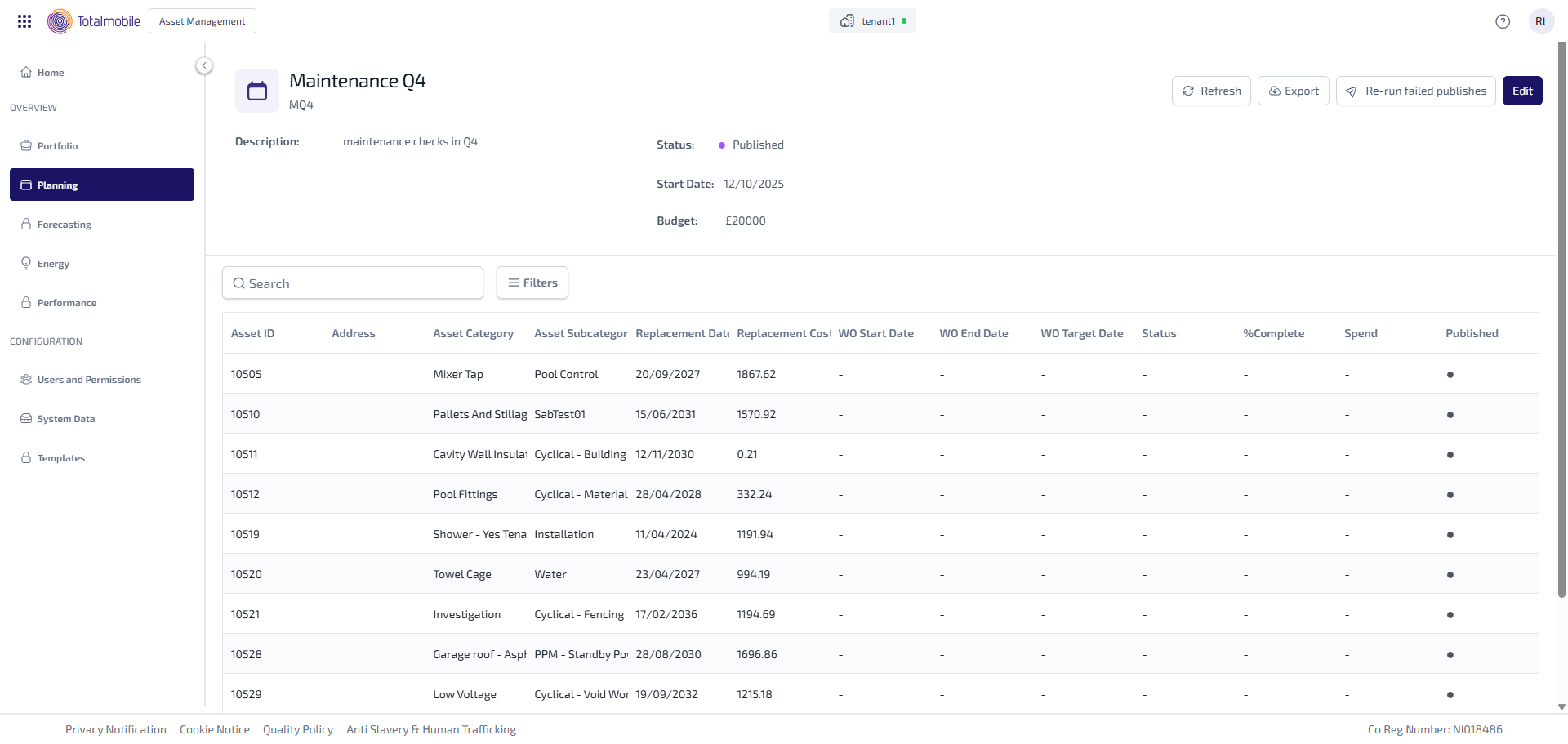
The Status updates to Published in the summary section, and the Published column appears in the asset table, showing whether the work order for each asset has been published to Job Management (Connect).
 - the work order is in the process of being published.
 - the work order has been successfully published.
 - the work order has failed to publish. This could be because it has timed out, or because there is no matching asset in Job Management (Connect).
Failed Publishes
If there are assets which have failed, try to republish the programme:
-
In the Navigation menu, in the Overview section, select Planning.
-
In the Overview tab, select View against the relevant programme.
-
In the programme details select Re-Run Failed Publishes.
-
The Publish Programme dialog appears.
-
Select the Work Type dropdown list, then select the type of work.
-
Select Publish.
If the problem persists, check there is matching asset data in Job Management (Connect), and the asset is associated with the same customer in both Asset Management and Job Management (Connect).