Spatial Hierarchy
The Asset Details > Spatial Hierarchy tab lets you assign specific hierarchy elements to an individual asset. Each asset can be linked to a Site, Property, Floor, Space,and Level, which helps to define its physical and organisational location.
This is available only for assets originating from portfolios assigned to the TM ALM 1.0 data model.
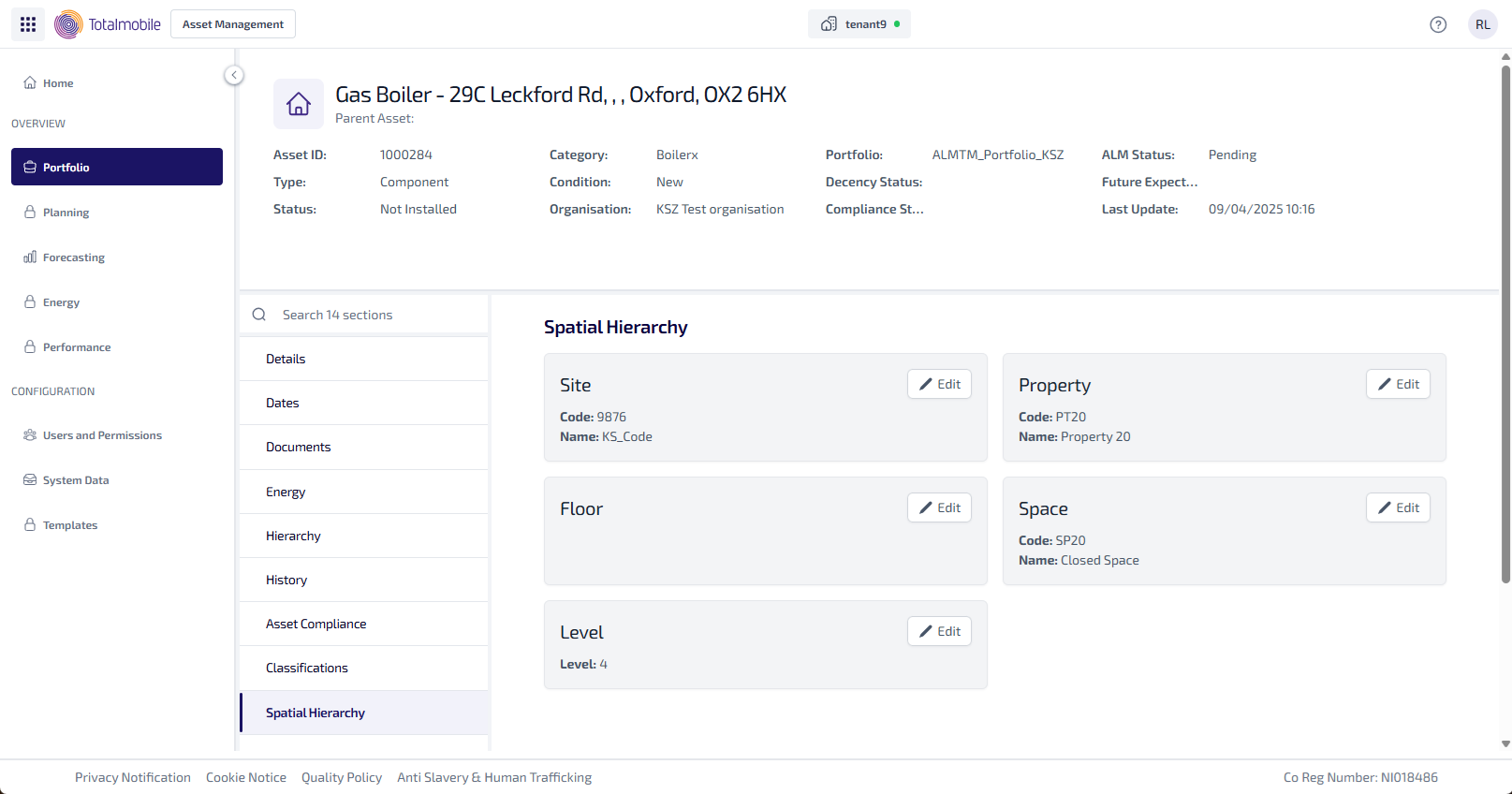
The Spatial Hierarchy tab show a tile for each section which can be linked to the asset, with the following information:
-
Site - Code and Name
-
Property - Code and Name
-
Floor - Code and Name
-
Space - Code and Name
-
Level - Level
Each tile can be update to include spatial hierarchy information, edited to update the existing information, or to remove the existing information.
Add Spatial Hierarchy
-
From the Portfolio page, select the asset in the Asset Register*.
*Make sure the asset select is linked to a portfolio within the TM ALM 1.0 data model.
-
Select View Asset.
-
The Asset Details page is shown, select the Spatial Hierarchy tab.
-
In each section (Site, Property, Floor, Space, Level):
-
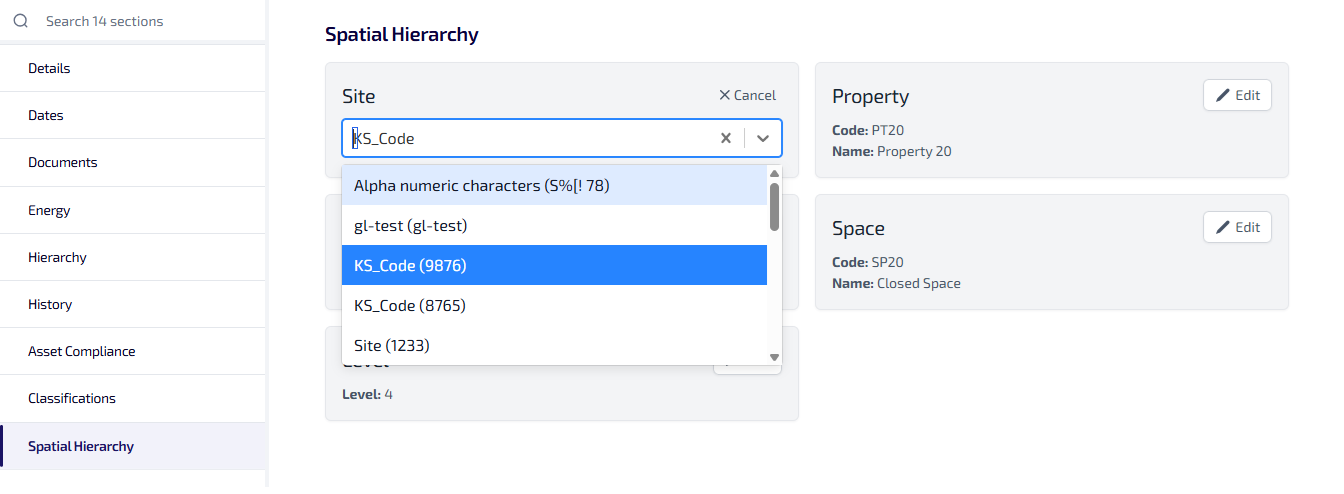
Select Edit.
-
Select the Name field.
-
Start typing part of the name or code.
-
Select the required item from the dropdown list.
-
-
After selecting an item from the dropdown list, the selection is automatically saved.
-
The code field is automatically populated based on your selection.
There is no separate Save button.
Edit Spatial Hierarchy
-
From the Portfolio page, select the asset in the Asset Register.
-
Select View Asset.
-
The Asset Details page is shown, select the Spatial Hierarchy tab.
-
Select Edit for the section to be edited.
-
Start typing part of the name or code into the Name field, and select the the required item from the dropdown list.
-
After selecting an item from the dropdown list, the selection is automatically saved.
Delete Spatial Hierarchy
-
From the Portfolio page, select the asset in the Asset Register.
-
Select View Asset.
-
The Asset Details page is shown, select the Spatial Hierarchy tab.
-
Select Edit for the section which content is to be deleted from.
-
Select the X next to the item currently shown to remove it.
-
After selecting X it is automatically saved.
The deletion is instant after selecting X.