Manually Scheduling Jobs
You can schedule jobs manually in Optimise Schedule by dragging a job from the Job List to a slot in a resource's calendar.
Note the following when manually scheduling jobs in an Optimise Essential World:
-
Use rosters and availability as a guide when scheduling, but you can still schedule jobs outside of a resource's availability.
-
You can place multiple jobs in the same time slot side by side.
-
You cannot pin jobs as this is Mendel-based functionality.
-
Optimise Dashboard travel times will not be calculated, as this is a feature of using Optimise Enterprise with Mendel.
To schedule a job manually:
-
In WebAdmin select Optimise Schedule.
The Worlds window appears.
-
Select a World.
The Optimise Schedule window appears.
-
In the Job List, click and drag a job from the pile to a resource's Diary.
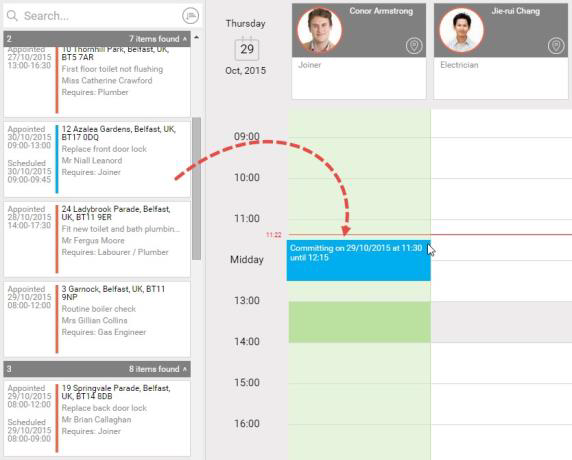
If you have enabled Travel Time When Manually Scheduling in Optimise Schedule Settings, the calculated travel time is displayed when dragging the job to a resource.
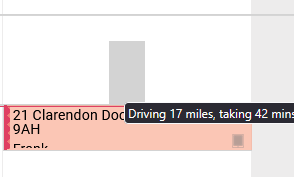
The travel time is based on straight line distances. It is calculated from the adjacent jobs on the schedule if possible; otherwise it is calculated from the resource's start and end locations. A warning is displayed if there is not enough time to travel between jobs.
-
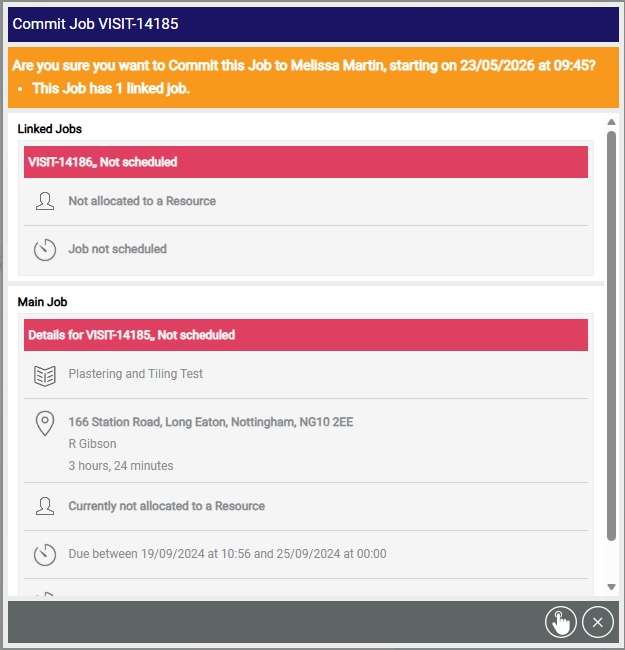
If you are scheduling a job that requires further confirmation, a dialog appears. This dialog contains:
-
Scheduled time.
-
Any constraints requiring review.
-
Linked job information. If the job being scheduled has linked jobs, the dialog also displays:
-
Details of those linked jobs.
-
Their assigned resources (if applicable).
-
-
-
If required, review any constraints and select a reason code for overriding them.
-
Select Schedule Job
 .
.