Manage Alternative Start Locations
Use the Optimise Admin > Resources > Resource > Alternative Start Locations tab to assign multiple start locations to a resource. You can specify the location and the active date range for each location, which enables planners to set alternate locations ahead of time.
To add additional start locations to a resource:
-
In WebAdmin select Optimise Admin.
The Universal Settings and Worlds page appears.
-
In the Universal Settings section, select Resources.
The Resources page appears.
-
Select the resource you want to edit.
To filter the resources list, select the Search field and start typing a resource name.
The Resource page appears.
-
Select the Alternative Start Locations tab.
-
Select Edit Resource Details
 .
. -
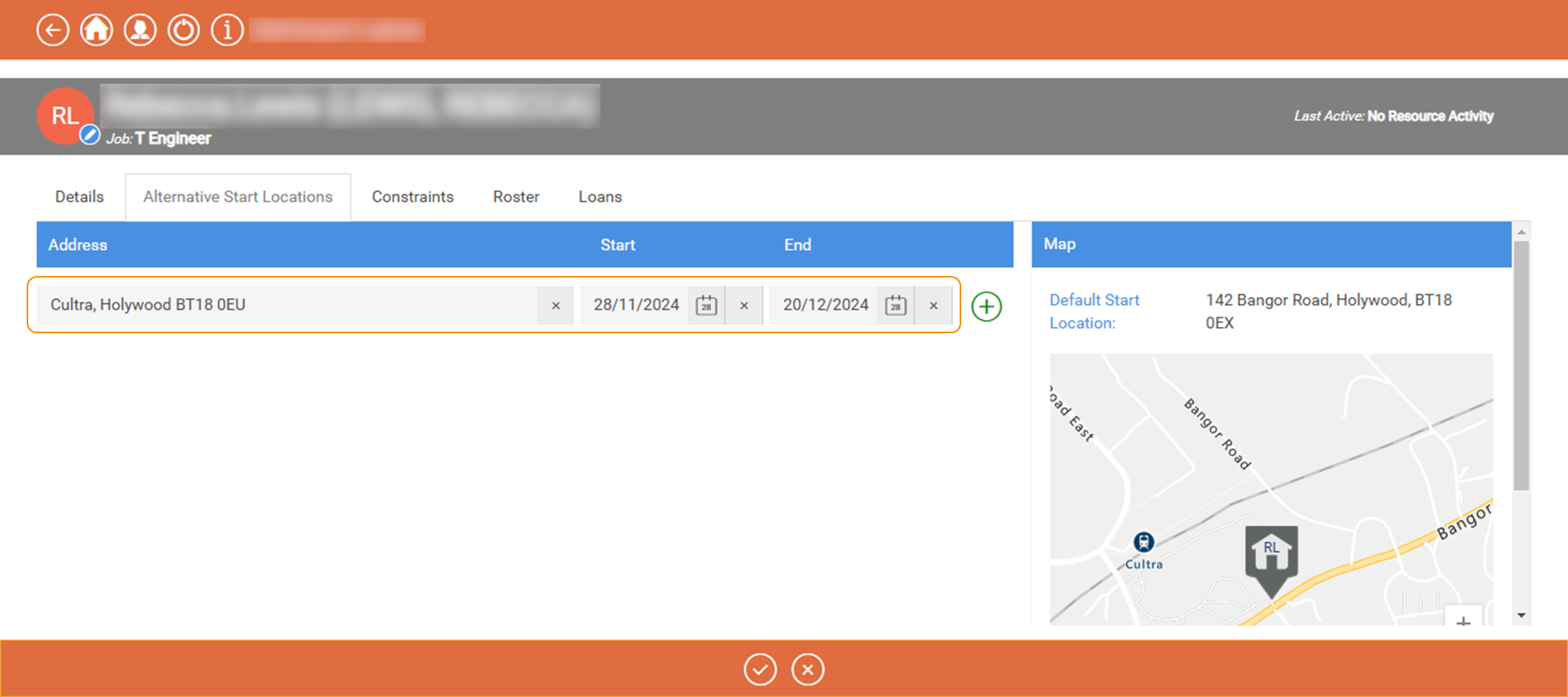
Enter the following information for the alternative start location:
-
Address - start typing the address for the alternative start location, then select the required result from the dropdown.
You can also use the map controls to zoom in and navigate directly to the alternative start location.
-
Timezone - this field is only available if a system default time zone is configured in your tenant. To change the time zone for the alternative start location, select an option from the dropdown. For more details of the available time zones, refer to Time Zone Mapping.
-
Start - select the calendar icon to set the start date for the alternative location.
-
End - select the calendar icon to set the end date for the alternative location.
-
-
Select Add Address
 . An icon for the new alternative start location is added to the Map with the start date displayed.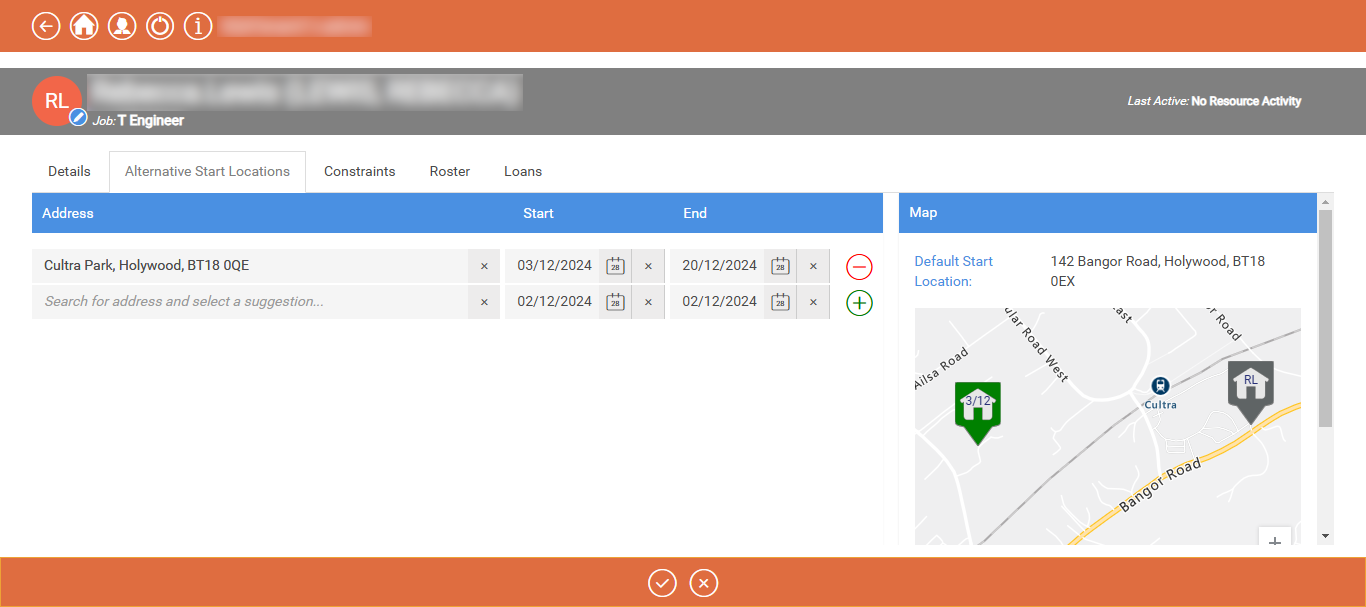
-
Repeat steps 6 and 7 to add further alternative start locations if required.
-
Select Save
 .
.