Edit User
To edit a user, in Configuration > Users select Edit against a user to open the users details page.
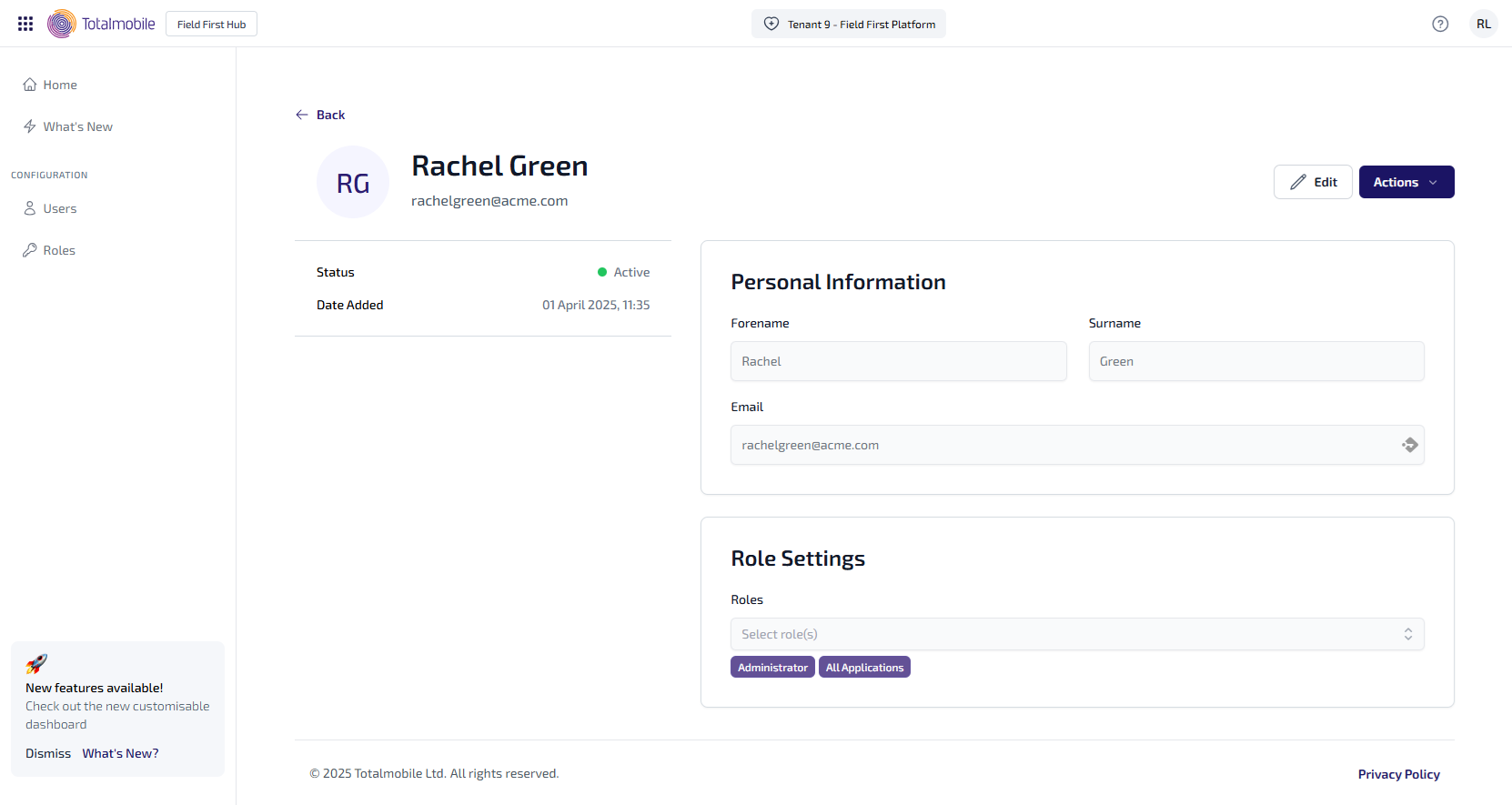
The user details page shows the users name and email address, along with the following information:
-
Status - the status of the user, which will be one of the following:
-
New - the user has been created in Field First and is yet to set their password.
-
Active - the user was added via an external identity provider, or if created in Field First, has set their password.
-
Inactive - the user has been made inactive in the external identity provider.
-
-
Date Added - the date the user was added.
-
Personal Information*:
-
Forename
-
Surname
-
Email
-
-
Role Settings:
-
Roles - the roles assigned to the user, for more information see Roles.
-
The following options are also available:
-
Edit - select to edit the users Personal Information and Role Settings.
-
Actions - select for the following options:
-
Change Password - select to change the users password.
-
Send Password Reset Email - functionality coming soon.
-
Delete User - select to delete the user from Field First.
-
Close - select to close the context menu.
-
* The Personal Information section cannot be updated for users managed through an external identity provider, it can only be updated for users managed through Field First.