Groups
The AI Hub > Groups page provides a way to manage AI skill access by assigning permissions to groups rather than individual users. Administrators can create groups that reflect operational teams or business roles, such as field operatives, dispatchers, or managers, and grant the appropriate AI skills at the group level.
Through automatic permission inheritance, group members immediately gain access to the AI skills assigned to their group. This helps ensure sensitive capabilities remain restricted to authorised roles while making large-scale AI deployments easier to manage and maintain.
The Groups page is only available to users with either the Admin, Customer Admin or Super User roles. For more details refer to People_and_Access.htm.
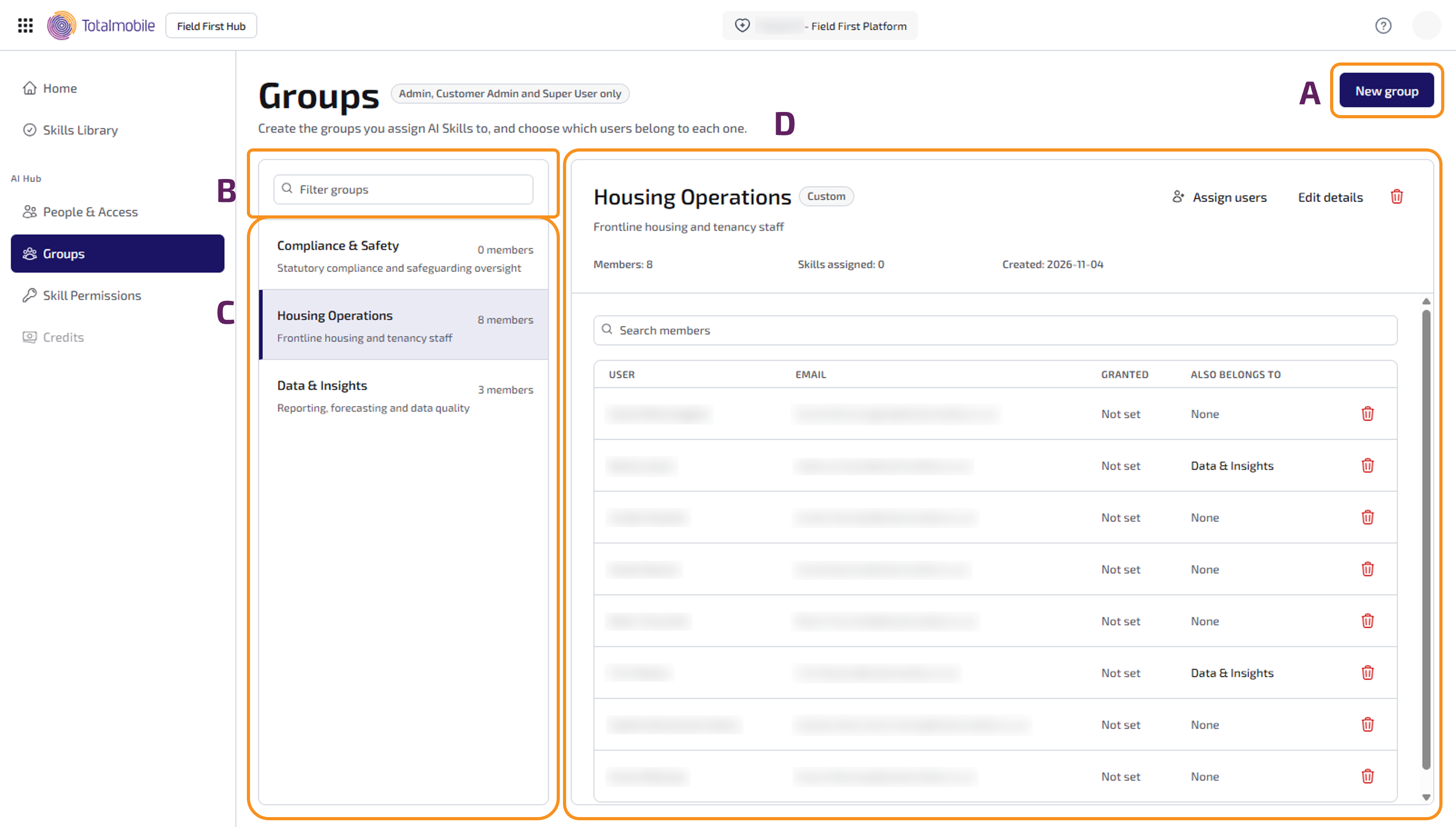
The Groups page contains the following:
A: New group - Add a new group.
B: Filter groups - Start entering a name or description into the Filter groups field and all matching results appear in the Groups panel.
C: Groups panel - Lists the existing groups, showing their name, whether the groups is *Custom or System, a descriptions and number of assigned members.
Custom groups have been added manually in the AI Hub and can be deleted. Whereas System groups were created as part of on-boarding and cannot be deleted.
D: Group details panel - Shows the details of the group selected in the Groups panel. The following display:
-
Members: Number of assigned members.
-
Skills assigned: Number of assigned AI skills.
-
Created: Date the group was created.
-
Assign users: Add a new user to group.
-
Edit details: Edit the group name and description.
-
 Delete group: Select to delete the group.
Once a group has been deleted it cannot be reinstated, please be certain before deleting a group, and ensure you have selected the correct one.
If necessary a new group with the same name can be created again, for example if the group was deleted in error.
-
Search members: Start entering a name or email into the Search members field and all matching results appear in the members table.
-
Members table - Shows the existing members. The following displays for each member:
-
User
-
Email
-
Also belong to: The other groups the user is a member of.
-
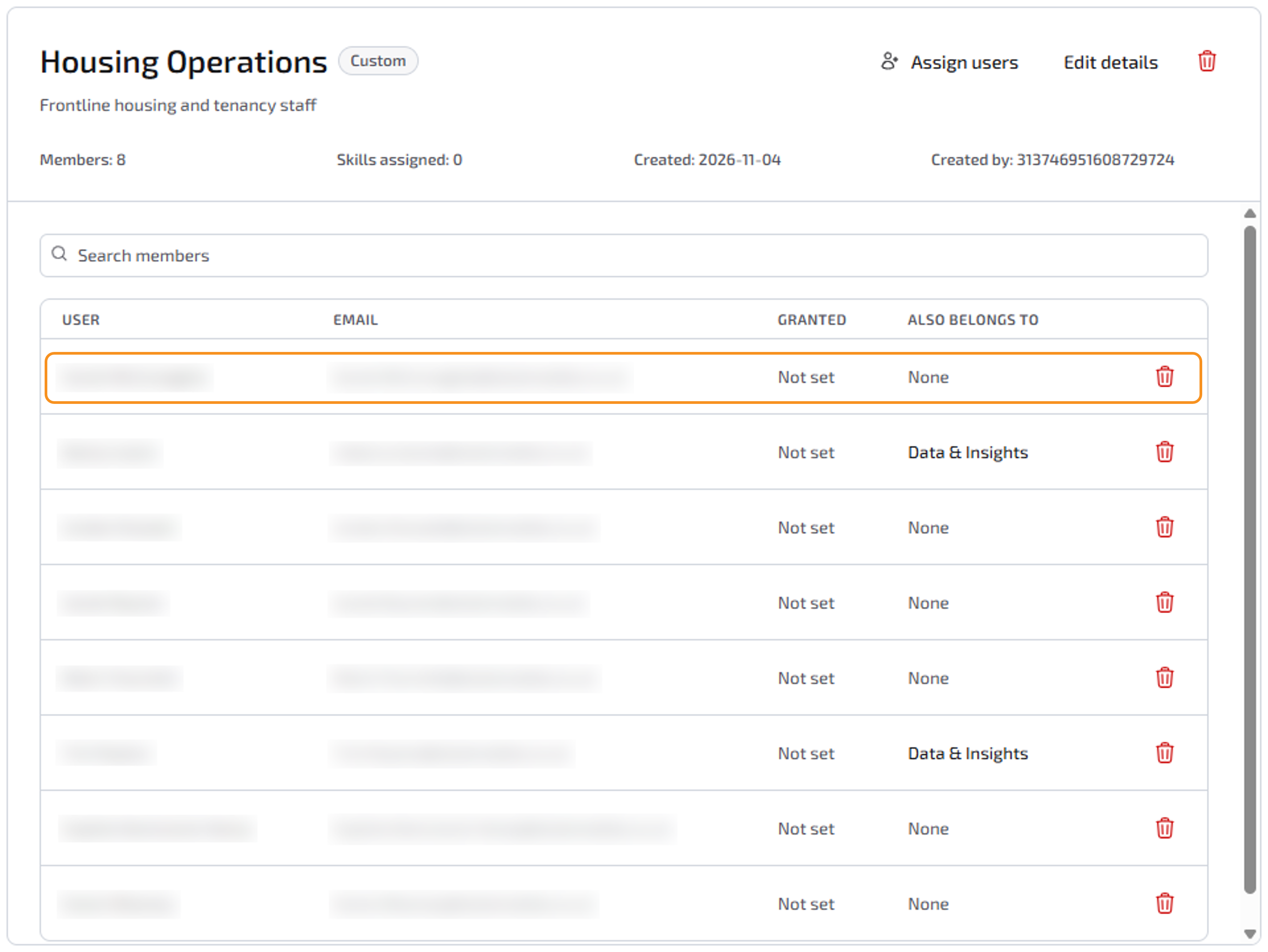
Remove from this assignee: Select to remove the user from the group.
-
Add New Group
To add a new group:
-
In the Navigation menu, in the AI Hub section, select Groups.
-
On the Groups page, select New group.
-
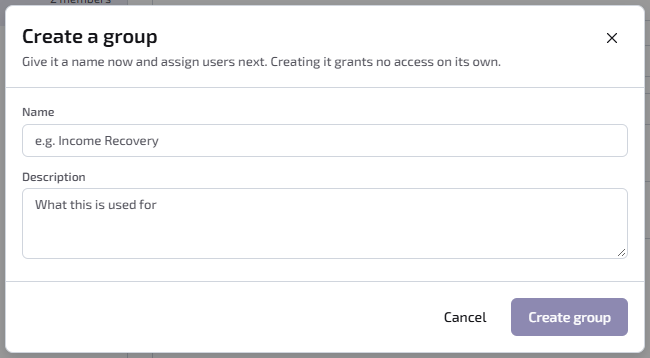
The Create a group dialog opens.
-
Enter the following information:
-
Name
-
Description
-
-
Select Create group.
Assign User To A Group
To add users to a group:
-
In the Navigation menu, in the AI Hub section, select Groups.
-
On the Groups page, in the Groups panel, select the required group.
-
In the Group details panel, select Assign users.
-
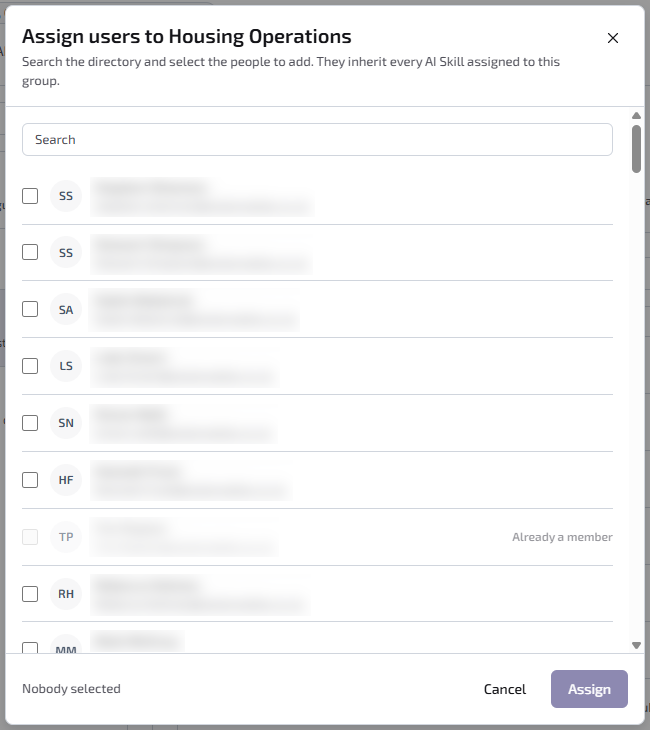
The Assign users dialog opens.
-
Either scroll through the list of users, or start to enter the name of the user into the search field, and select the user to add to the group.
You can select multiple users to add to the group.
-
Select Assign users.
Edit Group Details
To edit a groups details:
-
In the Navigation menu, in the AI Hub section, select Groups.
-
On the Groups page, in the Groups panel, select the required group.
-
In the Group details panel, select Edit details.
-
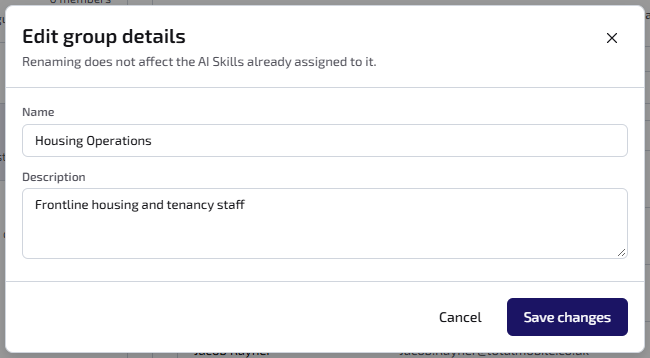
The Edit group details dialog opens.
-
Update following details as required:
-
Name
-
Description
-
-
Select Save changes.
Remove Users From A Group
To remove a user:
-
In the Navigation menu, in the AI Hub section, select Groups.
-
On the Groups page, in the Groups panel, select the required group.
-
In the Group details panel, select the Members tab and find the user.
-
Select
 Remove from this assignee.
Delete Group
Once a group has been deleted it cannot be reinstated, please be certain before deleting a group, and ensure you have selected the correct one.
If necessary a new group with the same name can be created again, for example if the group was deleted in error.
To delete a group:
-
In the Navigation menu, in the AI Hub section, select Groups.
-
On the Groups page, in the Groups panel, select the required group.
-
In the Group details panel, select the
Delete group.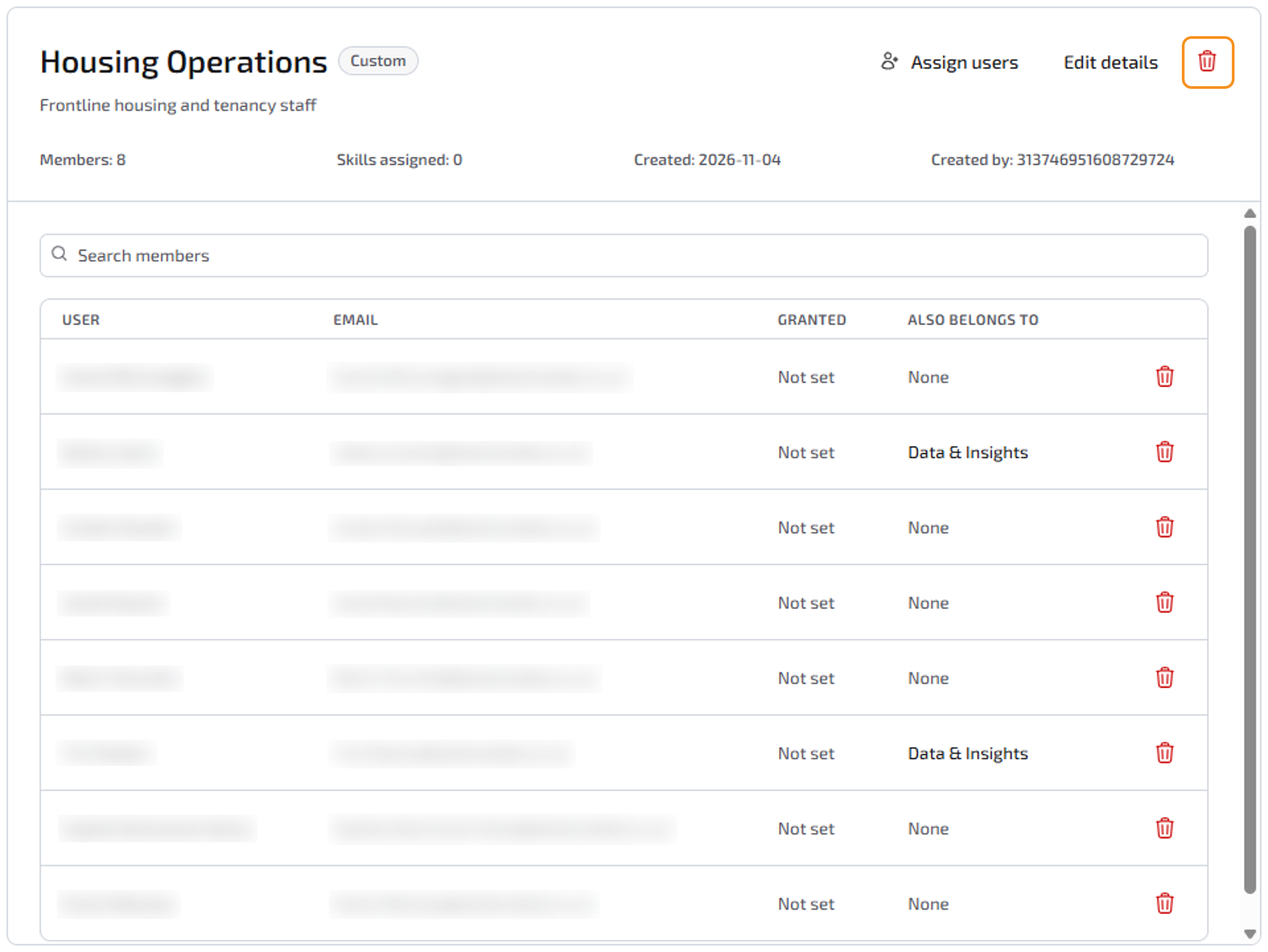
-
When prompted select Delete.