Skill Permissions
The AI Hub > Skill Permissions page is used to control who can access and use each AI skill within the AI Hub, ensuring that users can only access the capabilities relevant to their role. While your organisation may be licensed for a broad catalogue of AI skills, permissions allow sensitive or department-specific functions, such as automated scheduling, job closure, or document extraction, to be restricted to authorised teams and users.
Through skill permissions your administrators can view a clear permissions matrix showing access to each AI skill, assign AI skills to groups or individual users, and review which users and groups have access to specific skills. Using relationship-based authorisation, permissions assigned to a group are automatically inherited by its members, reducing administration overhead and ensuring users only see and use the AI skills required for their operational responsibilities.
The Skill Permissions page is only available to users with either the Admin, Customer Admin or Super User roles. For more details refer to People_and_Access.htm.
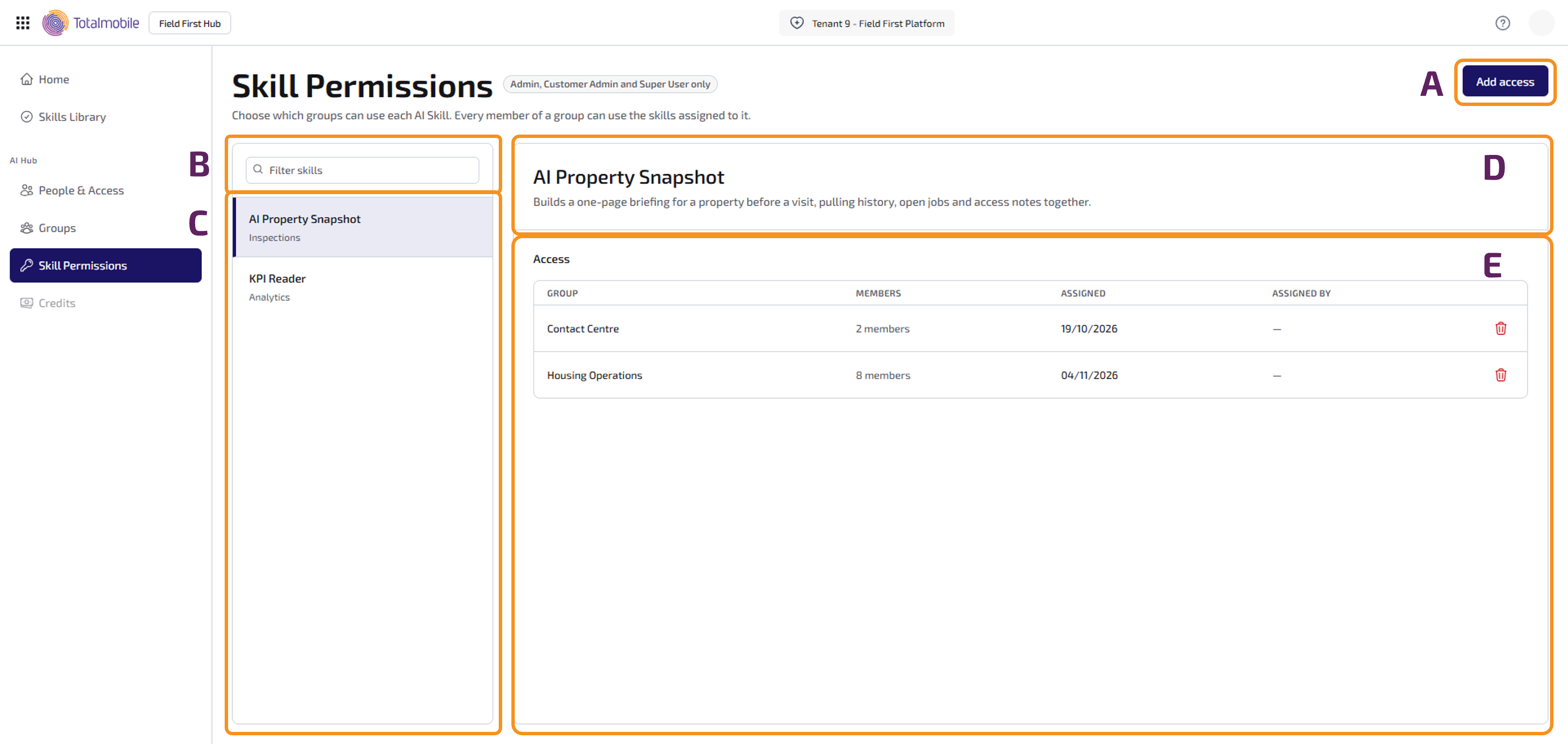
The Skill permissions page contains the following:
A: Add access: Select to provide groups with access to the AI skill.
B: Filter skills - Start entering a name or description into the Filter skills field and all matching results appear in the AI Skills panel.
C: AI Skills panel - Lists the existing AI skills, showing their name and category.
D: AI Skill details panel - Shows the AI skill name and description.
E: Access table: Lists the groups assigned to the AI skill. The following displays for each group:
- Group
-
Members: The number of group members.
-
Assigned: The date access to the group was assigned.
-
 Remove access: Select to remove the group.
Add Access
To give group access to an AI skill:
-
In the Navigation menu, in the AI Hub section, select Skill Permissions.
-
On the Skill Permissions page, in the AI Skills panel, select the required AI skill.
-
Select Add access.
-
The Add access dialog opens.
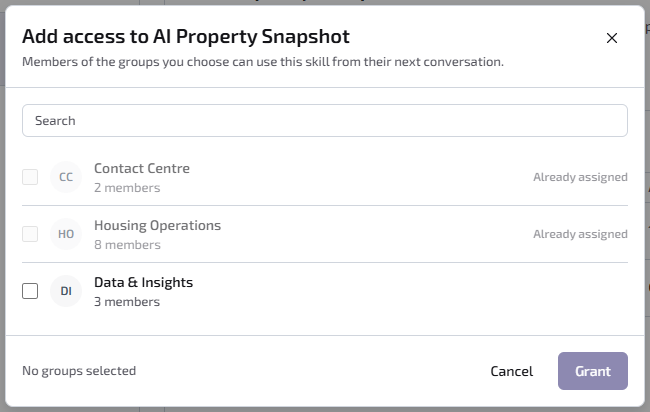
The following information and options display:
-
Search: Start entering the group name into the field to see all matching results.
-
Groups: Lists all the groups and indicates which ones already have access.
-
-
From the list of groups, select the groups to grant access.
-
Select Grant.
Remove Groups from an AI Skill
To remove a group from an AI skill:
-
In the Navigation menu, in the AI Hub section, select Skill Permissions.
-
On the Skills Permissions page, in the AI Skills panel, select the required AI skill.
-
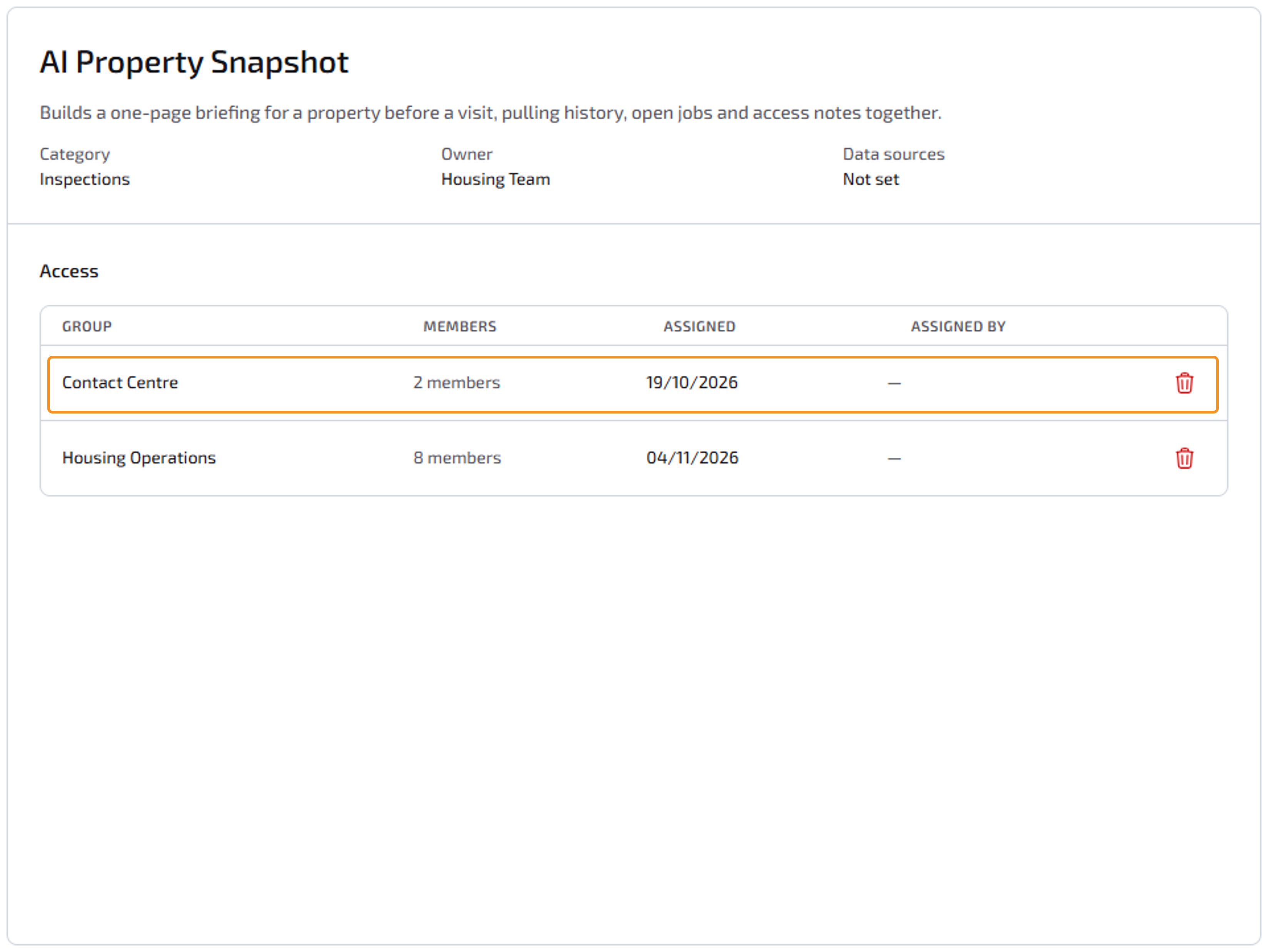
In the AI Skills details panel, in the Access table, find the group.
-
Select
Remove access to remove the group. -
When prompted select Revoke.