Book Follow Up Appointments on Mobilise
A Follow Up Appointment is a Form Action, and once the relevant Form has been completed it can either be configured to automatically open the Follow Up Appointment, or the Follow Up Appointment appears in the list of Tasks for the current Visit.
Follow Up Appointments can be booked to a selected date and time, or requested if the dates and times available don’t meet your requirements:
Booking A Follow Up Appointment
To book a follow up appointment:
-
Open the Form for the follow up appointment.
-
The Book next appointment screen appears.
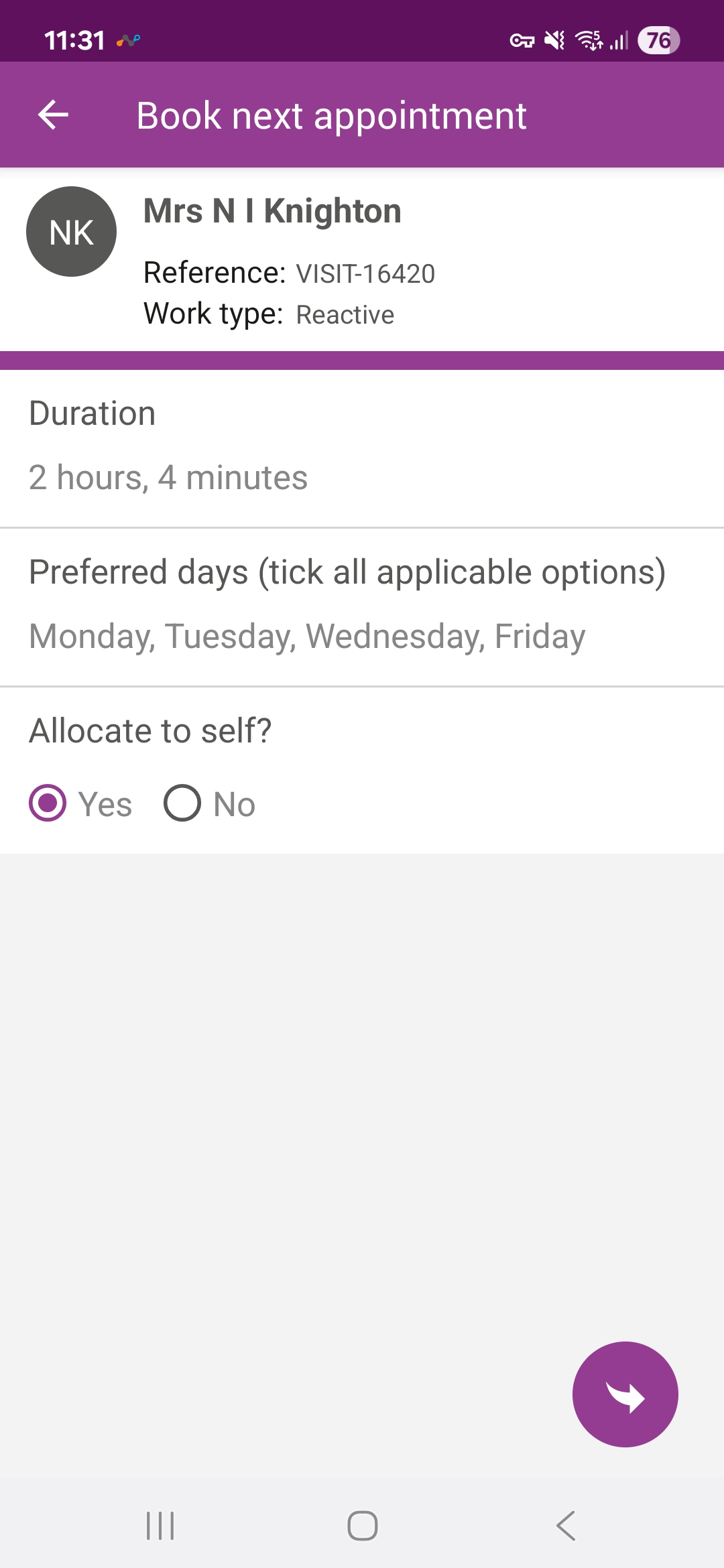
This shows the following:
-
Durations - this is the duration for the follow up appointment, and defaults to the Standard Minute Value (SMV) for the SORs still to be completed for the current Visit. If configured, the duration can be updated:
-
Select Duration.
-
The Enter Value dialog appears.
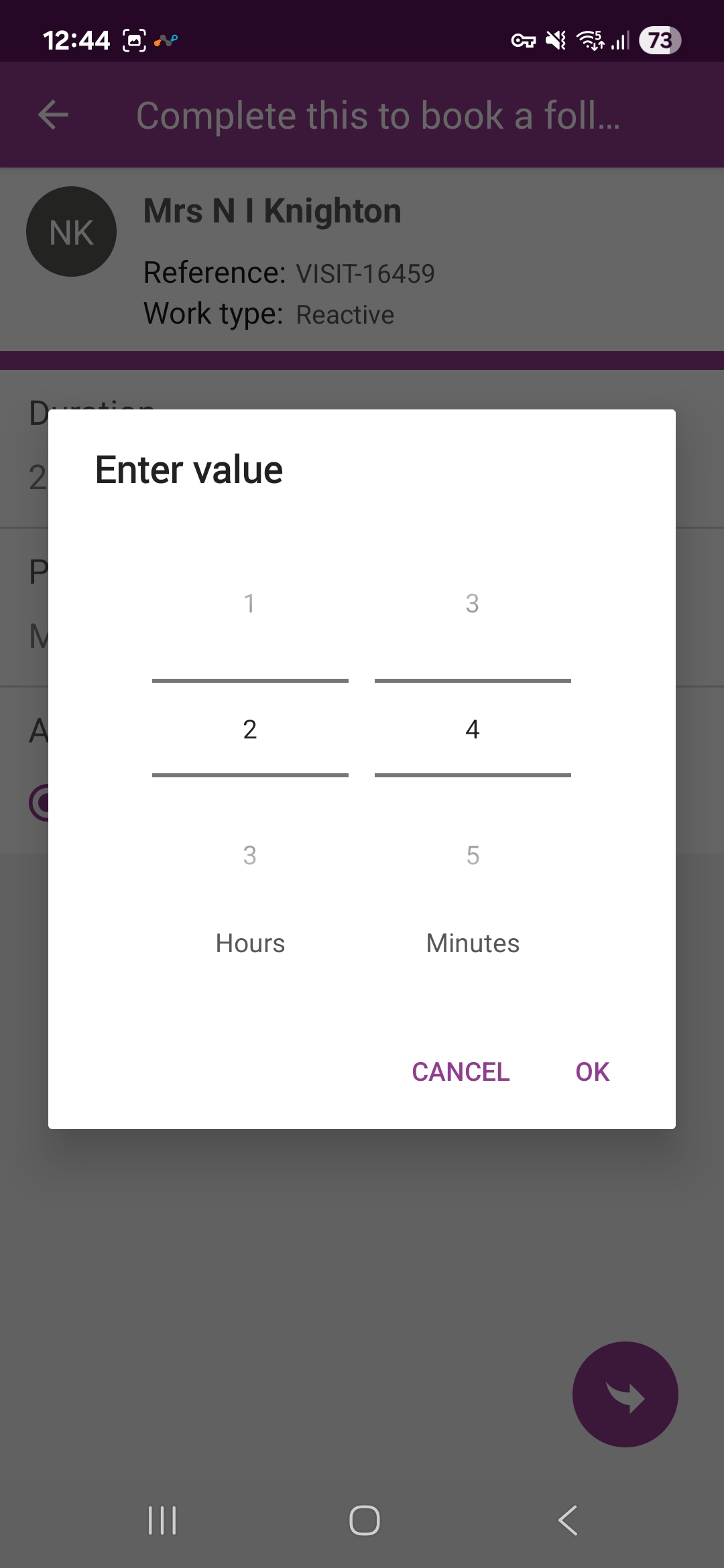
Scroll through the Hours and Minutes to select the time required.
-
Select OK.
-
-
Preferred days - these are the preferred days for the follow up appointment, and default to the days selected in the Follow Up Appointment Settings. If configured, the preferred days can be updated:
-
Select Preferred days.
-
The Select answer dialog appears.
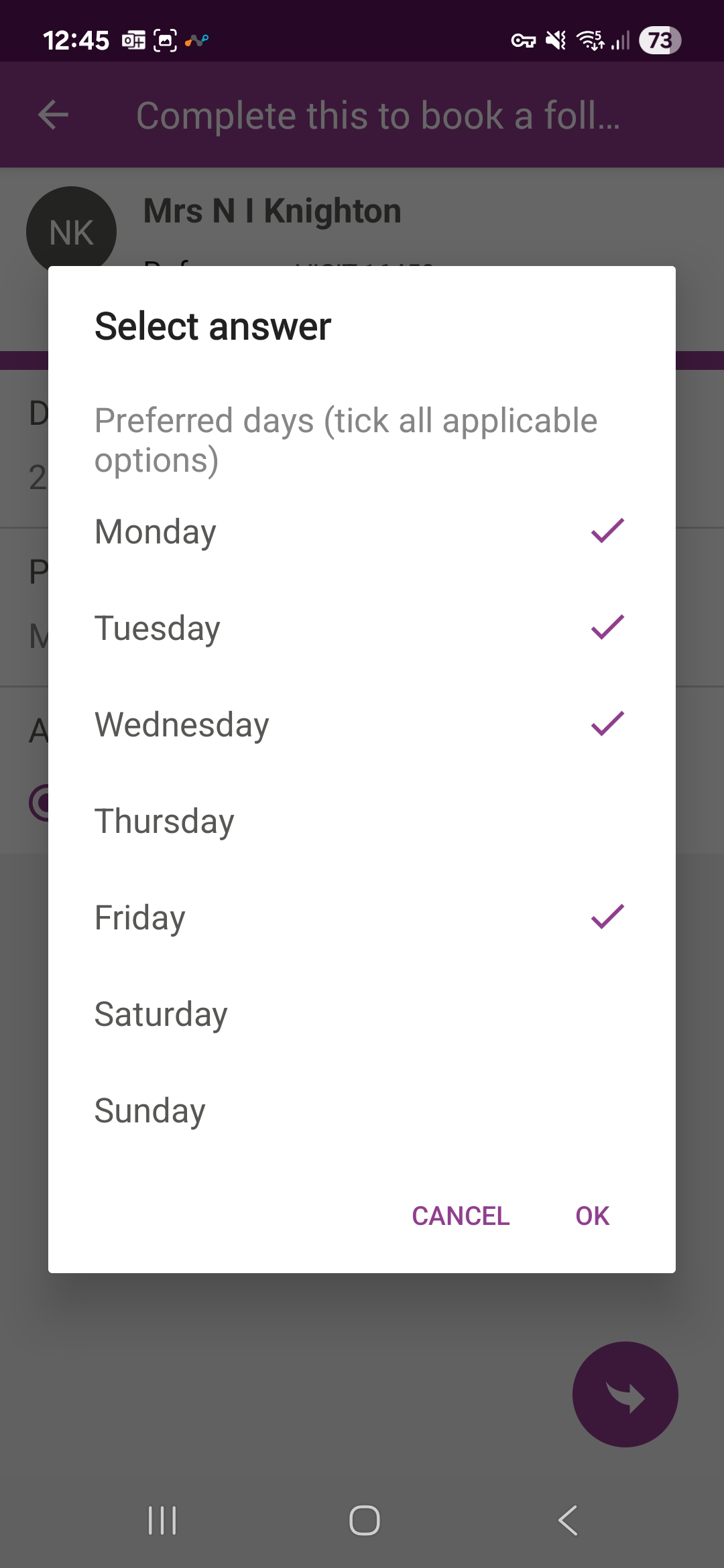
Select each day to include, or exclude from the preferred days. Days to be included must have a tick against them.
-
Select OK.
-
-
Allocate to self? - this is available depending on the configuration in the Follow Up Appointment Settings. This defaults to Yes, meaning the follow up appointment is to assign you. If configured, this can be updated:
-
Under Allocate to self? select No.
-
The Select a Skill* field appears, select the field.
-
The Select a Skill* screen appears.
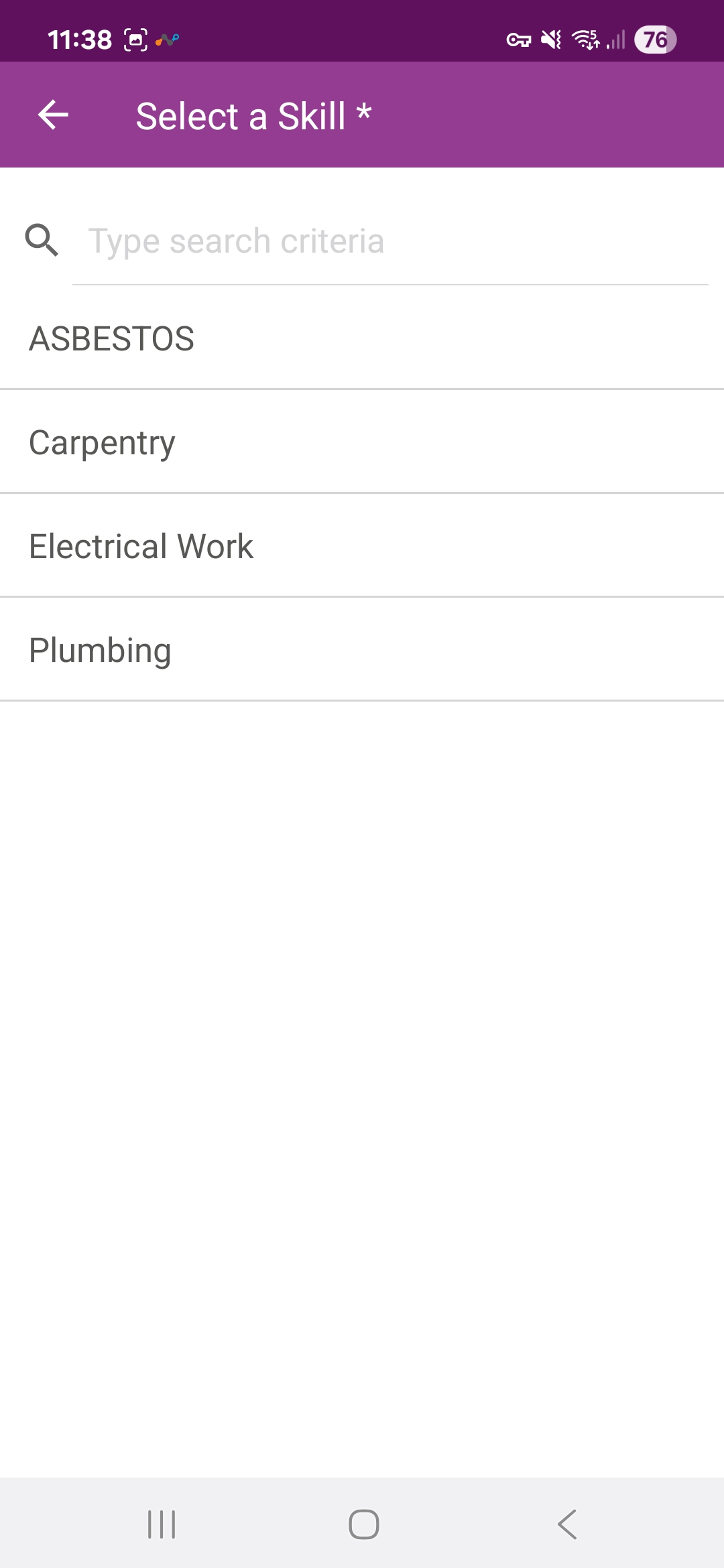
Either start to type the skill into the Type search criteria field and select it, or scroll through the list of skills and select it.
-
Upon selecting the skill you are returned to the Book next appointment with the Select a Skill field populated.
-
-
Select
 to continue.
 -
Mobilise sends the request for available appointments to Connect. A loading screen appears while the available appointments are requested and returned.
-
The Select an Appointment screen appears listing all matching appointments returned from Connect. The Preferred appointment slots are at the top of the screen, shown in green, and any other Available slots are listed below, shown in purple.
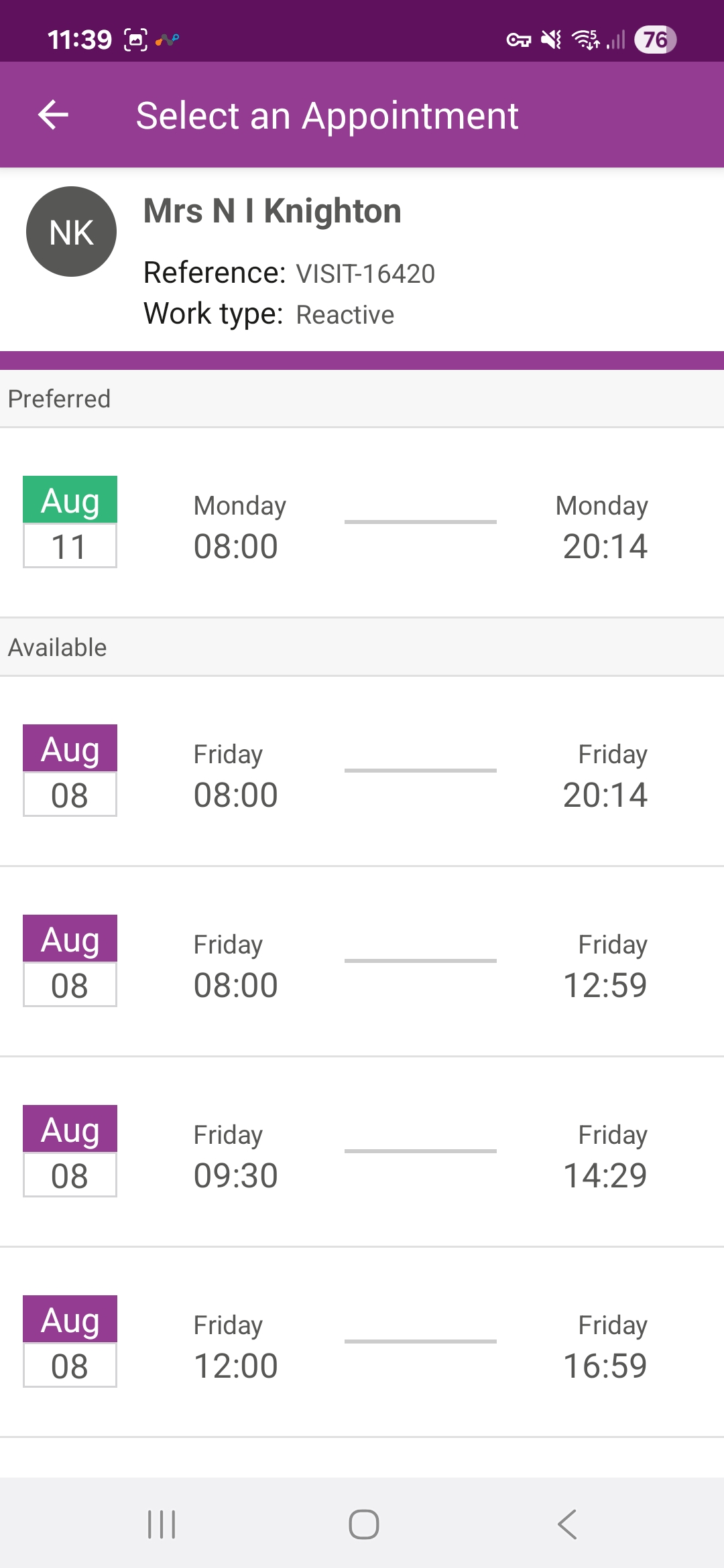
At the bottom of the screen are the following options:
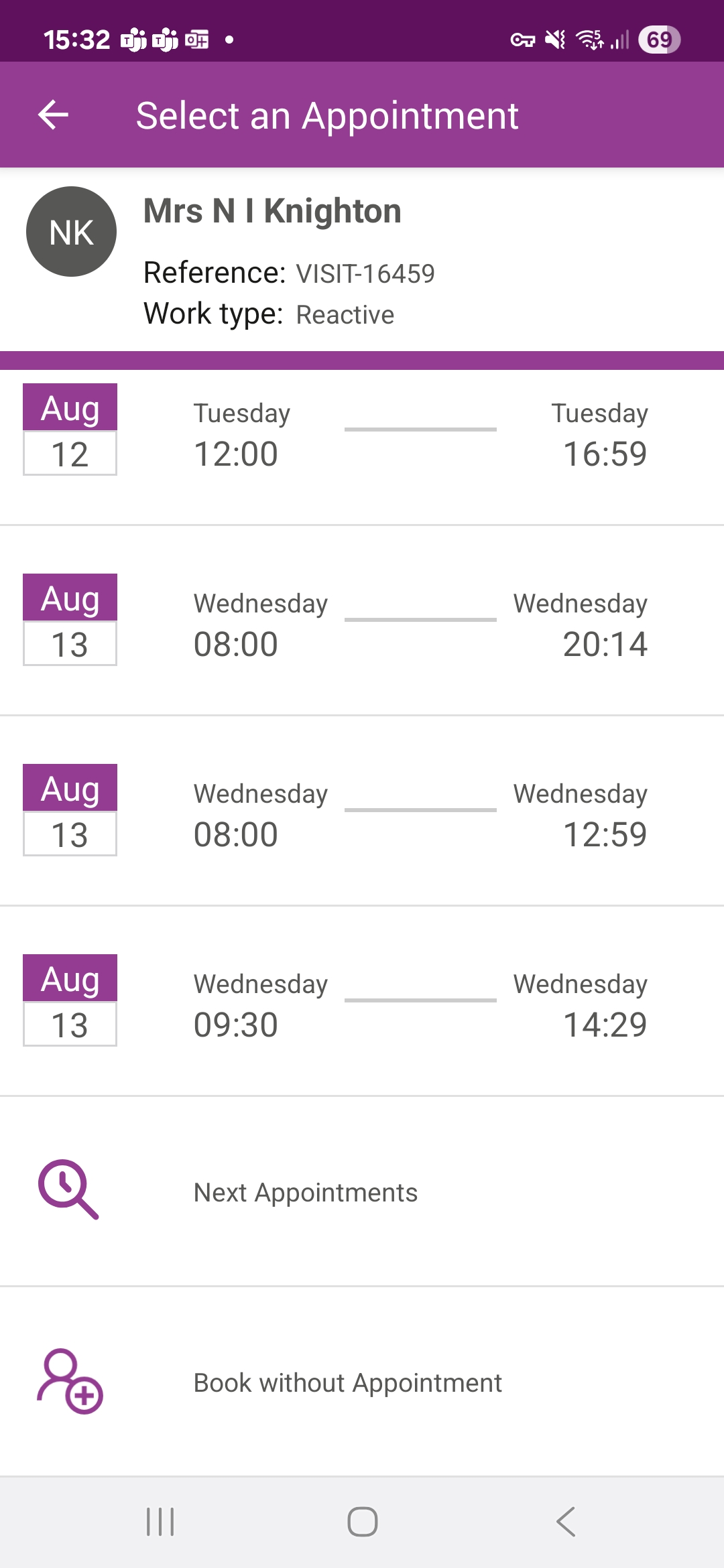
-
Next Appointments - select to see the next page of Available slots. However, once you have moved to the next page, you cannot go back to the previous page, the Available appointments need to be requested again.
-
Book Without Appointment - select if none of appointments meet your requirements, or if someone else needs to book the Follow Up Appointment.
-
-
Select the appointment slot to be booked. Select Yes when asked Do you wish to book this appointment?.
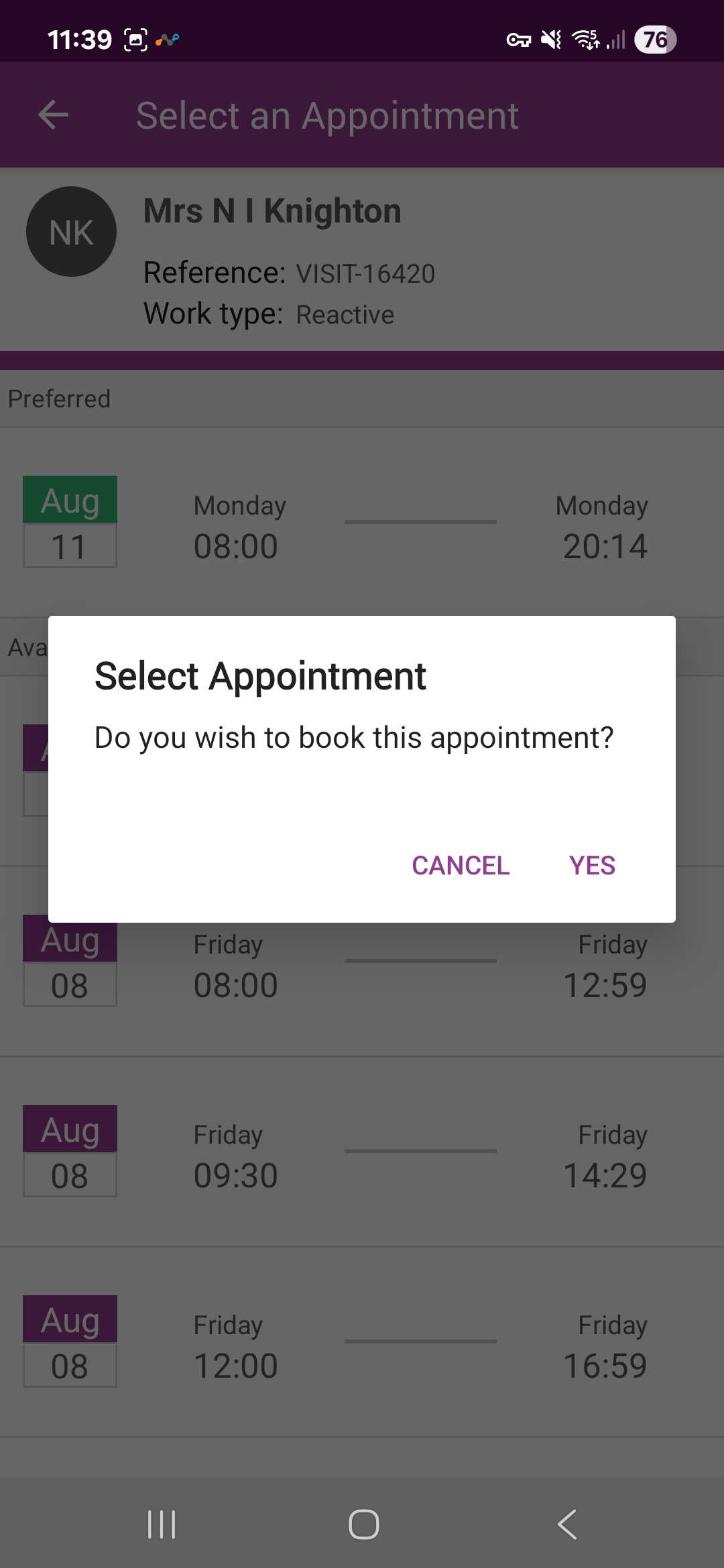
-
The request to book the selected appointment is returned to Connect. Once complete a confirmation message appears with the date and time of the appointment.
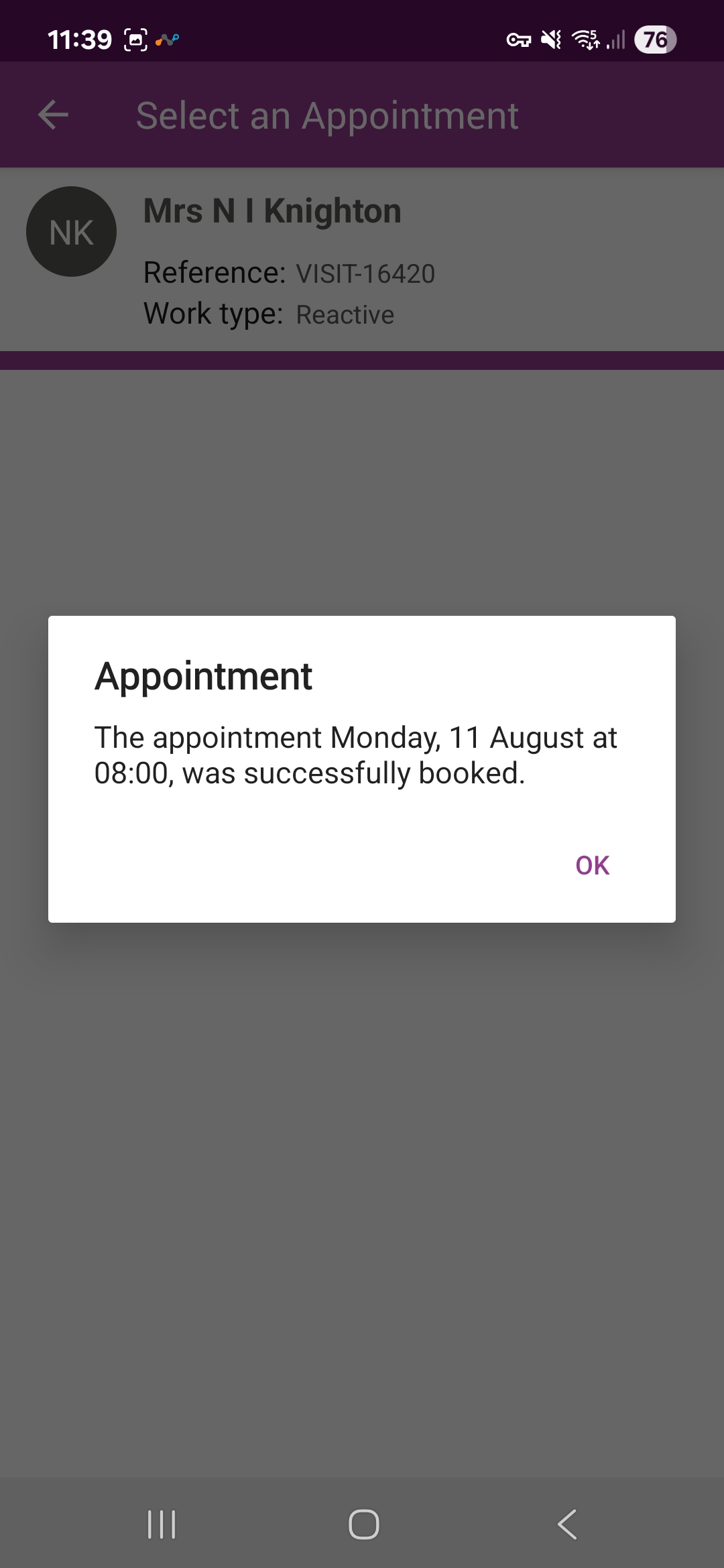
Select OK.
-
The follow up appointment Form is closed and cannot be reopened. If another follow on appointment is required, a new Task or Form must be added.
Book A Follow Up Without An Appointment
To book a follow up without an appointment:
-
Open the Form for the follow up appointment.
-
The Book next appointment screen appears.
This shows the following:
-
Durations - this is the duration for the follow up appointment, and defaults to the Standard Minute Value (SMV) for the SORs still to be completed for the current Visit. If configured, the duration can be updated:
-
Select Duration.
-
The Enter Value dialog appears.
Scroll through the Hours and Minutes to select the time required.
-
Select OK.
-
-
Preferred days - these are the preferred days for the follow up appointment, and default to the days selecting in the Follow Up Appointment Settings. If configured, the preferred days can be updated:
-
Select Preferred days.
-
The Select answer dialog appears.
Select each day to include, or exclude from the preferred days. Days to be included must have a tick against them.
-
Select OK.
-
-
Allocate to self? - this is available depending on the configuration in the Follow Up Appointment Settings. This defaults to Yes, meaning the follow up appointment is to assign you. If configured, this can be updated:
-
Under Allocate to self? select No.
-
The Select a Skill* field appears, select the field.
-
The Select a Skill* screen appears.
Either start to type the skill into the Type search criteria field and select it, or scroll through the list of skills and select it.
-
Upon selecting the skill you are returned to the Book next appointment with the Select a Skill field populated.
-
-
Select
to continue. -
Mobilise sends the request for available appointments to Connect. A loading screen appears while the available appointments are requested and returned.
-
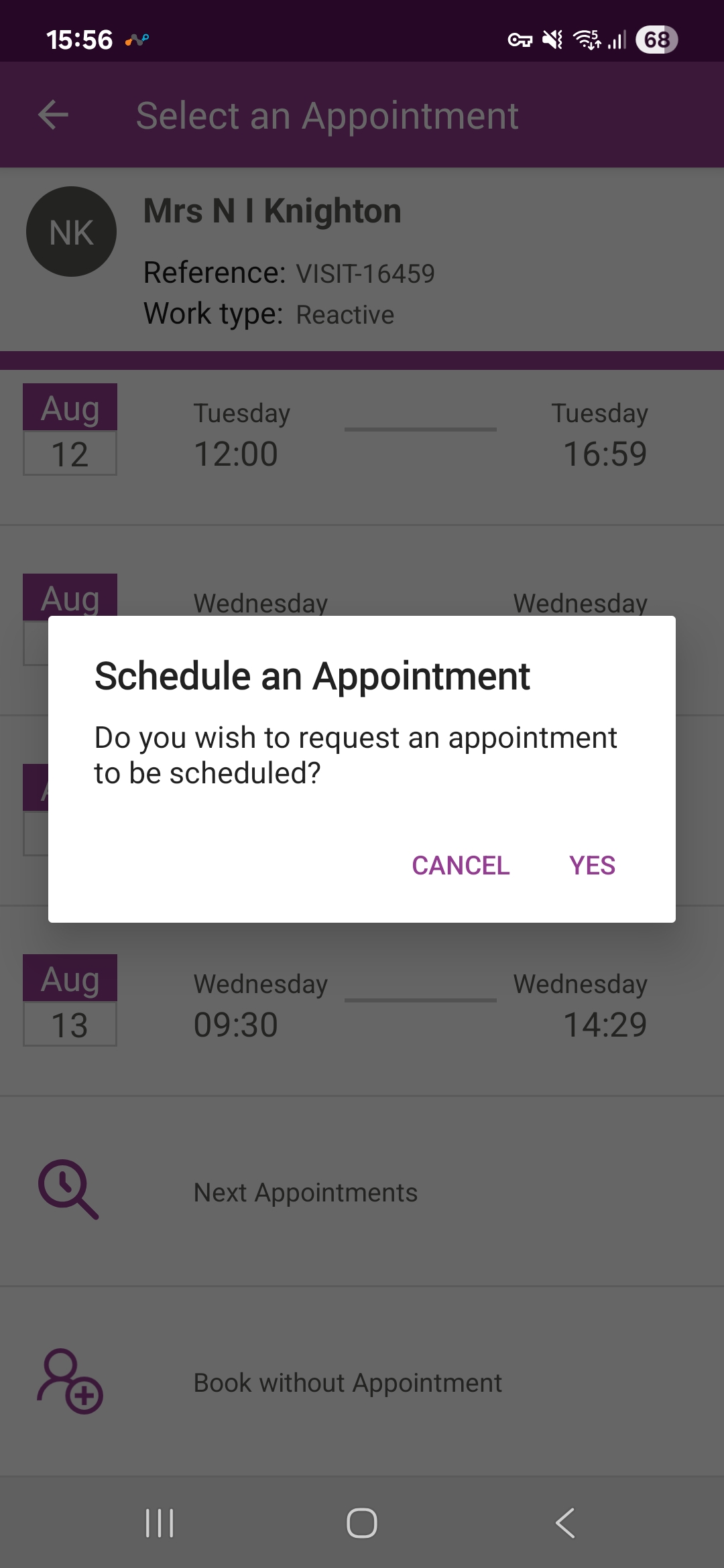
The Select an Appointment screen appears listing all matching appointments returned from Connect. Scroll to the bottom and tap Book Without Appointment.
-
When asked Do you wish to request an appointment to be scheduled? select Yes.
-
The appointment request is returned to Connect and the message An appointment has been requested appears.
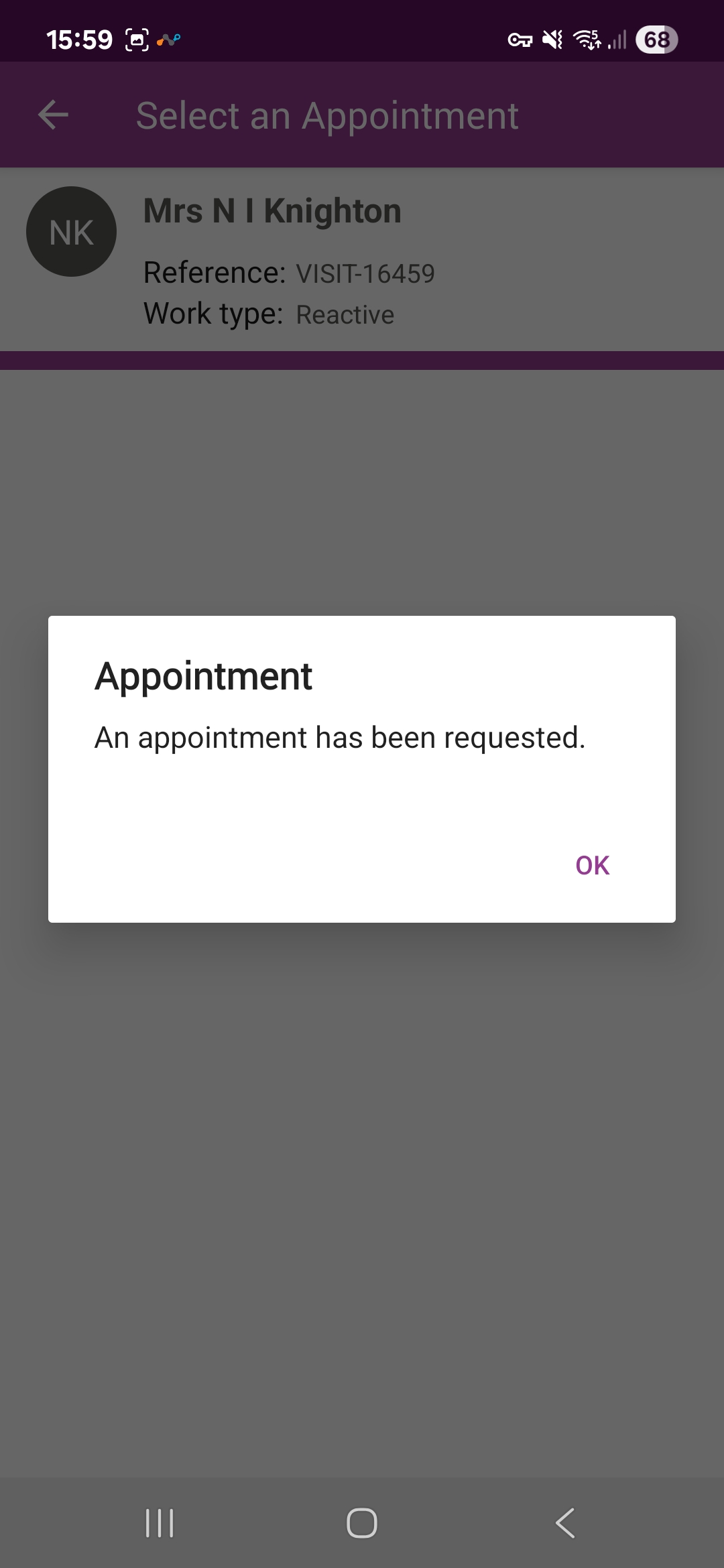
Select OK.
-
The follow up appointment Form is closed and cannot be reopened. If another follow on appointment is required, a new Task or Form must be added.