Catalogue List Control
The Catalogue List control allows you to add items in a form from lists. The searchable items are displayed as a list and the mobile user can add a quantity to the selected item.
Use the WebAdmin > Lists page to add and edit lists. For more details refer to Add a List.
Configure the Catalogue List Control
-
In WebAdmin, select Forms.
-
Navigate to an existing element within your form or select Insert a new Element
 .
-
Select Maintain element settings
 .
-
In the Update Element Details dialog:
-
Select the Catalogue List control.
-
Select the Text field, and enter a description for the control.
-
Select the Source Ref field, and either enter or select the List Reference.
-
Enter the Minimum number of items that can be selected from the list. This does not restrict the quantity of each item that can be selected.
-
Enter the Maximum number of items that can be selected from the list. This does not restrict the quantity of each item that can be selected.
-
If required, enter the Mapping Source.
This is used to map additional properties to the form. When you enter an additional properties parent in this field, the children are available for visit mapping for the element. For more details refer to Mapping. -
Select Save.
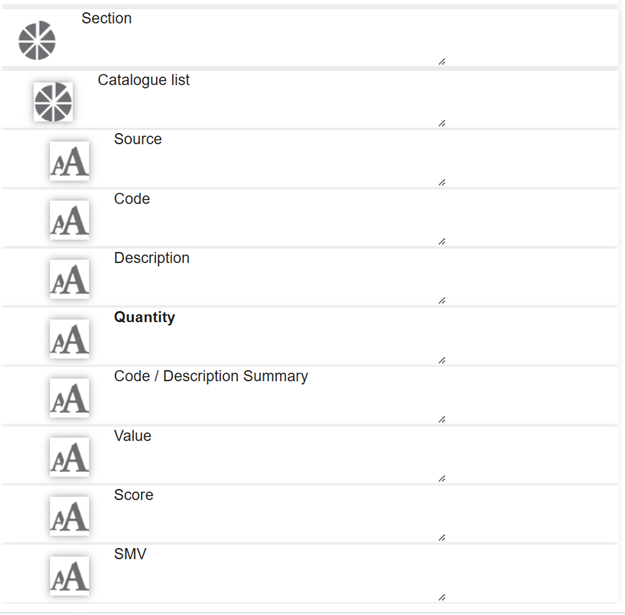
The element appears in the form with a set of pre-defined sub-elements.
-
-
If you entered a mapping source when configuring the control:
-
In the Source field, select Maintain element mappings
 .
-
Select the Visit Mapping field, and select an additional field property from the dropdown.
-
Toggle the Direction to In, Out, or Both.
-
Select Add
 .
-
Select Save.
-
Repeat the above steps for the Code, Description, Quantity and Value fields.
-
-
Save
 and Publish
 the form.
-
Ensure the form is assigned to an application or visit task within a solution.
Using the Catalogue List Control
 On Android
-
On the device, navigate to the form.
-
Select the Catalogue List control within the form.
-
In the Catalogue List screen:
-
Type to filter the items.
-
Tap on the number to increase the quantity, or select and hold the quantity to increase in increments of 10.
-
To edit the quantity, select and hold the product. In the Enter Value screen:
-
Enter a quantity.
-
Select OK.
-
-
To discard the quantity, select and hold a product. In the Discard confirmation screen, select YES.
-
-
Select the tick icon.
-
Submit the form.
On iOS
-
On the device, navigate to the form.
-
Select the Catalogue List control within the form.
-
In the Catalogue List screen:
-
Type to filter the items
-
Tap on the number to increase the quantity, or select and hold the quantity to increase in increments of 10.
-
To discard the quantity, swipe left on the product and select Clear.
-
Select Done.
-
-
Submit the form.