Conditional Section
You can apply a conditional section in a form that is dependent on answers from previous elements.
Configure a Conditional Section
-
In WebAdmin, select Forms.
-
Select an existing form, or select Add New Form to create a new one.
-
Navigate to an existing element within your form or select Insert a new Element
 .
-
Click Maintain Element Settings
 .
-
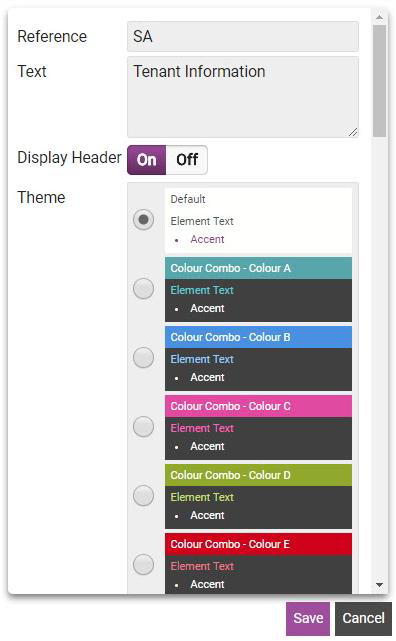
In the Update Element Details dialog:
-
Select the Conditional Section control.
-
Select the Text field, and enter a description for the new control.
-
Toggle Display Header On or Off.
When you set Display Header to On, the description in the Text field displays in forms on the Totalmobile app, which enables users to identify sections or groups of fields and complete forms with ease.
-
Select a Theme. For more details refer to Themes.
-
Select Save.
-
-
If required, select Promote element up a level
 to move the conditional section to the top level.
All Section elements must be at the top level, except for Repeatable Section elements which can be used at any sub-level of a form.
-
Navigate to a previous element, from which you want to route an answer to the conditional section - for example, Is the patient male or female?
-
Select Maintain element conditions
 .
-
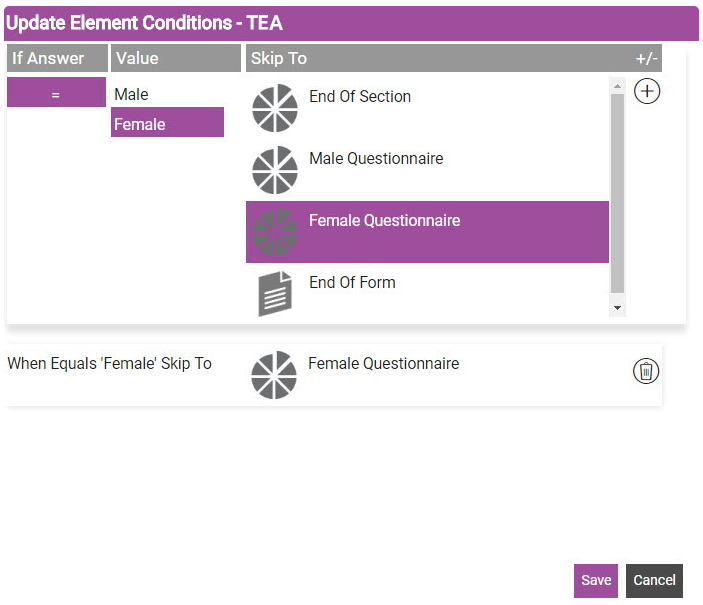
In the Update Element Conditions dialog:
-
Select a Value, for example Female.
-
Select a section to Skip To if the value is selected, for example Female Questionnaire.
-
Select Add
 .
-
Select Save.
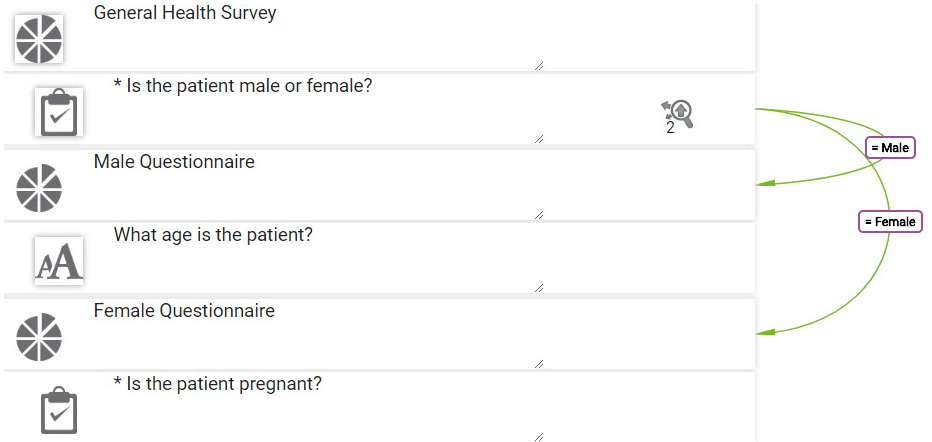
The conditions are displayed in the Form Designer:
-
-
Save
 and Publish
 the form.
-
Ensure the form is assigned to an application or visit task within a solution.
 Using Conditional Sections on Android
-
On the device, navigate to the form.
-
Navigate to the element with updated conditions.
-
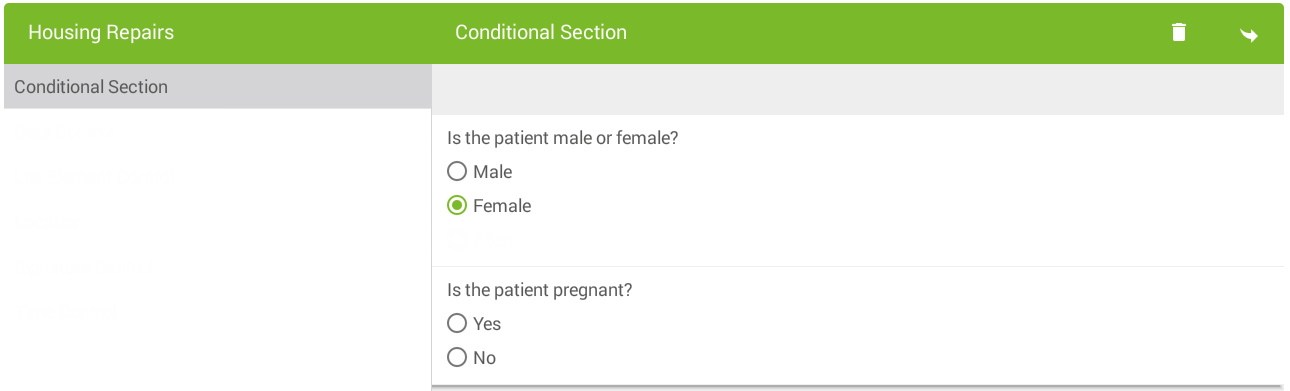
Select a value with conditions.
-
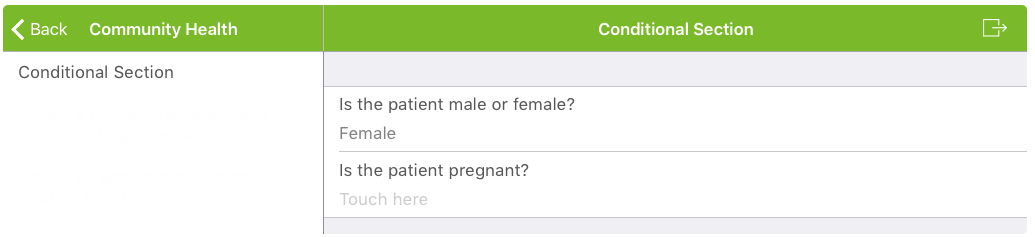
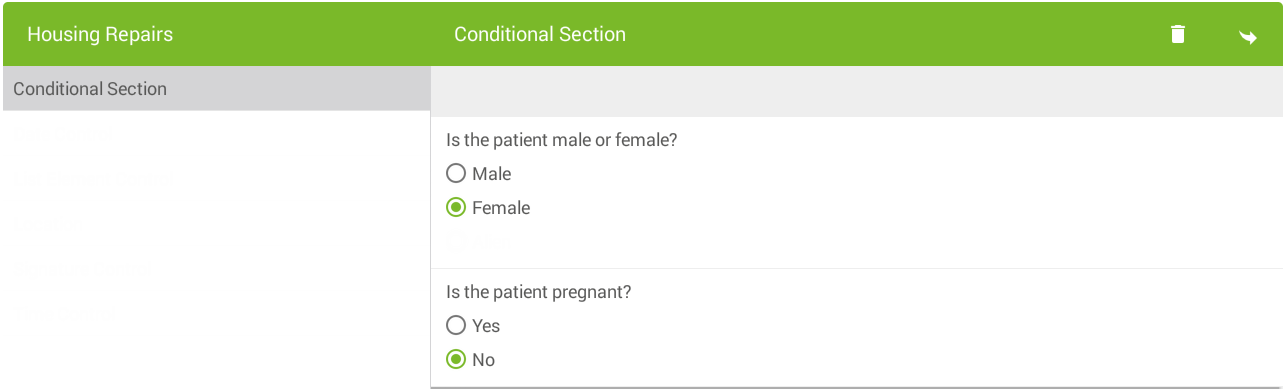
The form skips to the Conditional Section, for example the Male Questionnaire section of the form is left out as the patient is female.
Using Conditional Sections on iOS
-
On the device, navigate to the form.
-
Navigate to the element with updated conditions.
-
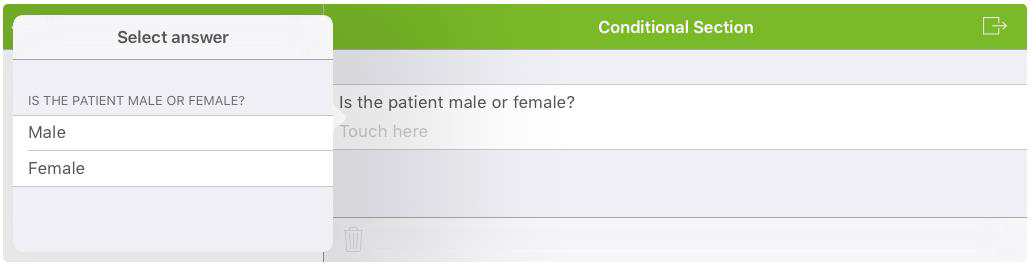
Select a value with conditions.
-
The Form skips to the Conditional Section, for example the Male Questionnaire section of the form is left out as the patient is female.