Follow Up Appointment Skills or Trade List
In order for users to be book follow up appointments to skills or trades, a List needs to be configured, and then assigned in the Follow Up Appointment Settings, click Follow Up Appointment Settings for more information on Follow Up Appointment Settings.
To configure a List:
-
On the Home page select Lists.
-
To create a new list select
 . The Add List dialog appears.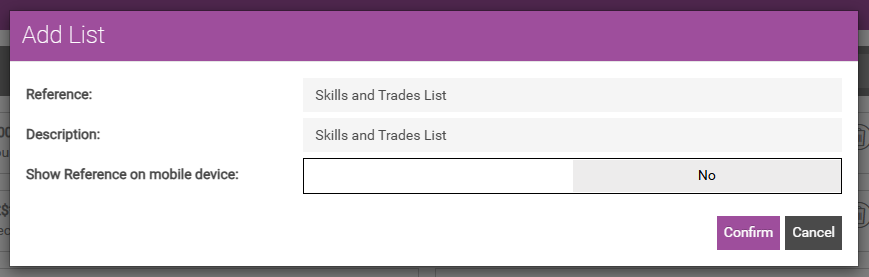
-
Enter a Reference.
-
Enter a Description.
-
Select the Show Reference on mobile device toggle to Yes or No.
-
Select Confirm.
-
-
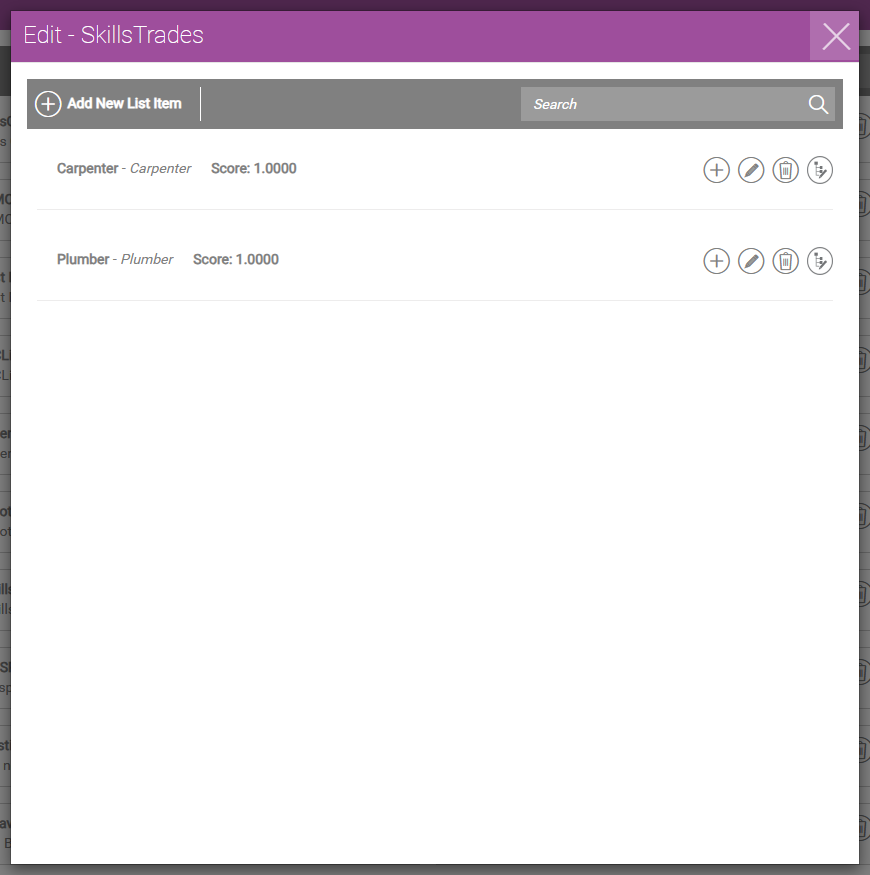
On the List page select the list to be configured. The Edit dialog appears.
-
Select
 to open the Add List Item dialog.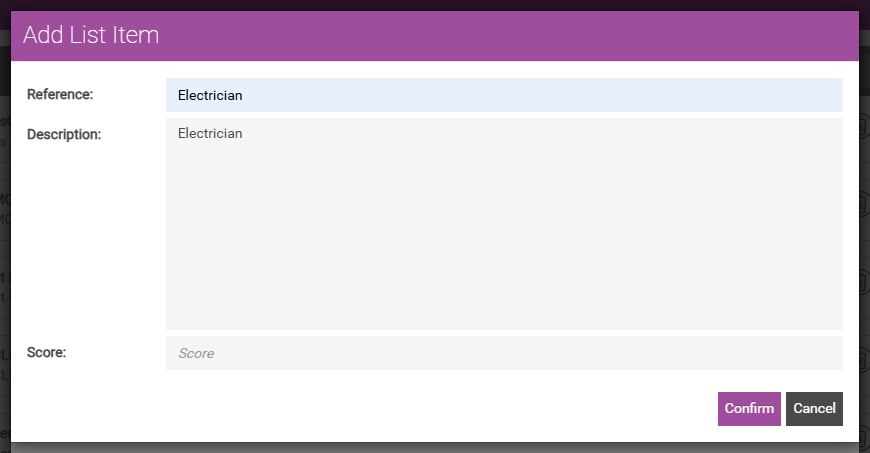
-
Enter a Reference. This is sent to the Provider (assigned in Follow Up Appointment Settings) as the Booking Type, and should therefore match a Booking Type External ID in the provider system.
-
Enter a Description. This is shown to the user on the device within the Follow Up Appointment form.
-
If required, enter a Score, however this is not necessary Follow Up Appointments.
-
-
Select Confirm.
-
Follow steps 4 - 5 for each List Item required.