Text Control
Use the Text control to enable text to be entered into a field within a form. You can also define regular expressions to validate the entered text.
Configure the Text Control
-
In WebAdmin, select Forms.
-
Select an existing form, or select Add New Form to create a new one.
-
Navigate to an existing element within your form or select Insert a new Element
 .
-
Select Maintain Element Settings
 .
-
In the Update Element Details dialog:
-
Select the Text control.
-
Select the Text field, and enter a description for the new control.
-
Select the Length field, and enter the maximum character length allowed.
-
Toggle Multi Line to On or Off as required.
-
If required, select the Mask field, and enter a regular expression.
Example: ^([a-zA-Z]){2}( )?([0-9]){2}( )?([0-9]){2}( )?([0-9]){2}( )?([a-zA-Z]){1}?$ to validate a UK National Insurance number. The accepted value types for this expression would be:
-
QQ 12 34 56 A
-
QQ123456A
You can also select the Mask Example field and enter an example, such as QQ123456A. This is displayed on the device if the user enters text that does not conform to the regular expression entered in the Mask field.
-
-
If required, select the Default Value field and enter default text for this element.
-
To enable barcode and QR code scanning in the control, toggle Barcode to On. For more details refer to Scan Barcode into Text Control.
-
Configure other control options as required. For more details refer to Form Sections and Controls.
-
Select Save.
-
-
Save
 and Publish
 the form.
-
Ensure the form is assigned to an application or visit task within a solution.
 Using the Text Control on Android
-
On the device, navigate to the form.
-
Select the Text control within the form.
-
Enter an answer that meets the requirements of the regular expression.
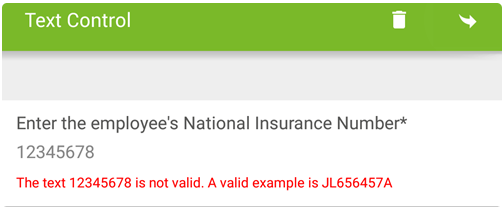
You will not be allowed to submit the form and will be prompted with a valid example if you enter an invalid answer:
Using the Text Control on iOS
-
On the device, navigate to the form.
-
Select the Text control within the form.
-
Enter an answer that meets the requirements of the regular expression.
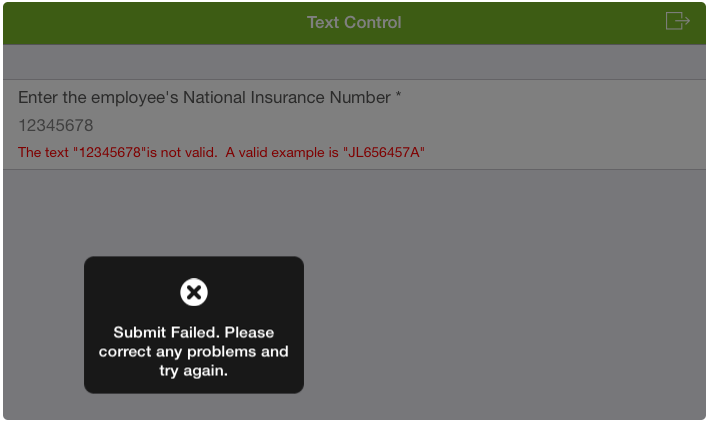
You will not be allowed to submit the form and will be prompted with a valid example if you enter an invalid answer: