Users
Use the WebAdmin > Users page to add users and edit user details. You can also add user attributes, view a user's device information, and deactivate user devices.
Prerequisites for User Administration
-
You need the Users permission to add a user or view or edit an existing user’s details. For more details refer to Permissions.
-
You need the User Attributes permission to edit an existing user's attributes. For more details refer to Permissions.
Add a User
-
In WebAdmin select Users.
-
Select Add New Users
 .
. -
In the Add User window:
-
Select the Username* field and enter a user name.
-
Select the Password* field, and create and confirm a password.
The password should contain 12-16 characters, including at least one uppercase letter, one lowercase letter, one number, and one symbol.
-
Enter information in the Forename*, Surname*, Job Title*, Email*, Re-enter Email*, and Contact Number* fields.
-
Optionally, select the Comment field and enter any other information about the user.
-
Toggle Password Never Expires to Yes or No. If set to Yes, the Password Expires After (Days) setting will not apply to the user.
When you set Password Never Expires to Yes, the user is exempt from password expiry. However, if a user's password is reset by another WebAdmin user or administrator, Totalmobile forces a password change when the user next signs in, regardless of the Password Never Expires setting.
For more details refer to Reset a User's Password. -
Toggle Approved to Yes or No. If No is selected, the user is not approved for activation and cannot be activated on a client device. For more details refer to Activation.
-
Select Save.
-
* Required field.
Edit User Details
-
In WebAdmin select Users.
-
Select a User.
Use the Search field to filter the list of users.
-
In the Profile section, select Edit.
-
On the Edit Profile page:
-
To set a user's profile picture, select Choose Image, then locate and select the required file.
-
Optionally, edit the information in the Forename*, Surname*, Job Title*, Email*, and Contact Number* fields.
-
Toggle Password Never Expires to Yes or No. If set to Yes, the Password Expires After (Days) setting will not apply to the user.
When you set Password Never Expires to Yes, the user is exempt from password expiry. However, if a user's password is reset by another WebAdmin user or administrator, Totalmobile forces a password change when the user next signs in, regardless of the Password Never Expires setting.
For more details refer to Reset a User's Password. -
Select Save.
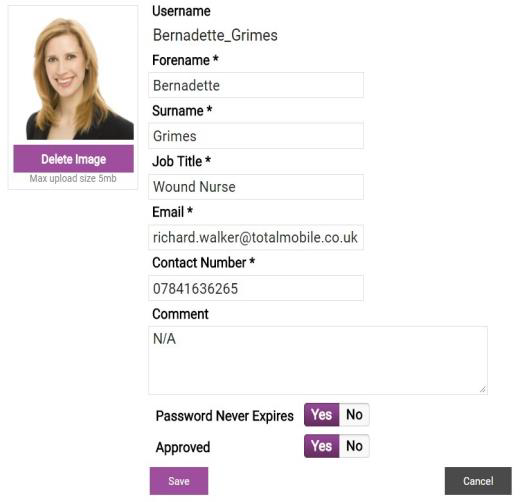
-
Delete a User
If a user is deleted in WebAdmin, they will not be able to sync on the device and any outstanding messages may fail to process.
-
In WebAdmin select Users.
-
Locate the user, then select the Delete icon.

-
When prompted to confirm the deletion, select Delete.
The user is permanently deleted.