Add a Goal
Use the Goals page in a referral to add goals against the service user. Each goal can optionally include one or more sub-goals, enabling you to break down larger goals into smaller, manageable steps.
You can associate tasks with both goals and sub-goals. When a task which is related or linked to a goal is added against a schedule of care, the goal is displayed on the care series screen and marked as In Progress.
When you create a new goal or sub-goal, you have the option to save it for use in other referrals. This enables you to create goals that are useful across a number of service users, or that are personalised for specific service users.
A summary of goals with scheduled and unscheduled tasks is also displayed on the Care Schedules page. For more details refer to Create a Care Schedule.
To add a goal to a referral:
-
On the Referrals tab, select a referral for the required service user.
-
In the Referral Summary panel, select Edit.
-
On the referral's navigation menu, select Goals.
-
Select Add Goal.
-
Select the Due Date* field, then select the date from the calendar.
-
Do one of the following:
-
Select the Select Goal* field, then select the applicable goal type, such as Improve diet, or Get dressed independently.
-
Select Create New Goal.
In the Add New Goal dialog:
-
Select the Name* field, then enter a goal name.
-
To make the new goal available in the dropdown for other referrals, select the Save as New Goal checkbox.
Do not select this option if the new goal is personalised for this service user.
-
Select Create Goal.

-
-
-
Enter additional information in the Description field.
-
Select the Sub-Goals tab.
-
Do one of the following:
-
Select the Search field, then search for an appropriate sub-goal.
-
Select Create New Sub-Goal.
In the Add New Sub-Goal dialog:
-
Select the Name* field, then enter a sub-goal name.
-
To make the new sub-goal available in the dropdown for other referrals, select the Save as New Sub-Goal checkbox.
Do not select this option if the new sub-goal is personalised for this service user.
-
Select Create Sub-Goal.
-
-
-
Select the Tasks tab.
-
Select one or more tasks to associate with the goal or its sub-goals. The available tasks and categories are configured on the Admin > Task Management page.
-
Select Save.
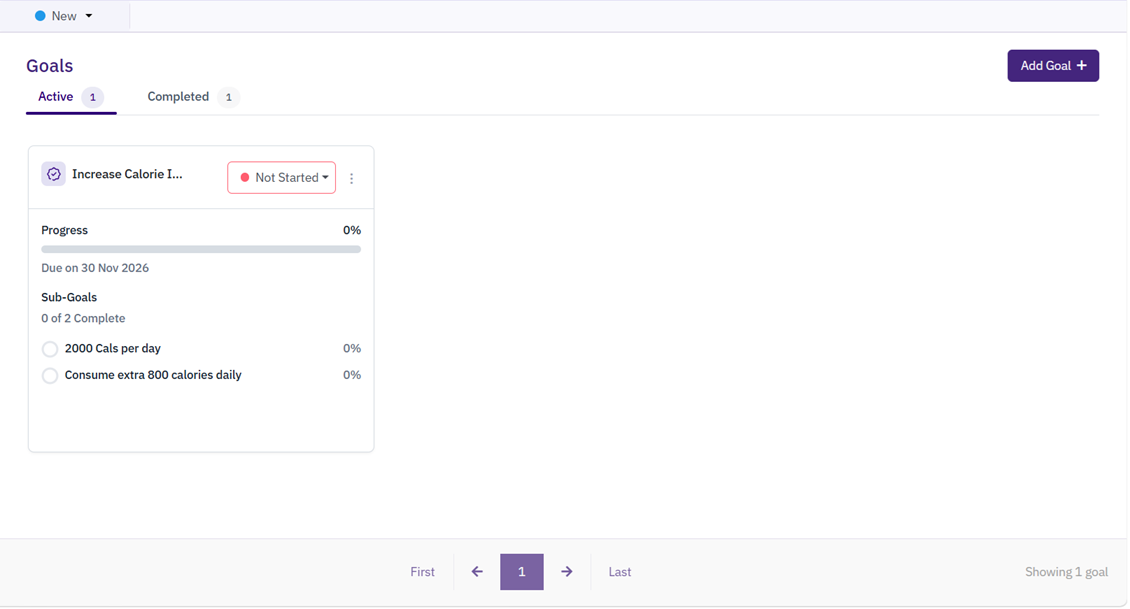
The new goal appears on the Active tab with the status Not Started.
* Required field.