Create a Care Schedule
You can create schedules of care associated with the same care package for multiple periods of time, but only one care plan is active at a time.
Once you have created the schedule of care, you can define and update recurring visits that follows a pattern inside the schedule of care, so that the visits can be dispatched to Dynamic Scheduling (Optimise) once the referral status is Live.
You can also:
-
Review the goals and tasks associated with the referral. For more details refer to Review Care Goals and Tasks.
-
Edit existing care schedules. For more details refer to Edit a Care Schedule.
-
Copy an existing care schedule to create a new one for modification. For more details refer to Copy a Care Schedule.
-
Check capacity, if you have the Admin role assigned. For more details refer to Capacity Checker.
Create a New Care Schedule
To create a new care schedule:
-
On the Referrals tab, select a referral for the required service user.
-
In the Referral Summary panel, select Edit.
-
On the referral's navigation menu, select Care Schedules.
-
Select the Existing Care Schedules field, and select Add New Schedule of Care from the dropdown.
-
Select the Start Date* field, then select the date from the calendar.
-
Optionally, select the End Date field, then select the date from the calendar.
-
Optionally, select the Work Type field and select a specific work type for the schedule from the dropdown. By default the care schedule applies to all work types.
-
Select Save.
Review Care Goals and Tasks
Use the Care Goals & Tasks section on the Care Schedules page to review the goals attached to the referral. You can quickly see which tasks are scheduled as part of a series of visits, and which ones are not yet scheduled.

This section is displayed when a referral has goals or sub-goals with linked tasks, even if the current schedule of care does not yet contain matching tasks.
To view a full summary of the goals associated with the referral, the currently scheduled tasks, and the unscheduled tasks, select the arrow icon  to expand the panel.
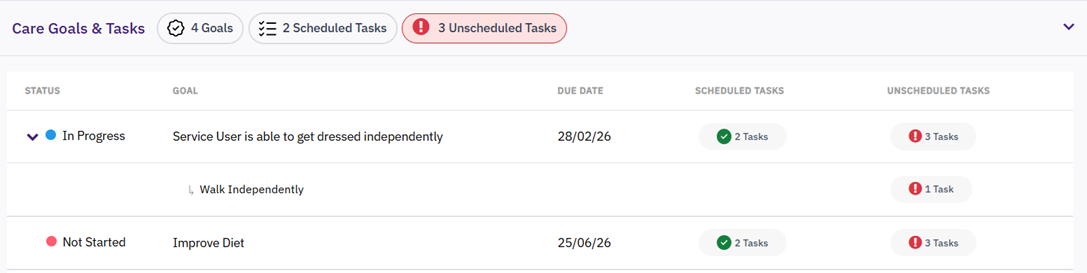
Hover over an item in the Scheduled Tasks or Unscheduled Tasks column to see further details of the tasks.
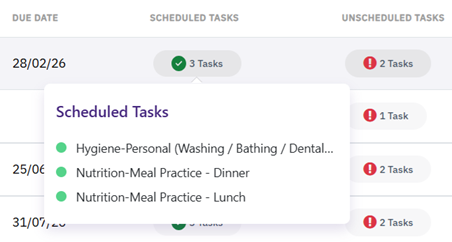
You can then add any unscheduled tasks in the appropriate places in the care schedule, as described in Add Visits to a Care Schedule below.
Add Visits to a Care Schedule
To add a series of visits to an existing care schedule:
-
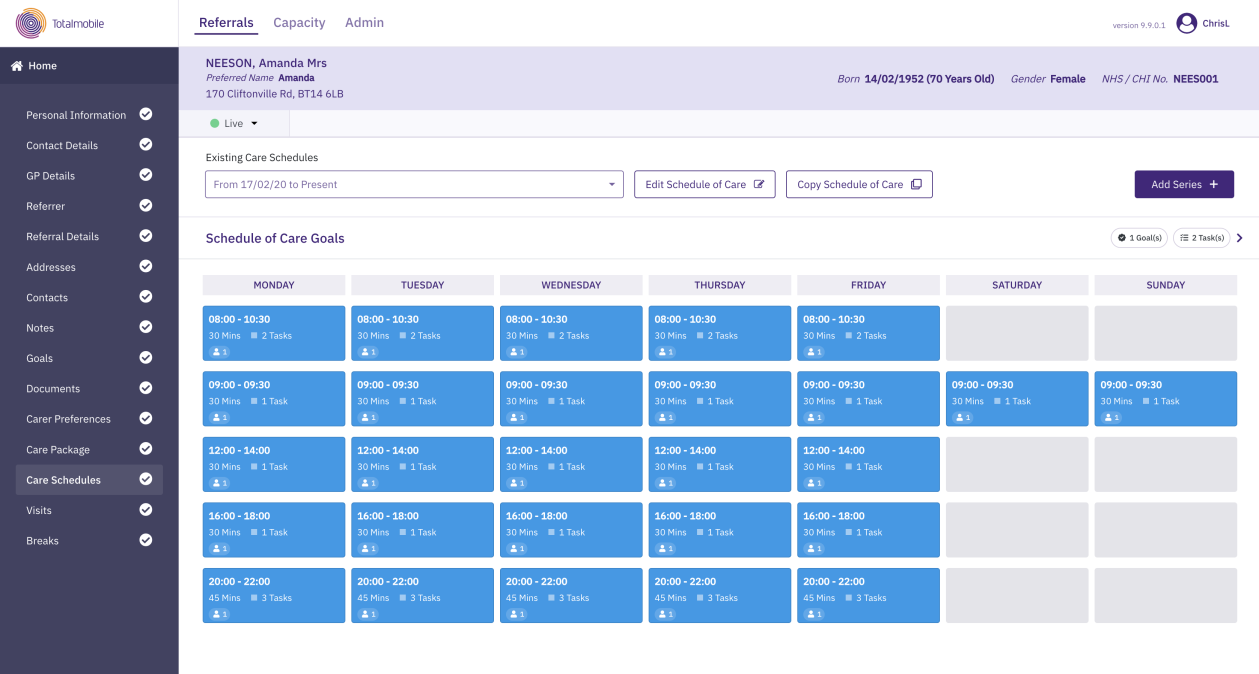
On the Care Schedules page, select the Existing Care Schedules field, then select the care schedule you wish to edit from the dropdown.
-
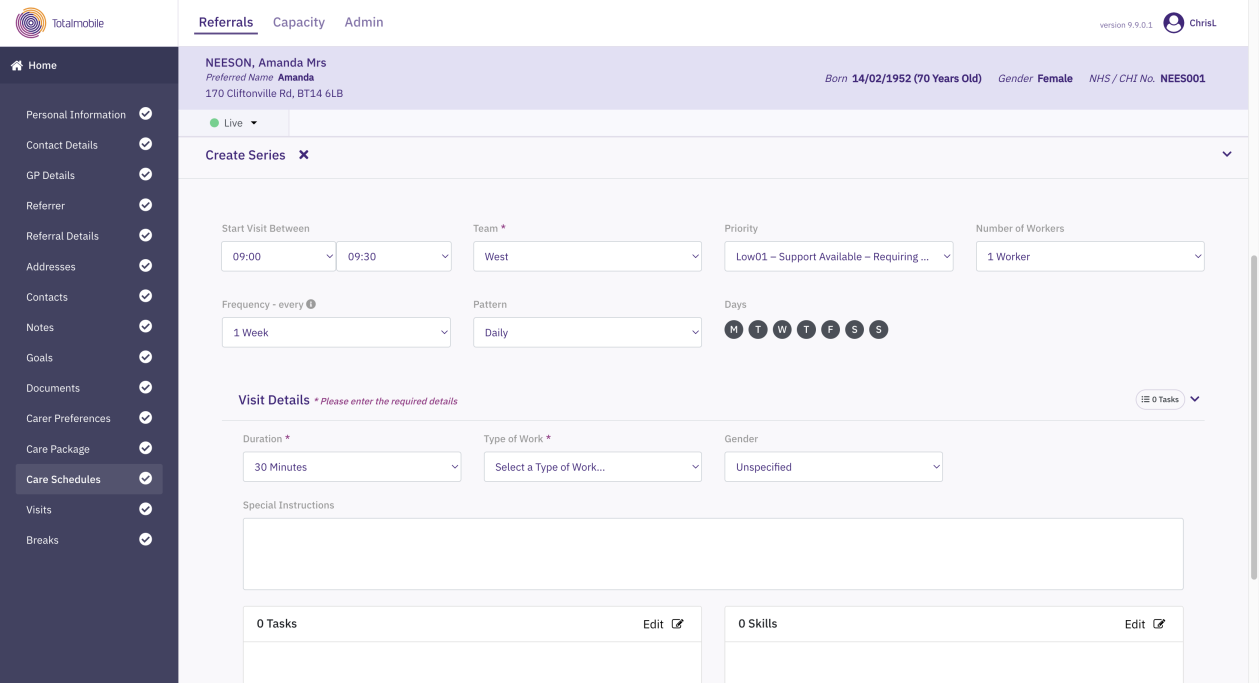
Select Add Series.
-
Enter the following information:
-
Start Visit Between - the time range agreed with the service user for the visit.
-
Team* - the team that is going to deliver the care.
-
Priority - the priority is inherited from the referral, but you can edit it for a particular schedule.
-
Number of Workers - if the visit requires multiple workers, multiple visits will be dispatched to Dynamic Scheduling (Optimise), and they will be allocated to different care workers.
-
Frequency, Pattern, Days
-
Duration - the time allocated for each visit
-
Type of Work* - the type of work that is going to be delivered. Types of work depends on the service type defined at the care package level. The type of work defines any skills required for the care worker in order to deliver the care.
-
Gender - if required, this scheduling criteria will be considered to allocate the visits to the right gender of care worker.
-
Special Instructions – notes which can be added to the visit series.
-
Tasks - select Edit to add one or more tasks for the visit.
-
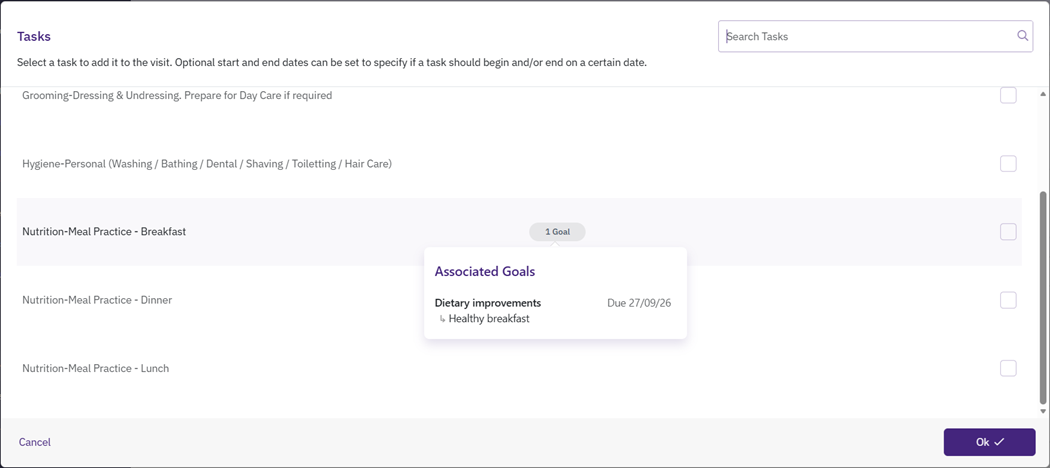
In the Tasks dialog, select one or more tasks and optionally define start and end dates for each task.
Tasks are defined on the Admin > Task Management page.
Tasks associated with goals or sub-goals in the referral include a tag that states how many goals include that task. Hover over a goal tag to see a summary of the associated goals and due dates.
-
Select OK.
The tasks will appear as part of the visit details in Mobile Working (Mobilise), where care workers can update progress and add supporting notes.
-
-
Skills - select Edit to assign skills to the visit. These will be matched with the skills a resource has.
-
-
Select Save.
Edit a Care Schedule
To edit a care schedule:
-
On the Care Schedules page, select the Existing Care Schedules field, then select the care schedule you wish to edit from the dropdown.
-
Select Edit.
-
Edit the Start Date*, End Date, and Work Type fields as required.
-
Select Save.
Copy a Care Schedule
To copy a care schedule:
-
On the Care Schedules page, select the Existing Care Schedules field, then select the care schedule you wish to edit from the dropdown.
-
Select Copy.
-
Select the Start Date* field, then select the date from the calendar.
-
Optionally, select the End Date field, then select the date from the calendar.
-
Optionally, select the Work Type field and select a specific work type for the schedule from the dropdown. By default the care schedule applies to all work types.
-
Select Copy.
If you have already created an open-ended care schedule (i.e. one without an end date) before the selected start date, you are given the option to close that plan at the start date of the new, copied care schedule.
The new care schedule is displayed with the same visit series as the copied schedule.
Edit a Visit Series
To edit a visit series in a care schedule:
-
On the Care Schedules page, select the Existing Care Schedules field, then select the care schedule you wish to edit from the dropdown.
-
In the series you want to edit, select a visit.
-
In the Edit Series panel, edit the fields as described in Add Visits to a Care Schedule.
-
Select Save.
* Required field.