Profiles
Profiles are linked to directly to people, Actions, Escalation stages, and Hierarchy Settings.
-
Actions are the responses, which you specify the system to perform, to certain events occurring. Each action can be a series of one or more steps, each of which sends an email message, an SMS message, or an Alert Manager message.
-
Escalation stages allow the system to send messages that have had no response to other people as required.
-
Sending to a Hierarchy when a person raises an alarm causes all other people who share the same hierarchy item to receive a message.
You can assign one or more actions to each profile. Refer to the profiles page within each module for a list of profiles.
Assigning profiles to users
You can assign profiles to a person, such as a lone worker, when you add a new person or amend a person's profile settings.
To add a person or amend a person's profiles, navigate to People List by selecting it from the People Menu in the navigation menu.
-
Adding a new person: From the People List page, select Add New Person. First enter their information in the Common Settings and Personal Details, and then scroll down to the profile settings. Refer to Adding a user.
-
Amending profiles for existing people: From the People List page, locate and select the person's name to load their Person page. Select Settings, and scroll down to the profile settings. Refer to Amend an existing Person profile.
The available profiles and settings, such as the associated actions and escalation stages, can differ depending on the configuration of your site.
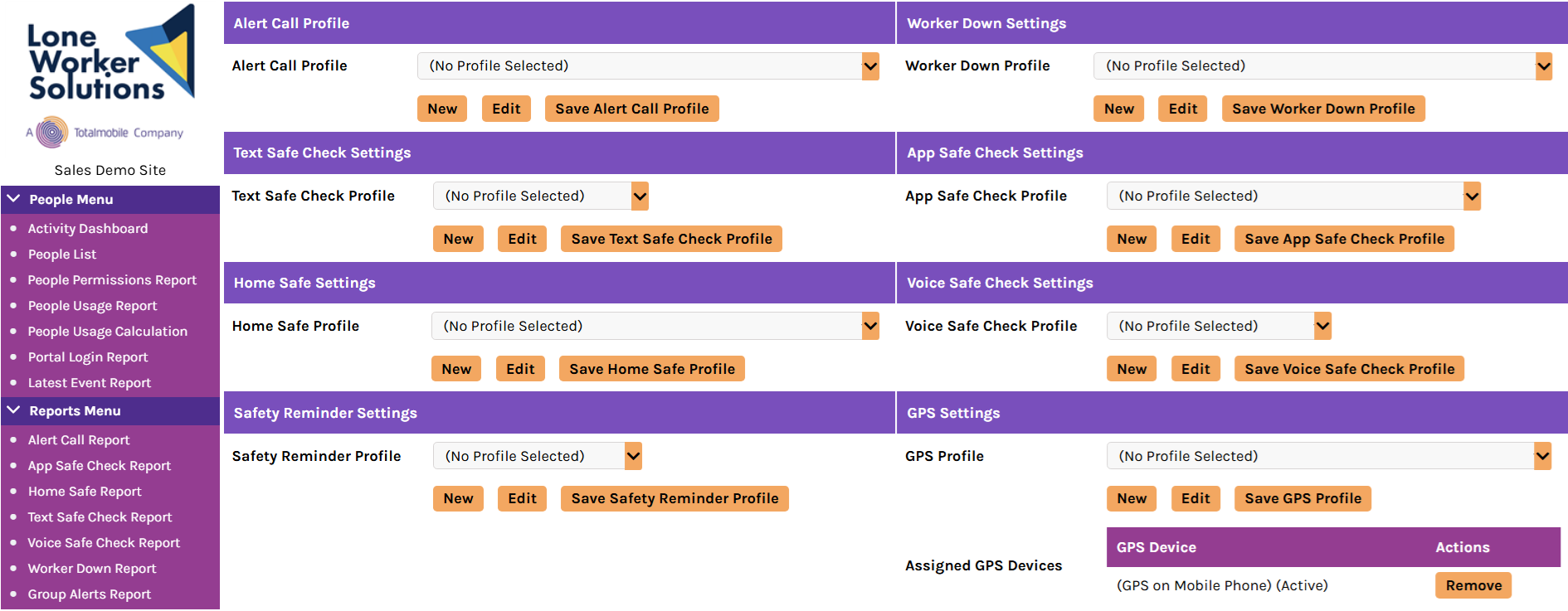
Example profile settings for a lone worker
The following profile settings are an example for a person who is a lone worker. You can assign profiles by selecting the following profiles from the associated drop-down menus (from left to right):
-
Alert Call Profile — from the Alert Call Profile menu select Teleware BS8484 and select Save Alert Call Profile
-
Worker Down Settings — from the Worker Down Profile Worker menu select Worker Down No Movement Profile and select Save Worker Down Profile
-
App Safe Check Settings — from the App Safe Check Profile menu select App Safe Check 60 and select Save App Safe Check Profile
-
Home Safe Settings — from the Home Safe Profile menu select an appropriate profile and select Save Home Safe Profile
-
Voice Safe Check Settings — from the Voice Safe Check Profile menu select an appropriate profile (only if the person will use a device that has Voice Safe Check) and select Save Voice Safe Check Profile
-
Safety Reminder Settings — select an appropriate setting from the Safety Reminder Profile menu and select Save Safety Reminder Profile
-
GPS Settings:
-
From the GPS Tracker Profile menu, select Default GPS Locate Profile and select Save GPS Profile
-
From the Available GPS Devices menu, select a device to link to the person and then select Add
The system displays Assigned GPS Devices and a device if it automatically assigns a device to the person. If it is the incorrect device, select Remove and then select OK to the dialog that appears. To assign a device to the person, select a device from the Available GPS Devices menu and select Add. -