Adding a user
To add a new user:
-
Select People List from the People Menu in the navigation menu.
-
The portal displays the People List page. By default, it displays Active users. Select Add New Person.

-
The Add New Person dialog appears. Enter the name of the person, for example their first name and last name, and then select Add New Person.
 If a person with the name that you entered already exists in the system, the dialog displays a message to notify you of this. In this scenario, you must enter a different name for the user.
 -
The Person page loads and displays the Common Settings and Personal Details sections; complete and save each section separately. In Common Settings, enter the information about the person and select the settings that you want to assign to them. Then select Save Settings.
-
In Personal Details, add any additional information that you have about the user if known and appropriate. Then select Save Personal Details.
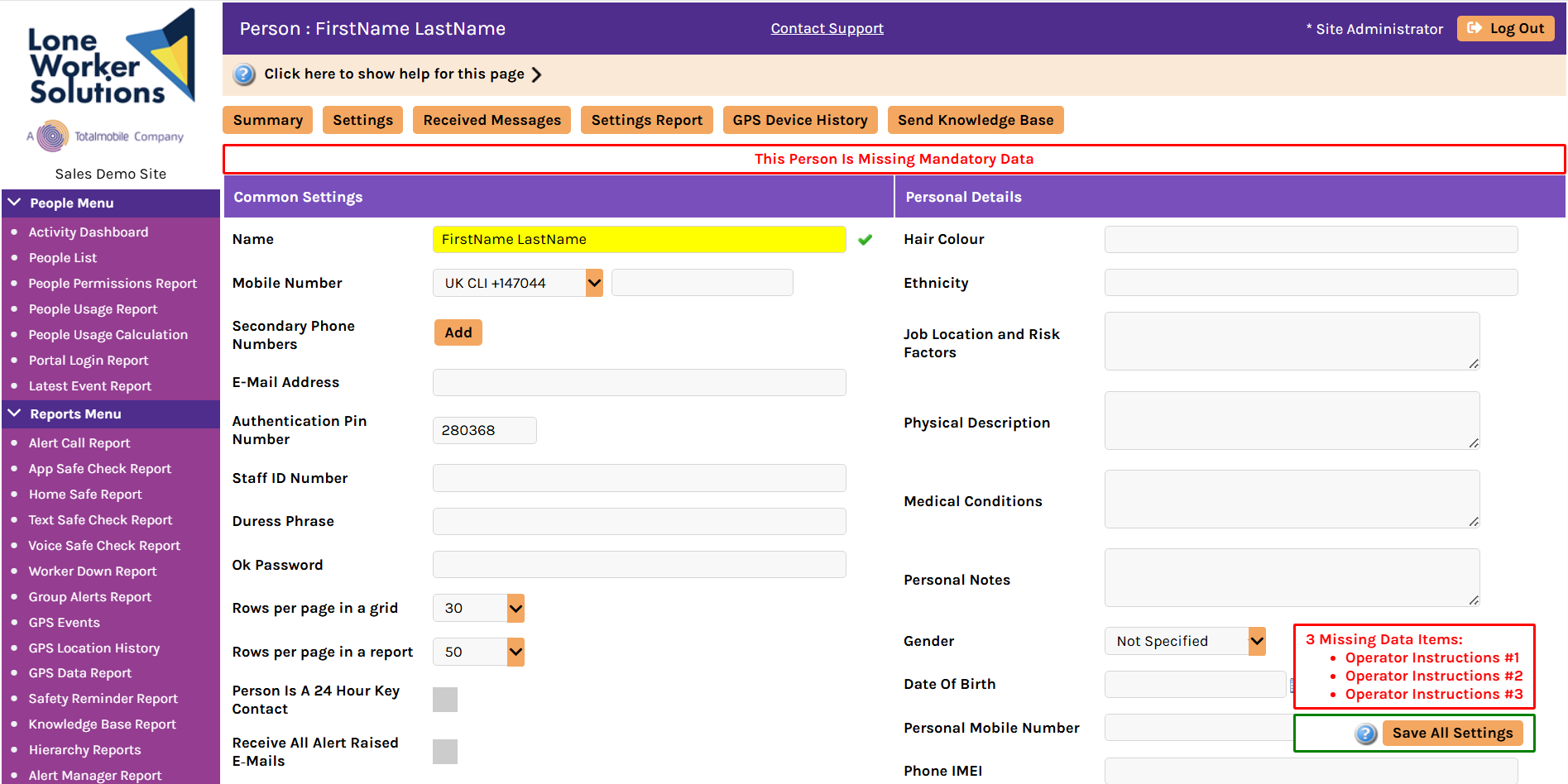 This information may be important for personal safety reasons. However, you can save the new user first and recommend that the person provides this information about themselves afterwards via the Knowledge Base. For more information, refer to Update Personal Details.
 -
Select the profile settings for the person. The available profiles or settings can differ depending on the configuration of your site. Select the following profiles from their associated drop-down menus if they are available (from left to right):
-
Alert Call Profile — from the Alert Call Profile menu select Teleware BS8484 and select Save Alert Call Profile
-
Worker Down Settings — from the Worker Down Profile Worker menu select Worker Down No Movement Profile and select Save Worker Down Profile
-
App Safe Check Settings — from the App Safe Check Profile menu select App Safe Check 60 and select Save App Safe Check Profile
-
Home Safe Settings — from the Home Safe Profile menu select an appropriate profile and select Save Home Safe Profile
-
Voice Safe Check Settings — from the Voice Safe Check Profile menu select an appropriate profile (only if the person will use a device that has Voice Safe Check) and select Save Voice Safe Check Profile
-
Safety Reminder Settings — select an appropriate setting from the Safety Reminder Profile menu and select Save Safety Reminder Profile
-
GPS Settings:
-
From the GPS Tracker Profile menu, select Default GPS Locate Profile and select Save GPS Profile
-
From the Available GPS Devices menu, select a device to link to the person and then select Add
For more information about profile settings, refer to Profiles.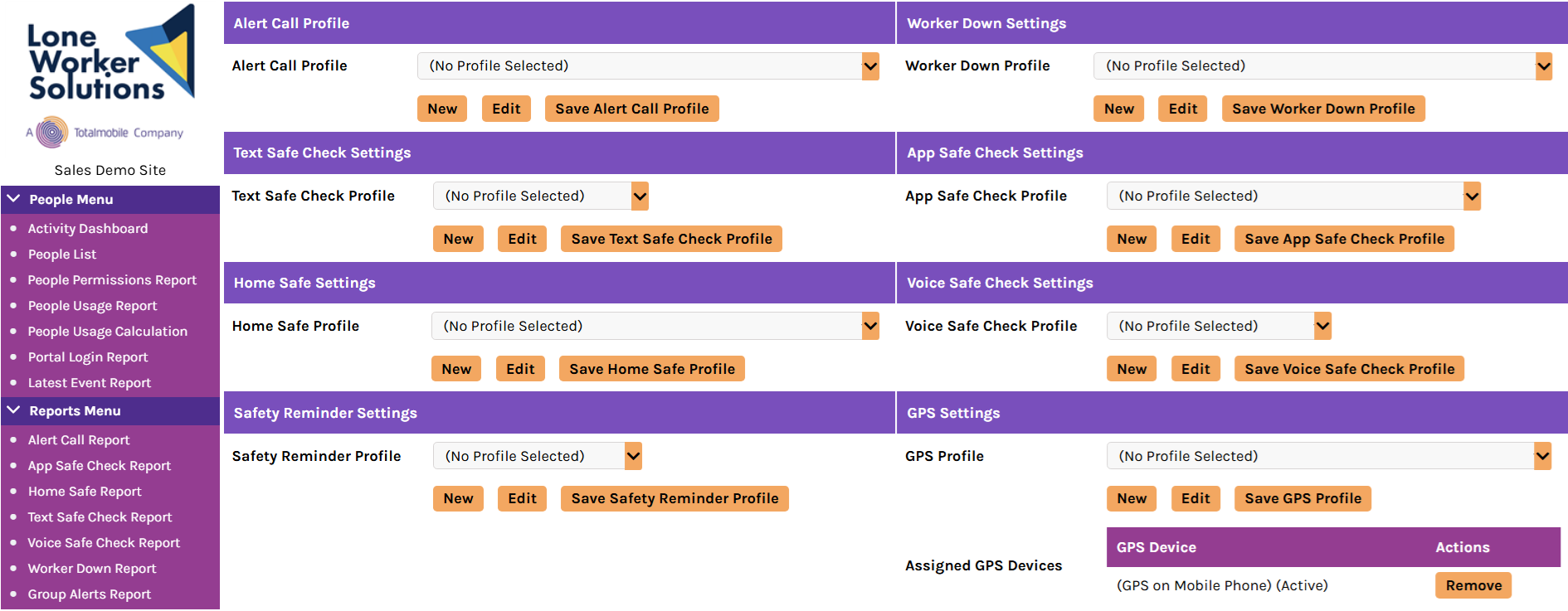 The system displays both Assigned GPS Devices and a device if it automatically assigns a device to the person. If it is the incorrect device, select Remove and then select OK on the dialog that appears. To assign a device to the person, select a device from the Available GPS Devices menu and select Add.
 -
-
-
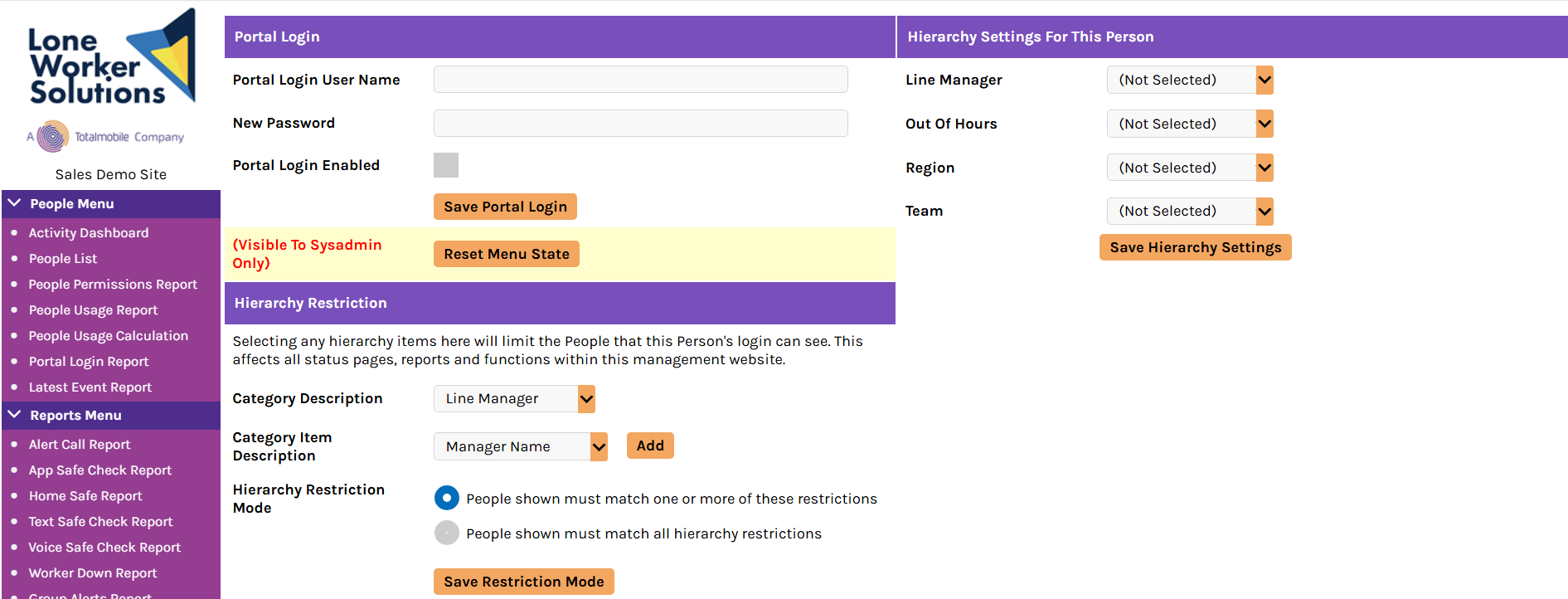
Configure the Portal Login settings for the person and then select Save Portal Login:
-
Portal Login User Name — enter a user name for the person; for example the email address of the person
-
New Password — enter a password for the person
-
Portal Login Enabled — select the check box to check it if you want to enable this setting
-
-
Configure the Hierarchy Settings For This Person — this is optional. You can assign only one item from each category. Then select Save Hierarchy Settings. For more information, refer to Hierarchy Settings.
-
Configure the Hierarchy Restriction for the person and select Save Restriction Mode. Selecting any hierarchy items here limits the People that this person can see. This affects all status pages, reports and functions within the management website.
-
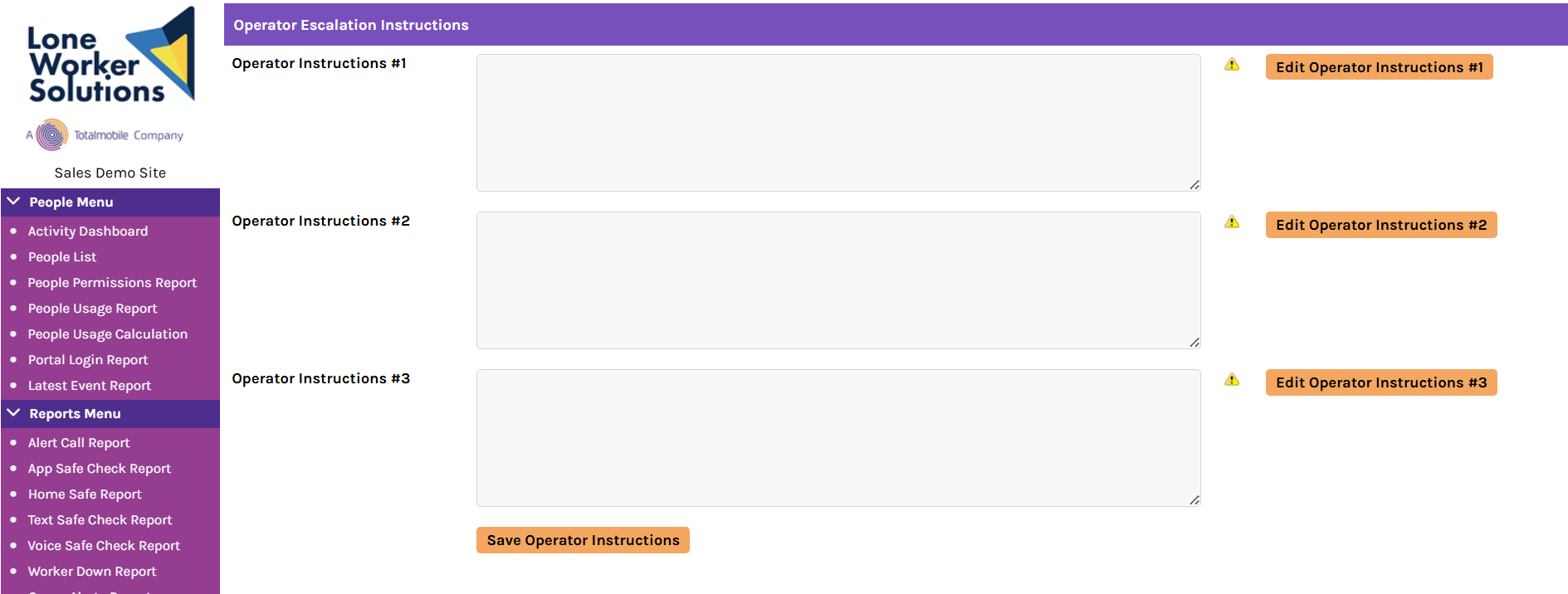
Configure the Operator Escalation Instructions for the person by entering the operator actions for the user in the boxes. You may see a list of instructions under Available Substitution Tags, which you can use to automatically enter information that is already populated on the person's profile. For more information, refer to Operator Escalation Instructions.
-
Configure the Portal Login Permissions for the person — you can go through the list to select specific permissions or select one of the following preset options. Once finished, select Save Permissions.
-
Grant All Permissions
-
Revoke All Permissions
-
Toggle Report Permissions
-
Grant All Read Only Permissions
-
Copy Permissions From (1) — if you want to use this setting, select a person who is already registered in the Portal, and then select Copy Permissions
-
Copy Permissions From (2) — if this optional setting is available, you can copy permissions from a custom template; to use it, select the template from the menu, and then select Copy Permissions
The Copy Permissions From (2) custom permissions template setting is optional and available only if it is enabled for your particular site configuration. It allows you to save a permissions profile as a template that you can apply in the Settings page of a Person profile, rather than selecting each permission individually. If you want to learn more or use custom permissions templates, contact your Totalmobile Account Manager who can arrange to configure this for you.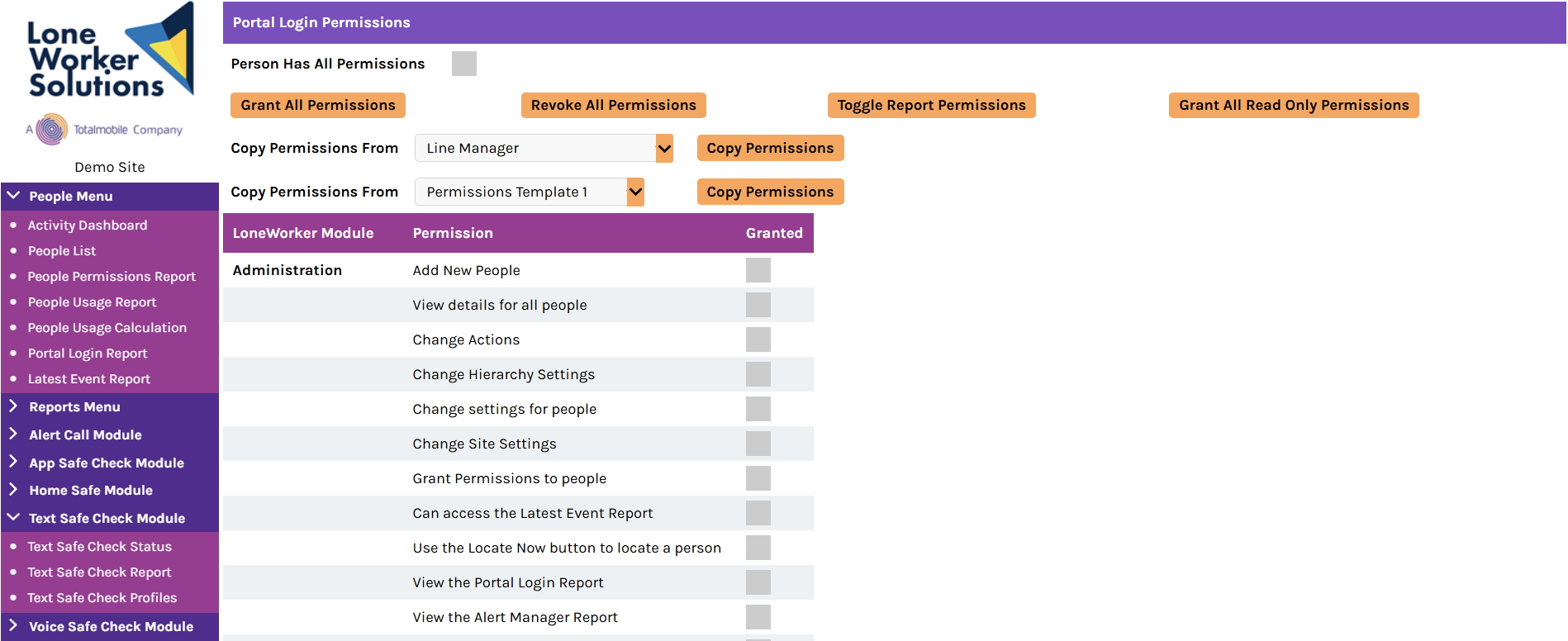 For more information about permissions, refer to Permissions.
 -
-
Once you have finished providing the information and settings for the person, select Save All Settings from the bottom of the Person page.
