Referrals Lists
In order to complete referrals in Referral Management, you must set up the following lists in WebAdmin. The contents of these lists populate dropdowns required in the referral process.
-
Gender - list values correspond to the dropdown when selecting a Gender in the Personal Information section.
-
Ethnicity - list values correspond to the dropdown when selecting an Ethnicity in the Personal Information section.
-
Nationality - list values correspond to the dropdown when selecting a Nationality in the Personal Information section.
-
Marital Status - list values correspond to the dropdown when selecting a Marital Status in the Personal Information section.
-
Religion - list values correspond to the dropdown when selecting a Religion in the Personal Information section.
-
First Language - list values correspond to the dropdown when selecting a First Language in the Personal Information section.
-
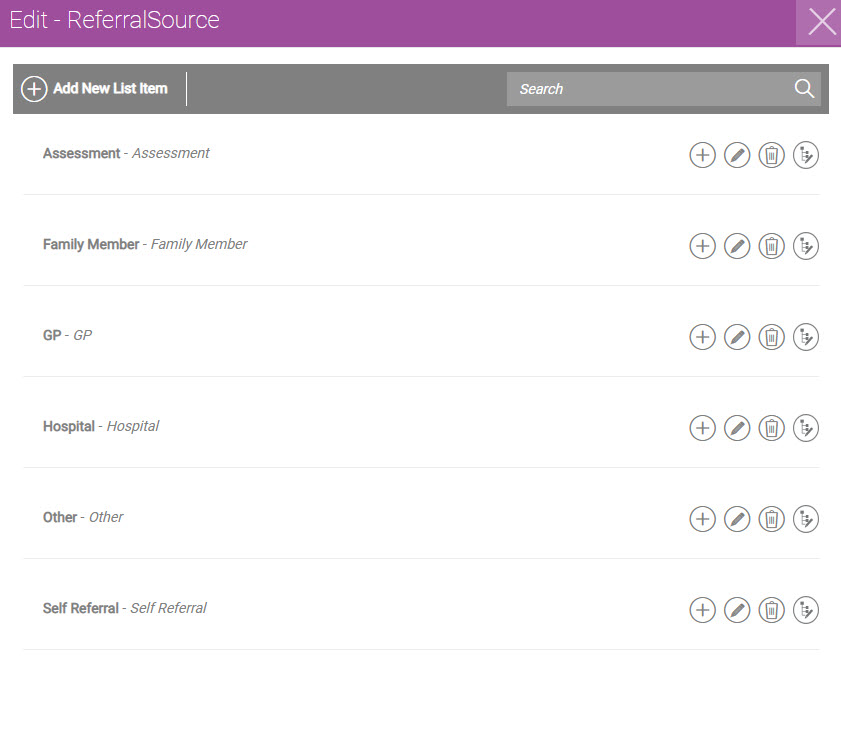
Referral Source - list values correspond to the dropdown when selecting a Referral Source in the Referrer section.
-
Title - list values correspond to the dropdown when selecting a Title in the Referrer section.
-
Relationship - list values correspond to the dropdown when selecting a Relationship in the Referrer section.
-
Referral Reason - list values correspond to the dropdown when selecting a Referral Reason in the Referral Details section.
-
Goal - list values correspond to the dropdown when selecting a Goal Type in the Goals section.
-
Sub-Goal - list values correspond to the available options when selecting a Sub-Goal in the Goals section.
-
Close Goal Reason - list values correspond to the dropdown when manually closing a goal in the Goals section.
You can also create goals and sub-goals as part of the referral process. If you do this, you can opt to synchronise those goals and sub-goals with the WebAdmin lists so that they are available in other referrals. For more details refer to Add a Goal.
Create a List
To create and populate a Referral Management list:
-
In WebAdmin, select Lists.
-
Select Add New List
 .
. -
In the Add List dialog:
-
Select the Reference* field and enter one of the list titles referenced above.
-
Select the Description* field and enter a list description.
-
Toggle the Show Reference on mobile device field to either Yes or No to define whether the list should be shown on a user's device.
-
Select Confirm.
-
-
On the Lists page, select the list to be configured.
The Edit dialog appears.
-
Select Add New List Item.
-
In the Add List Item dialog:
-
Select the Reference* field and enter a list item.
-
Select the Description* field and enter a description of the item.
-
Select Confirm.
-
* Required field.