View Goal Details
Use the Goal Detail page to review a service user’s goal, understand progress over time, and see the activity that has contributed to that progress.
This page includes the complete history of progress updates recorded against a goal or sub-goal in Mobile Working (Mobilise). For more details refer to Update Visit Goals in the Mobile Working for Referral Management User Guide.
To view a goal's details:
-
On the Referrals tab, select a referral for the required service user.
-
In the Referral Summary panel, select Edit.
-
On the referral's navigation menu, select Goals.
-
On the Active tab, view a goal's details by doing one of the following:
-
Select the goal name.
-
Select the goal menu, then select View from the dropdown.
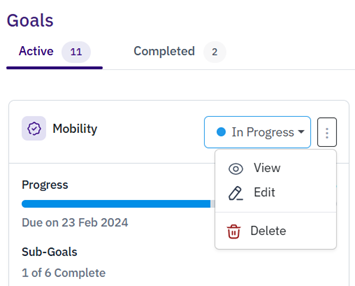
You can also view details for completed goals by selecting the Completed tab and then selecting a goal from the list.
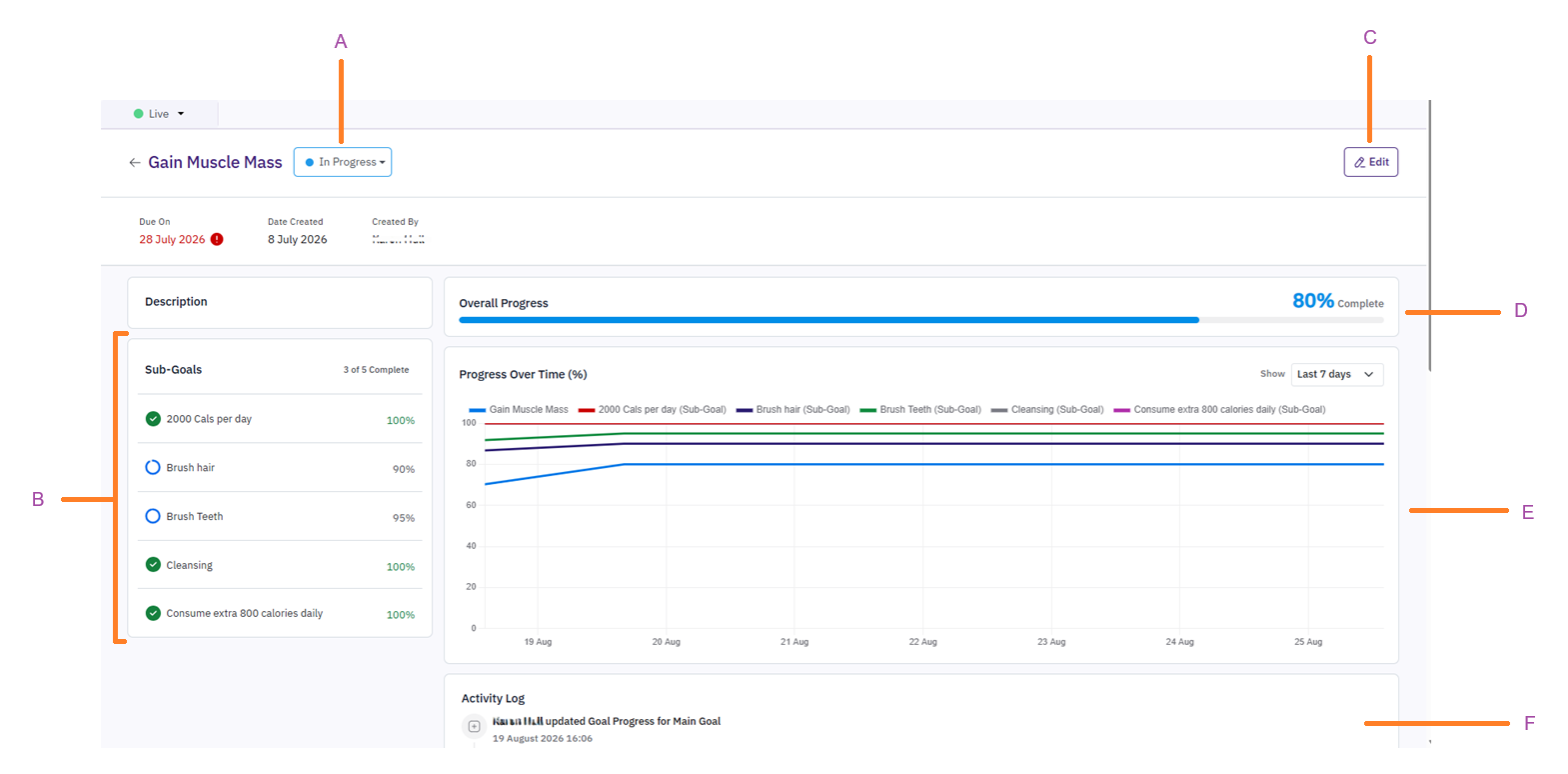
The Goal Detail page includes the following:
A: Goal status - this is automatically updated as a goal progresses. For example, when a care worker updates a goal with Not Started status, it automatically moves to In Progress. To update the status manually, select a option from the dropdown.
You can close a goal at any stage, regardless of its status. If you select Closed from the dropdown, you will be prompted to select a reason for closing the goal and optionally add supporting notes. Closed goals cannot be edited or reopened.
B: Sub-goals - lists the progress of individual sub-goals.
C: Edit - select to edit the goal, sub-goal and task details.
D: Overall Progress - displays the overall goal progress as a percentage. Once the goal reaches 100%, it is automatically updated to Goal Achieved.
E: Progress Over Time - shows how the goal has changed over time, enabling you to quickly understand whether the goal is progressing as expected. To see a different time frame for the progress, select the Show field, then select an option from the dropdown.
F: Activity Log - shows the recorded events and updates linked to the goal, with the most recent update displayed first. This can include progress updates, status changes, supporting notes, and changes made to sub-goals in both Referral Management and the Totalmobile app.
-
-
To return to the Goals page, select the Back icon
 .
.