Appointment Booker
The Optimise Appointment Booker allows an appointment to be booked against an existing job. When using the Appointment Booker you can see how much capacity there is for a resource per Appointment Slot. The Appointment Slots are colour-coded to display high, medium, low or no capacity.
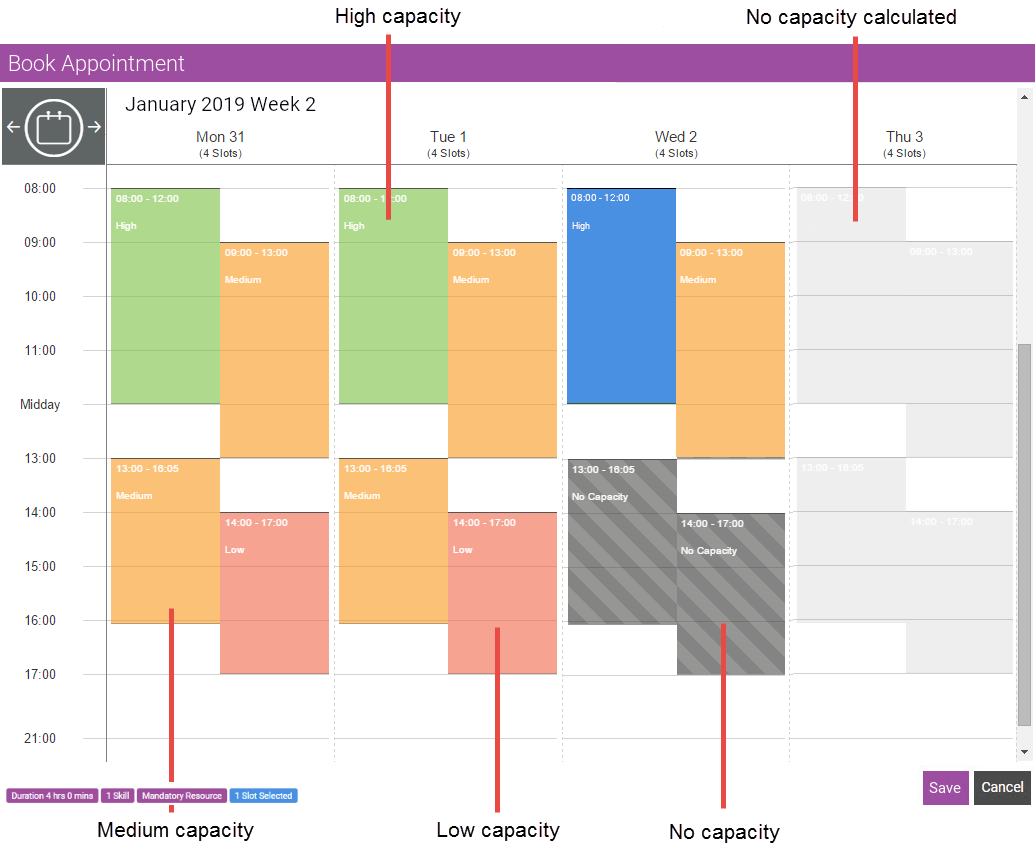
Appointment Slots can be given the following types of capacity:
-
High, medium or low: At least one resource has enough time to do the job in their current schedule, with the time to spare as set by the setting percentage and value.
-
None: There are no resources with free time in their schedules to do the job. The capacity calculation divides resources that can do the job (have the required skills) or are required to do the job (mandatory resources) into the four categories based on the amount of time they have compared to the length of the job.
For example, for a 1 hour job:
-
A resource with 2 hours or more free time would have high availability, if the high percentage setting is 200%.
-
A resource with 1.5 to 2 hours of free time would have medium availability, if the medium percentage setting is 150%.
-
A resource with 30 minutes to 1.5 hours of free time would have low availability, if the low percentage setting is 50%.
For details of defining the capacity types and other Appointment Booker settings, refer to Optimise Appointment Booker Settings in the Administrator Guide.
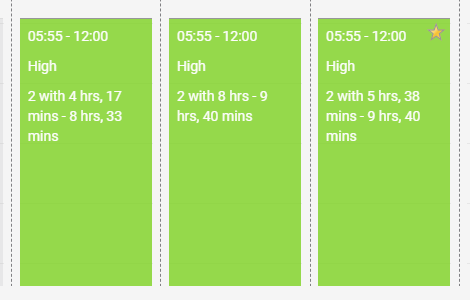
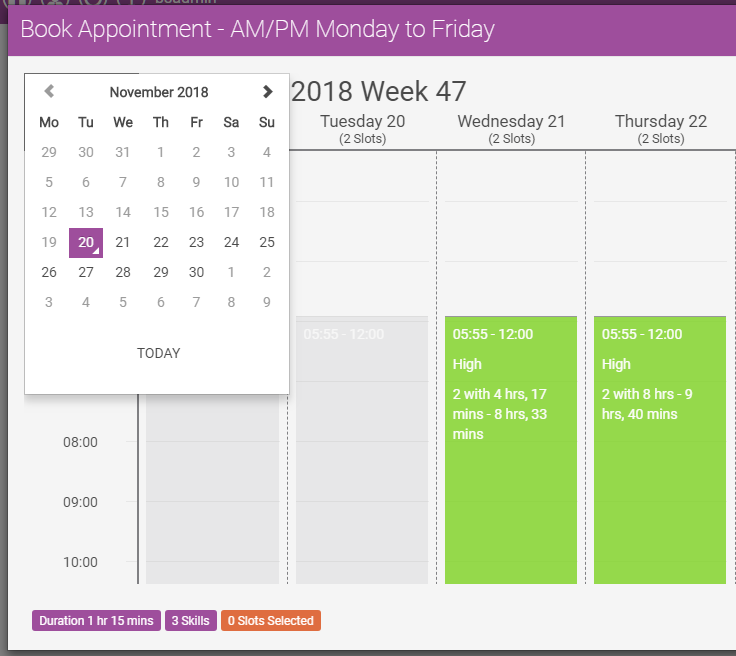
You can make informed decisions based on which appointment slot is best by viewing surface information per appointment slot. For example, the first high capacity slot shown below comprises two resources with high capacity, one with 4 hours 17 minutes of time and another with 8 hours 33 minutes. In addition, the Appointment Booker also allows for travel time when deciding on which slots to book, given available capacity.
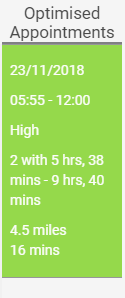
Routes, distances and times are based on driving.
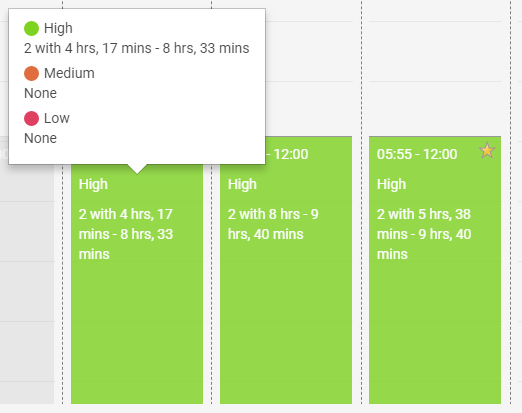
You can view further detail by hovering over the capacity information. In addition to showing the number of resources at that capacity level with their available hours, you can also see the medium and low capacity resources for a fuller picture.
Use the date picker to allow for easier date navigation. Choosing any date will bring the booker to the week that contains that date. The first day will always be a Monday.
If Suggested Slots is enabled in Optimise Appointment Booker Settings, the Appointment Booker also offers suggested appointments that display on the right-hand side of the Appointment Booker in order of the minimum travel times for the resource.