Booking Before Due Date Reasons
When Enable Selection of Slots before the Due Date is enabled in Appointment Booker Settings, users are permitted to book a job into a slot that falls before the job's due start date. In this scenario, the system prompts the user for a reason code to justify why they're booking outside the due date range, and that reason code is then recorded in the job's activity log.
You need the Booking Before Due Date Reasons permission to access this feature. For more details refer to Permissions.
Add a Booking Before Due Date Reason Code
-
In WebAdmin select Optimise Admin.
The Universal Settings and Worlds page appears.
-
Select a World.
-
In the Settings section, select Booking Before Due Date Reasons.
The Booking Before Due Date Reason Codes page appears.
-
Select Add New Booking Before Due Date Reason Code
 .
. -
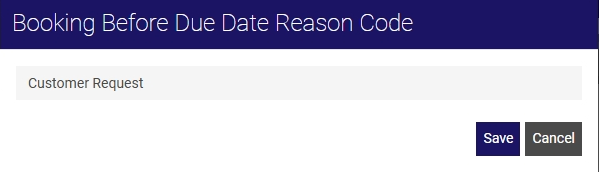
Select the Enter Reason Code field and enter a reason, for example Customer Request.
-
Select Save.
Edit a Booking Before Due Date Reason Code
-
In WebAdmin select Optimise Admin.
The Universal Settings and Worlds page appears.
-
Select a World.
-
In the Settings section, select Booking Before Due Date Reasons.
The Booking Before Due Date Reason Codes page appears.
-
Select a Booking Before Due Date Reason Code
-
Select the field and amend the text.
-
Select Save.
Delete a Booking Before Due Date Reason Code
-
In WebAdmin select Optimise Admin.
The Universal Settings and Worlds page appears.
-
Select a World.
-
In the Settings section, select Booking Before Due Date Reasons.
The Booking Before Due Date Reason Codes page appears.
-
Position your cursor over a reason code and select the Delete icon.

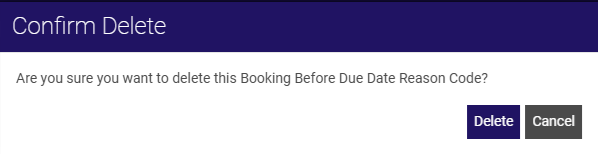
The Confirm Delete dialog appears.
-
Select Delete.