Constraint Override Reasons
A World's Mendel settings include specific constraint types. Constraint types are absolute requirements, and Mendel always creates a schedule which meets those requirements. For example, if you enable attribute matches, then Mendel cannot schedule a job to a resource that does not have the required matching attributes, such as the Area attribute being set to South Belfast.
However, you can manually override constraints when committing jobs in Optimise Schedule, using the constraint override reasons that you add to Worlds in Optimise Admin. For example, you know overriding an Area attribute match constraint will sometimes happen when a resource does not have the appropriate Area attribute, but the job must be scheduled and completed. You create a constraint override reason of 'No Resources Available in Area'. When you override the constraint in Optimise Schedule, you can record the constraint override reason with your override action, which is recorded in the job log.
For more details, refer to Commit Jobs in the Schedule User Guide.
You need the Constraint Override Reasons permission to access this feature. For more details refer to Permissions.
Add a Constraint Override Reason Code
-
In WebAdmin select Optimise Admin.
The Universal Settings and Worlds page appears.
-
Select a World.
-
In the Settings section, select Constraint Override Reasons .
The Constraint Override Reason Codes page appears.
-
Select Add New Constraint Override Reason Code
 .
. -
Select the Enter Reason Code field and enter a reason, for example No Resources Available in Area.

-
Select Save.
Edit a Constraint Override Reason Code
-
In WebAdmin select Optimise Admin.
The Universal Settings and Worlds page appears.
-
Select a World.
-
In the Settings section, select Constraint Override Reasons .
The Constraint Override Reason Codes page appears.
-
Select a Constraint Override Reason.

-
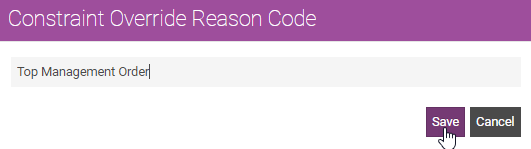
Select the field and amend the text.
-
Select Save.
Delete a Constraint Override Reason Code
-
In WebAdmin select Optimise Admin.
The Universal Settings and Worlds page appears.
-
Select a World.
-
In the Settings section, select Constraint Override Reasons .
The Constraint Override Reason Codes page appears.
-
Position your cursor over a reason code and select the Delete icon.
The Confirm Delete dialog appears.
-
Select Delete.