Retract Loan Reasons
Set up retract loan reasons for Worlds in Optimise Admin to record and distinguish different reasons why you retract the loaning of resources to other Worlds in Optimise Schedule.
For more details refer to Retract Loan of Resources to Other Worlds in the Schedule User Guide.
You need the Retract Loan Reasons permission to access this feature. For more details refer to Permissions.
Add a Retract Loan Reason Code
-
In WebAdmin select Optimise Admin.
The Universal Settings and Worlds page appears.
-
Select a World.
-
In the Settings section, select Retract Loan Reasons .

The Retract Loan Reason Code page appears.
-
Select Add New Retract Loan Reason Code
 .
. -
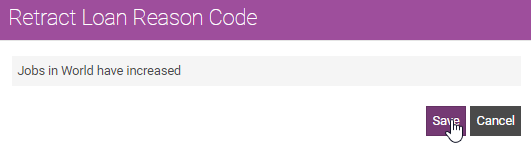
Select the Enter Reason Code field and enter a reason, for example Jobs in World have increased.
-
Select Save.
Edit a Retract Loan Reason Code
-
In WebAdmin select Optimise Admin.
The Universal Settings and Worlds page appears.
-
Select a World.
-
In the Settings section, select Retract Loan Reasons .

The Retract Loan Reason Code page appears.
-
Select a Retract Loan Reason.

-
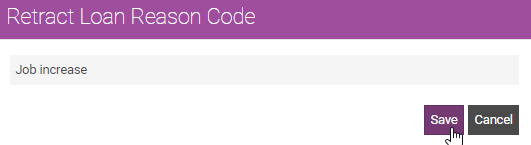
Select the field and amend the text.
-
Select Save.
Delete a Retract Loan Reason Code
-
In WebAdmin select Optimise Admin.
The Universal Settings and Worlds page appears.
-
Select a World.
-
In the Settings section, select Retract Loan Reasons .
The Retract Loan Reason Code page appears.
-
Position your cursor over a reason code and select the Delete icon.

The Confirm Delete dialog appears.
-
Select Delete.