Add, Edit and Delete Adapter Settings
Adapter settings enable you to configure where Totalmobile retrieves data from, which queues messages are sent to and much more. The examples below describe how you might set up adapters for a subscriber queue and a publisher queue.
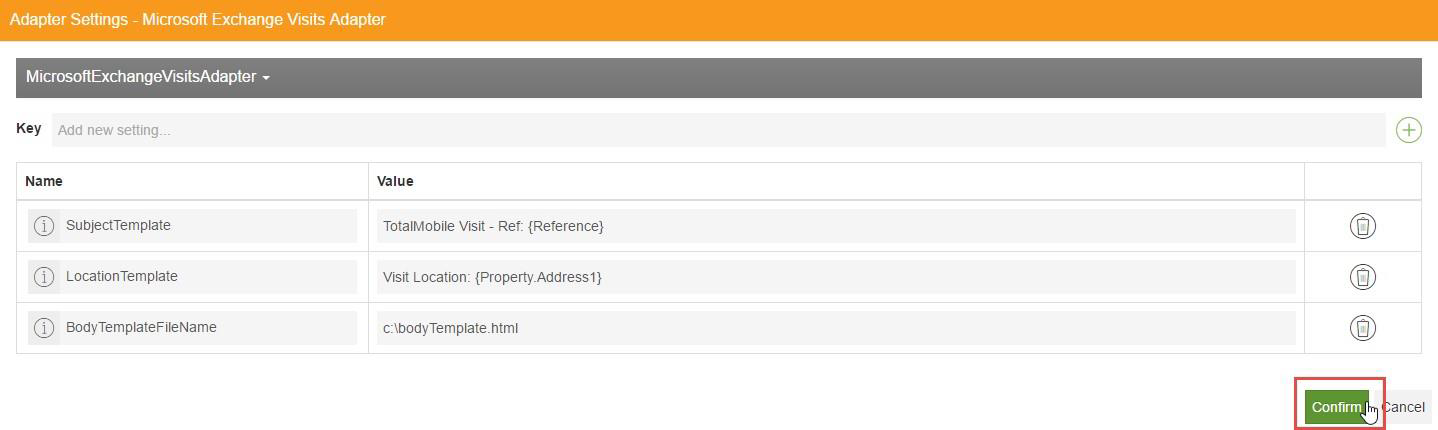
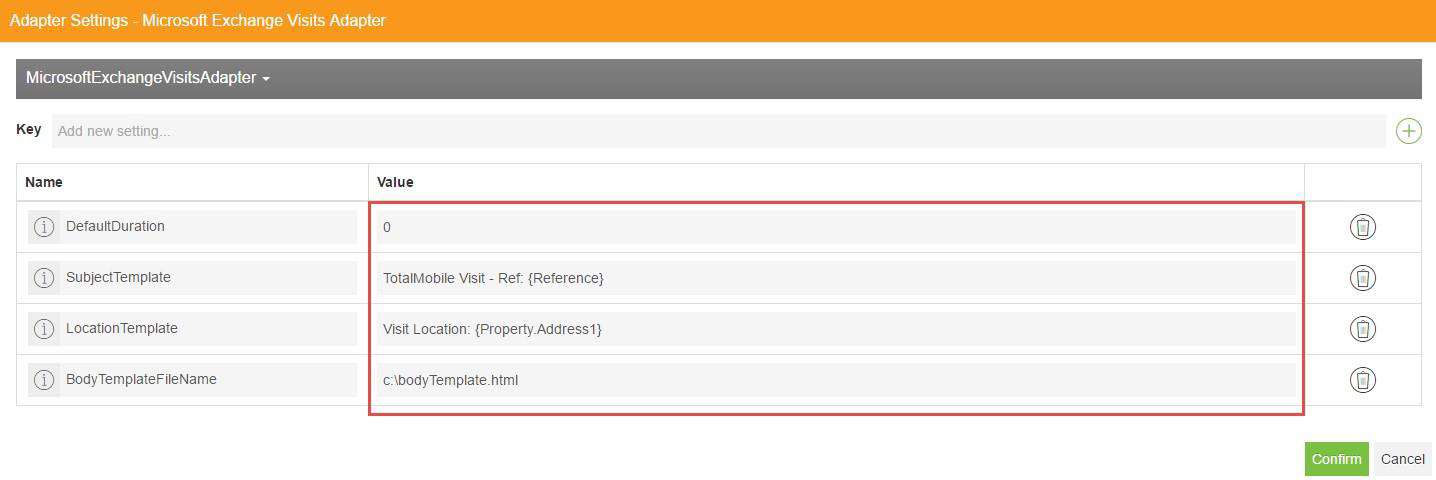
- Use a template file which determines the visits details that the Microsoft Exchange calendar displays in the body of the meeting.
- Display a particular subject (for example Totalmobile Visit Ref: {Reference}) for the Microsoft Exchange calendar meeting.
- Display a particular visit location (for example {Property.Address1}) for the Microsoft Exchange calendar meeting.
- Poll a specific file path location for XML files.
- Define the type of message to send when the XML file is loaded.
- Define the file path where the original XML files are moved to if they are processed successfully.
To configure adapter settings:
-
Add an adapter to a queue as described in Manage Adapters in Subscriber Queues and Manage Adapters in Publisher Queues, or select an existing adapter in a queue.
The Adapter Settings window appears.
-
Select the arrow icon to display the adapter information.
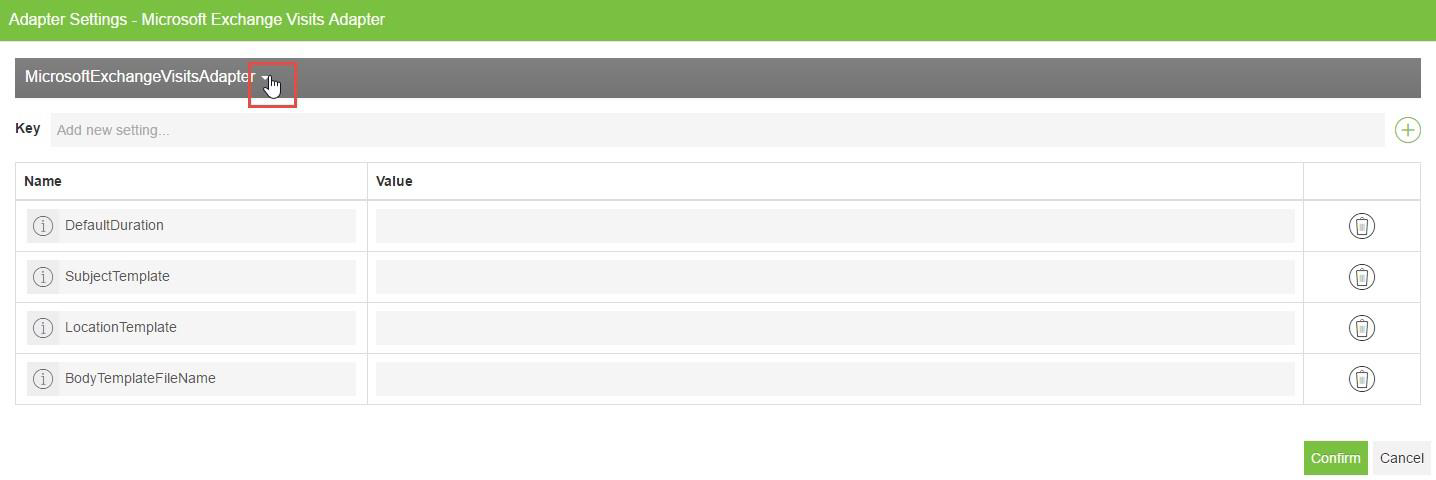
The Name, Type Name, Description, Details and Origin appear.
-
Select List of Settings.
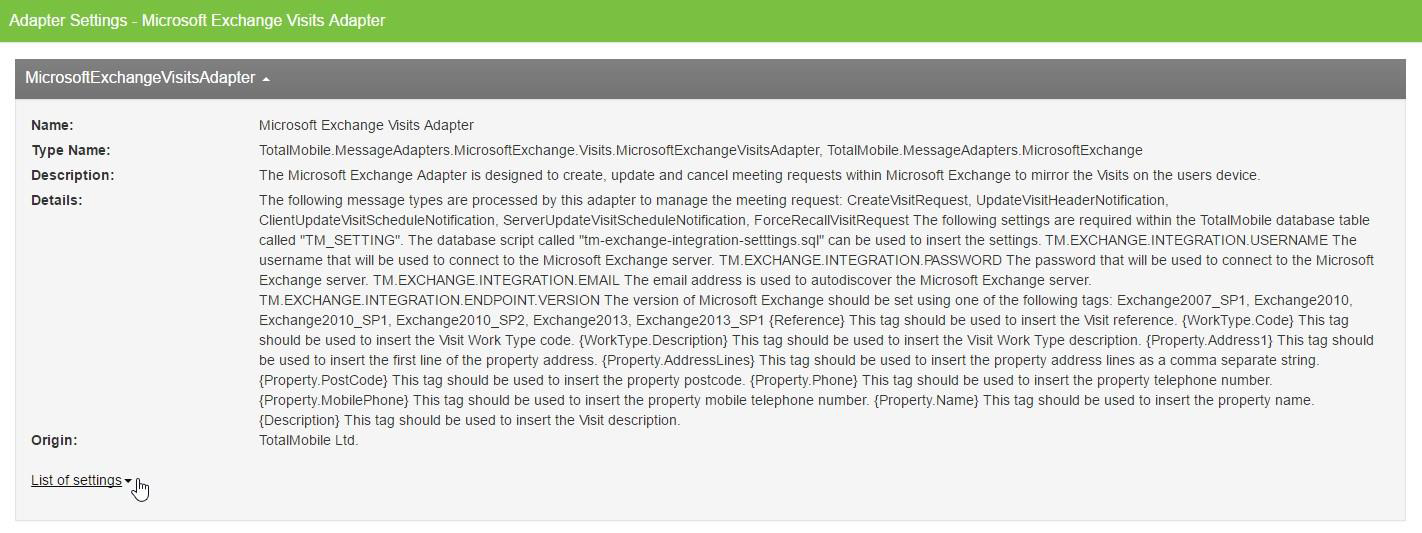
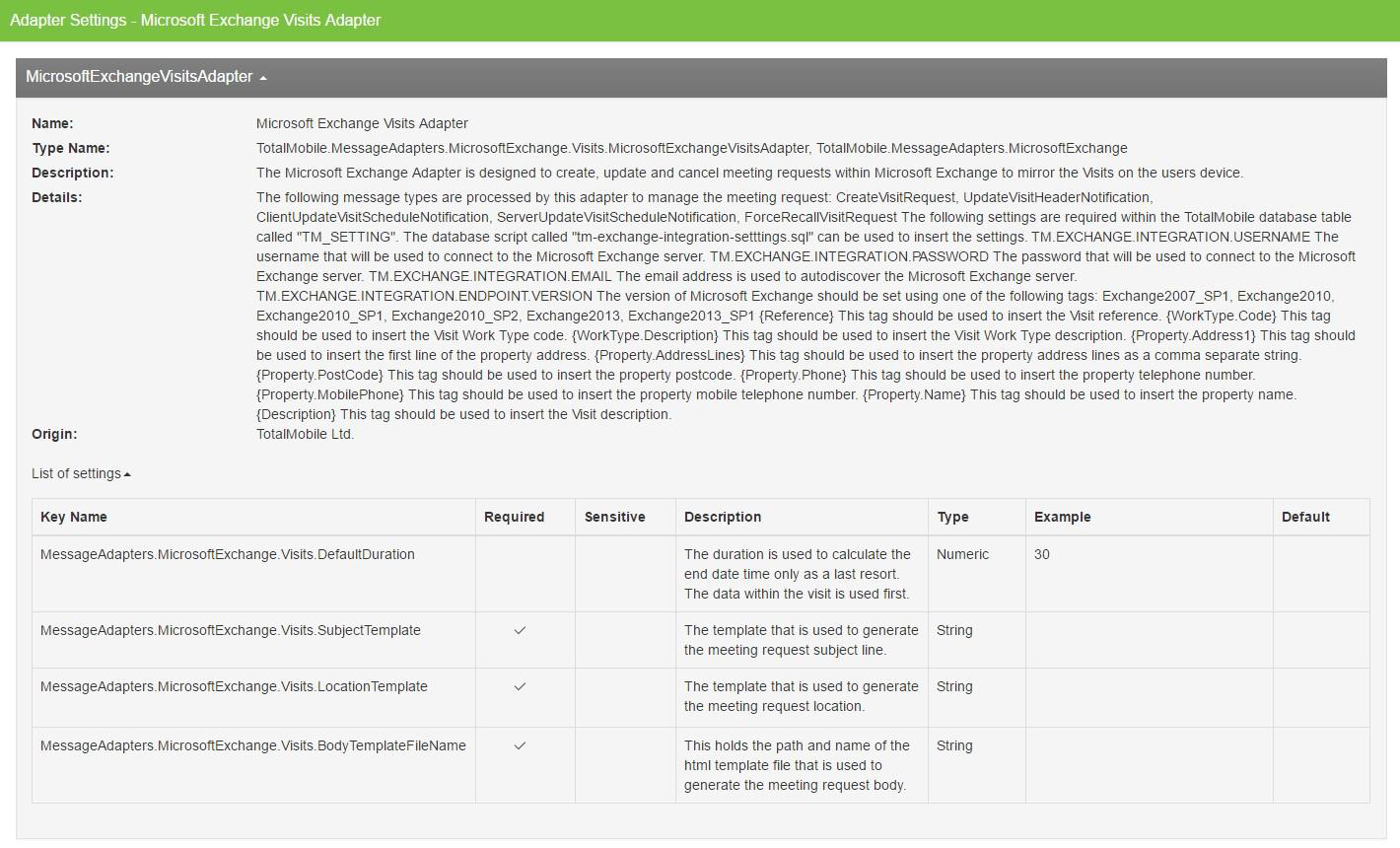
The information panel extends and displays the settings:
-
Key Name - adapter setting name.
-
Required - indicates whether the adapter setting is mandatory.
-
Sensitive - indicates whether the value is sensitive, for example a password.
-
Description - describes the function of the adapter setting.
-
Type - indicates the adapter setting value type, for example string, numeric or Boolean.
-
Example - example adapter setting value.
-
Default - the default value of the setting if you do not provide one.
-
-
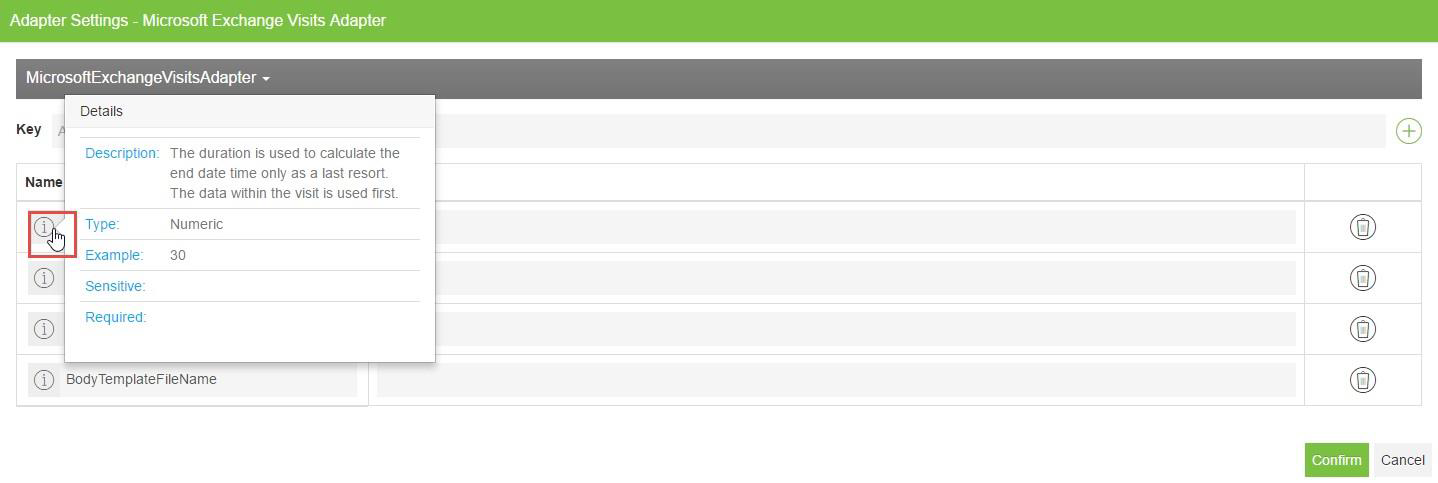
All of the adapter settings are displayed in the Adapter Settings dialog. Hover your cursor over the information icon beside a setting to preview the information which is shown in the List of Settings.
-
Enter a Value for each setting as required.
-
To delete an adapter setting select Delete setting.
The Confirm Delete dialog appears. If you delete a required setting, the Confirm Delete dialog displays a warning.
Check the List of Settings information or preview the settings information before deleting a setting because it might be required for the Adapter to work. Mobile Working does not stop you from deleting required adapter settings because you can also specify them in the global settings. For more details refer to Manage Global Settings.
-
Select Delete.

-
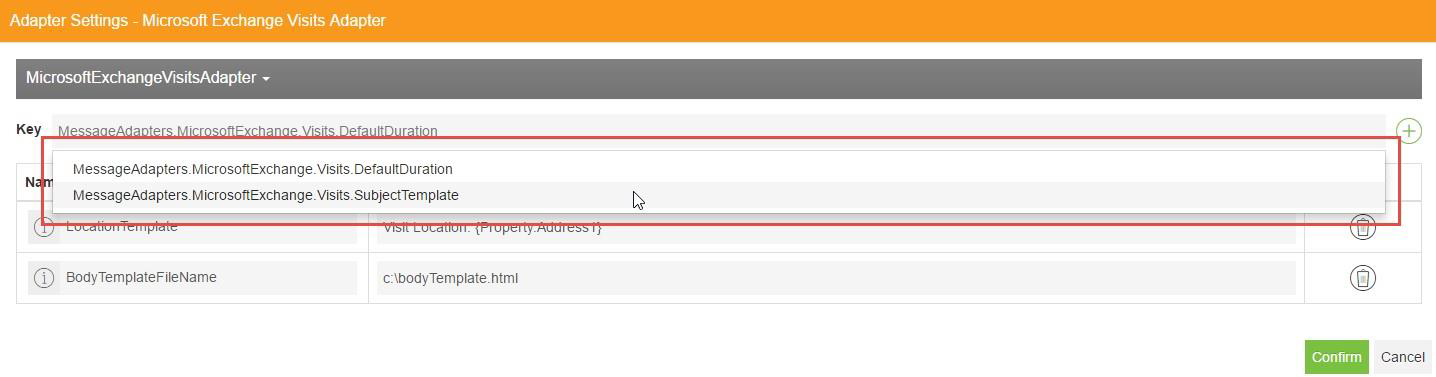
To add a new setting, select the Key field and either select a Setting from the dropdown if available, or enter the new setting name.
-
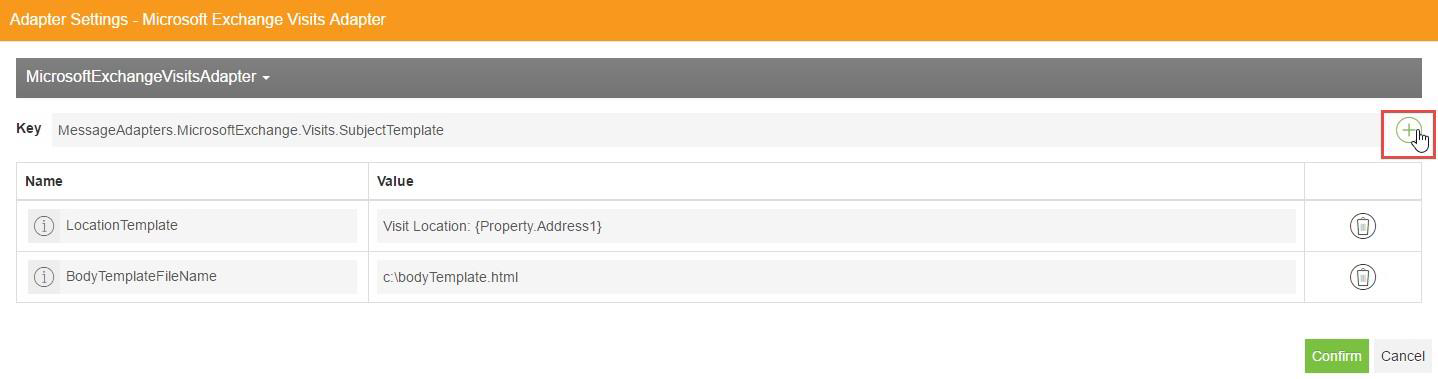
Select Add new Setting.
-
Enter a Value for the new setting.
-
When configuration is complete, select Confirm.