Manage Adapters in Publisher Queues
Adapters handle messages and action processes in queues. For example, the File Watcher adapter checks an input folder and processes new files which create Totalmobile messages, for example CreateJobRequest Messages which create jobs in Dynamic Scheduling.
Adding Adapters to Publisher Queues
-
In WebAdmin select Integration.
-
Under Integration Instances, select an instance.
Use the Search field to filter the list of instances.
The Integration Instance Configuration page appears, with the current subscriber queues displayed by default.
-
Select Publishers
 .
. -
Select a Publisher Queue.
-
Select Show Adapters Library.

The Adapters Library panel appears.
-
To add an adapter to the publisher queue, do one of the following:
-
Select the Add the adapter to queue icon.
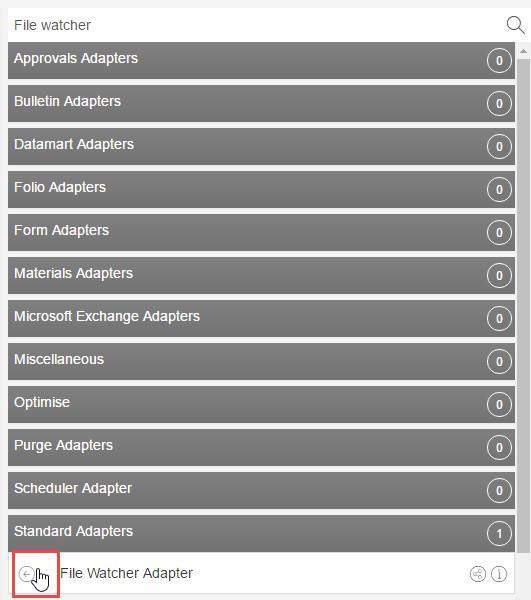
If the publisher queue has other adapters, the new adapter will be the last one in the queue.
-
Select and drag an adapter onto a publisher queue.
You can drag adapters to above, in between or below other adapters to determine the publisher queue adapter sequence. The orange rectangle indicates the sequence of the adapter.
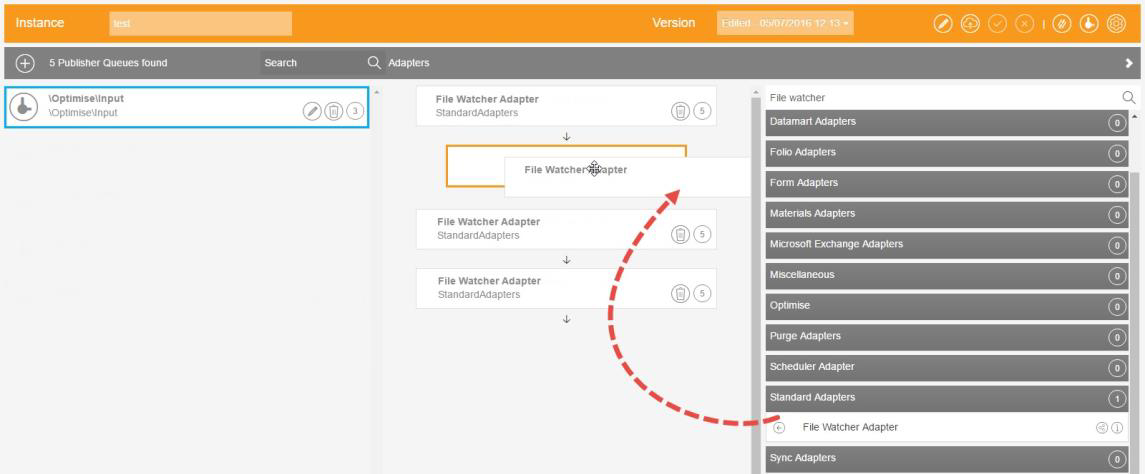
The sequence of adapters in a queue is important because it determines the order in which messages are processed and information is handled. For example, on your Visits Input queue you add the FolioVisitsAdapter after a CreateVisitMessageAdapter, because if a visit has a Folio, the visit needs to be created before the Folio is generated.
-
-
On the Adapter Settings dialog, enter settings as required. For more details refer to Add, Edit and Delete Adapter Settings.
-
Select Confirm.
Deleting Publisher Queue Adapters
-
Select Delete on an adapter.
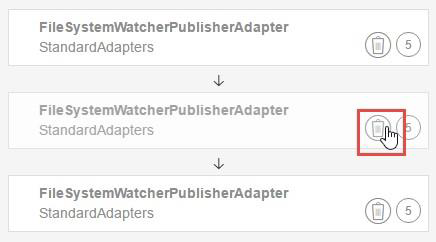
The Confirm Delete dialog appears.
-
Select Delete.
