Add, edit or delete shifts in a team calendar
Use the Plan tab to manage the shifts in a team calendar. You can add new shifts or edit and delete existing shifts, as required. This is useful for updating shift patterns.
Each team’s shifts are held in a calendar within a work area. For example, calendars could be ‘Headquarters’ and ‘Factory’ in the work area of ‘Manchester’. Each calendar holds teams made up of resources (employees).
To add, edit or delete a shift:
-
Open the Plan tab.
-
Click
 and select the work area that you want to work with: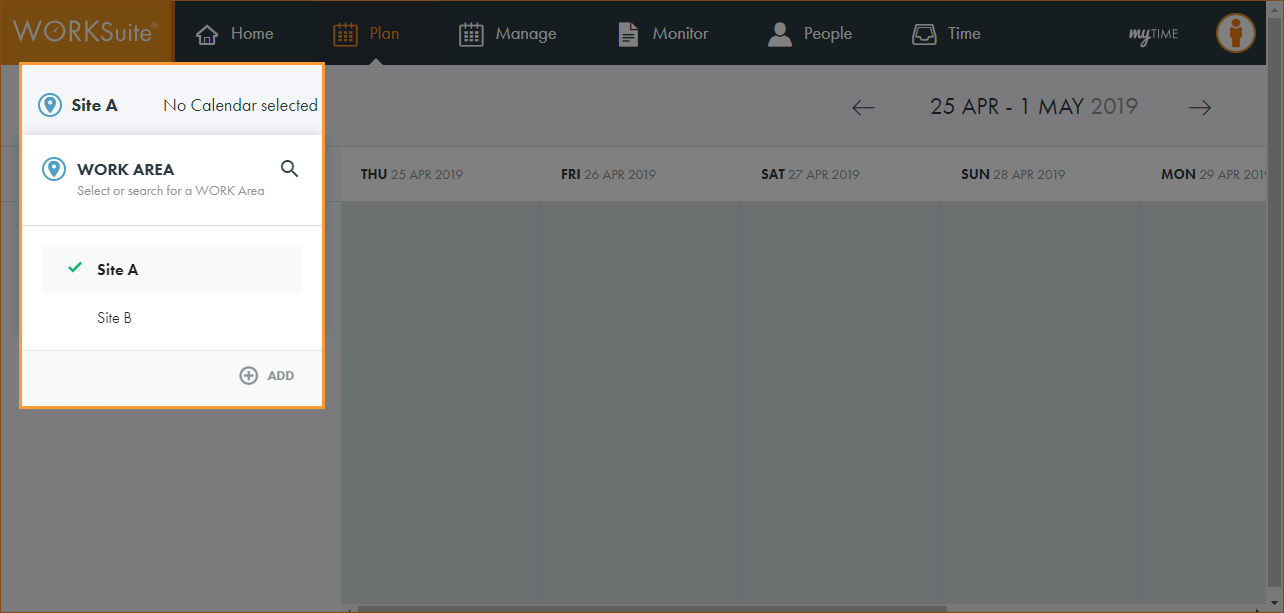
By default, your previously selected work area is preselected.
-
Click No Calendar selected and select the calendar that you want to work with:
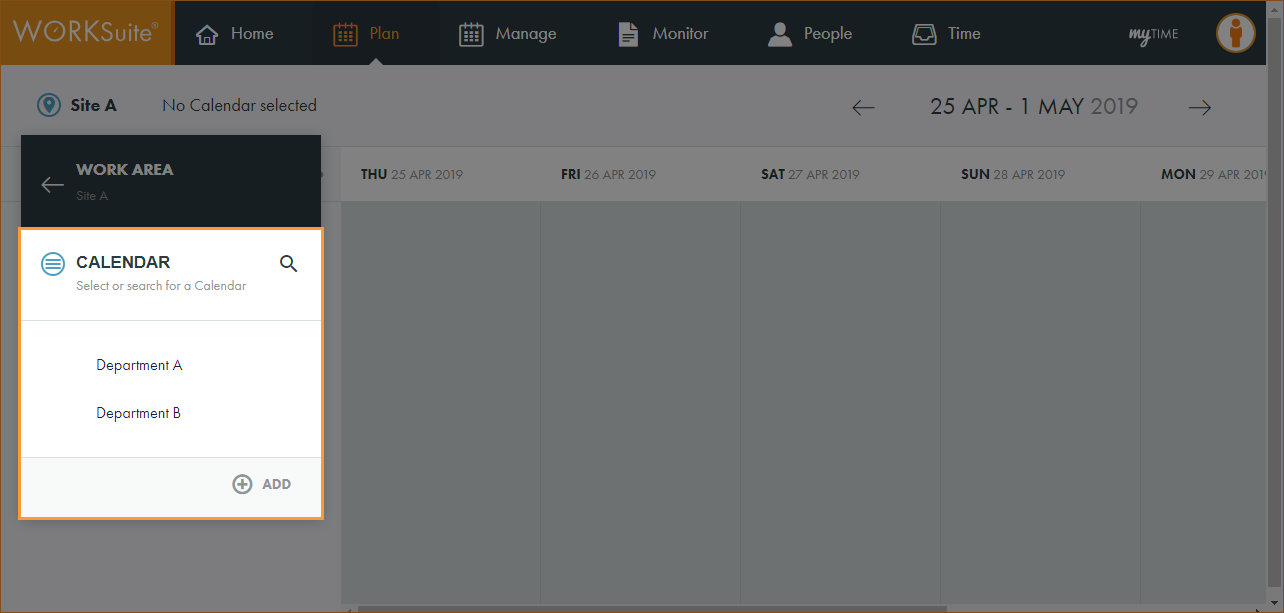
By default, your previously selected calendar is preselected.
-
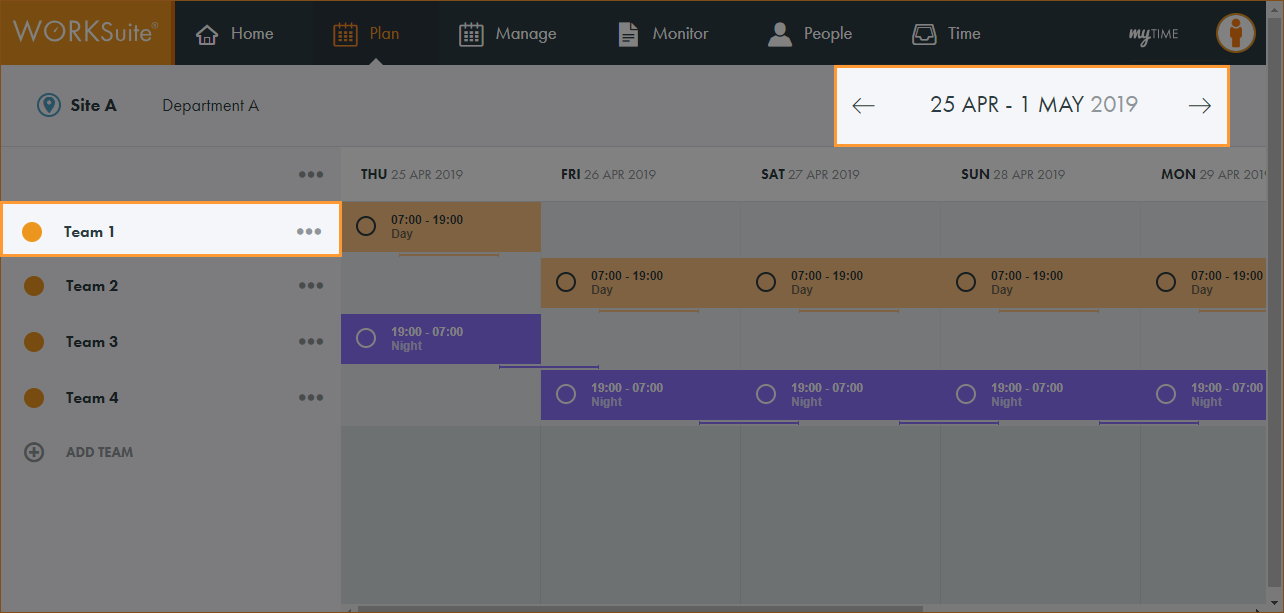
Scroll to the team and date that you want to work with:
-
Click in the cell for the date that you want to work with.
-
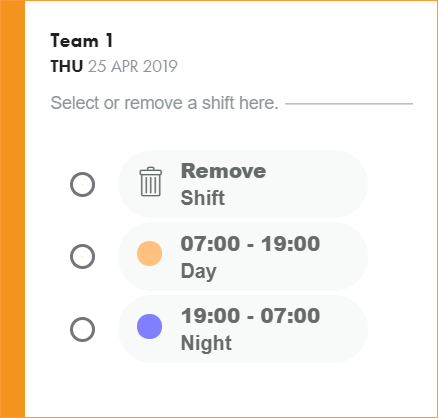
A pop-up window is displayed:
-
Use the radio buttons to select or remove a shift.
-
The calendar is updated.
-
You are now ready to publish the calendar.