Publish a team calendar
Use the Plan tab to publish assigned team shifts in a calendar. Calendar shifts that you plan are not live until you choose to publish them. Published calendar shifts are displayed in the Manage tab.
Before you can publish a calendar shift, ensure that you have worked through the following processes in the Plan tab:
-
Select a work area or add a new work area. Each shift is held in a work area and a calendar. For example, work areas could be ‘London’, ‘Manchester’ and ‘Birmingham’.
-
Select a calendar or add a new calendar. Each calendar holds team shifts made up of employees. Within ‘Manchester’, list calendars for ‘Headquarters’ and ‘Factory’.
-
Add team resource (employees) to the imported calendar shift.
If you are republishing a calendar, variance data may be lost. Only annual leave for full days or multi days and absences are transferred to republished calendars.
To publish a calendar:
-
Open the Plan tab.
-
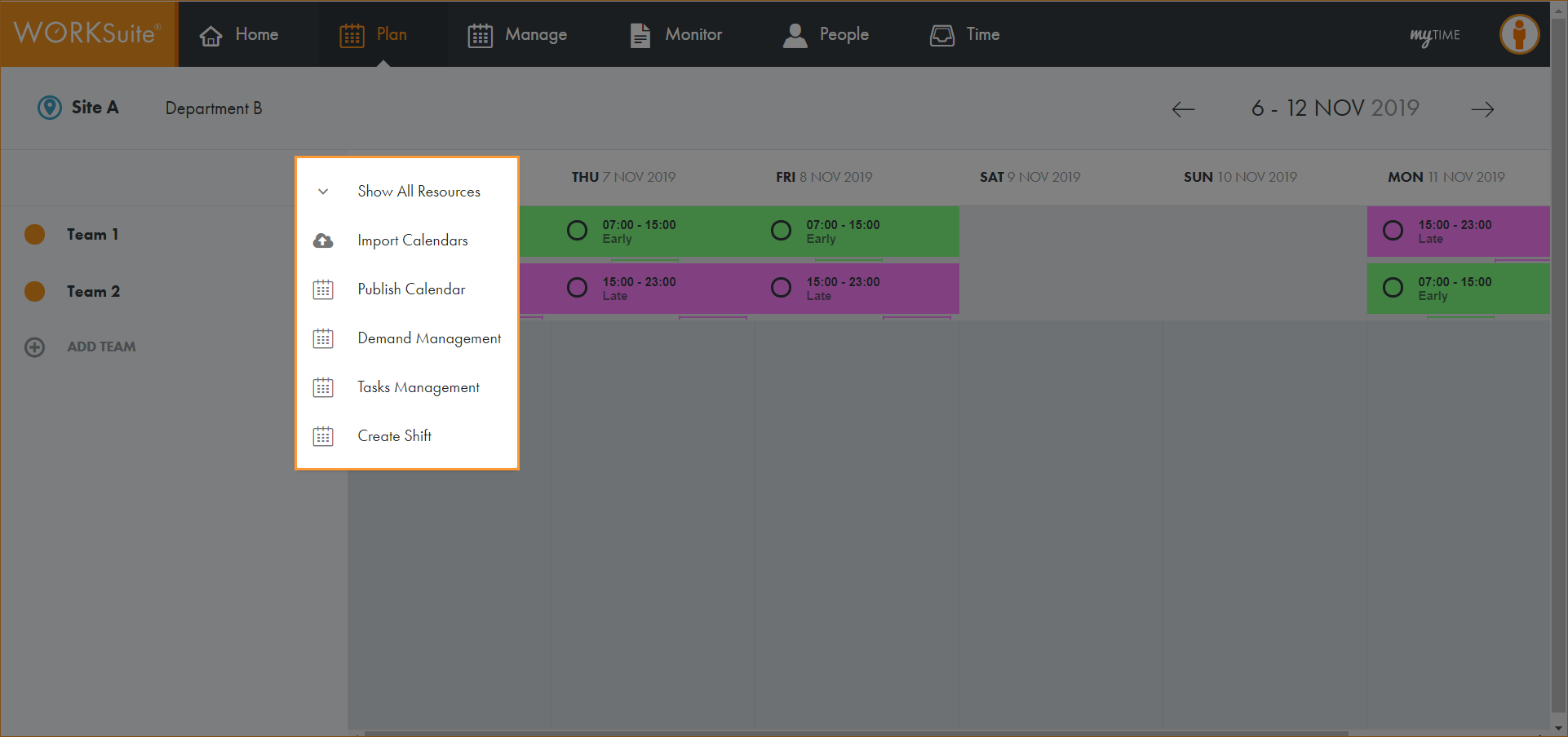
Click … in the calendar header:
-
Select Publish Calendar.
-
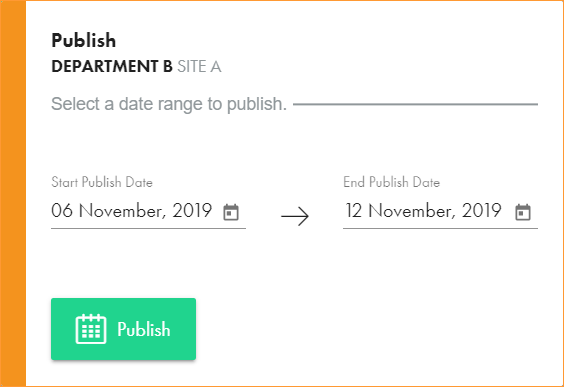
A pop-up window is displayed:
-
Click
 and select the dates that you want to publish.
 -
Click Publish.
-
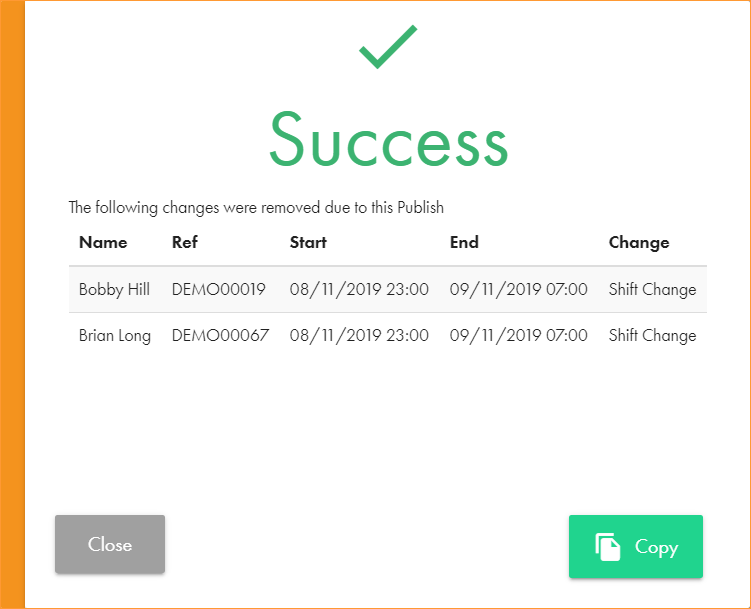
A pop-up window is displayed to confirm that the calendar shift has been published successfully. Any changes which have been removed are listed:
-
Any existing part day changes or shift swaps/changes are removed as they may not be required in the new shift pattern.
-
Choose to Copy the information for future use. Paste into your preferred application, such as Excel.
-
The published calendar shift is displayed in the Manage tab.