Tasks Management configuration
To configure Tasks Management:
-
Open the Plan tab.
-
Select a work area or add a new work area. Each shift is held in a work area and a calendar. For example, work areas could be ‘London’, ‘Manchester’ and ‘Birmingham’.
-
Select a calendar or add a new calendar. Each calendar holds team shifts made up of employees. Within ‘Manchester’, list calendars for ‘Headquarters’ and ‘Factory’.
-
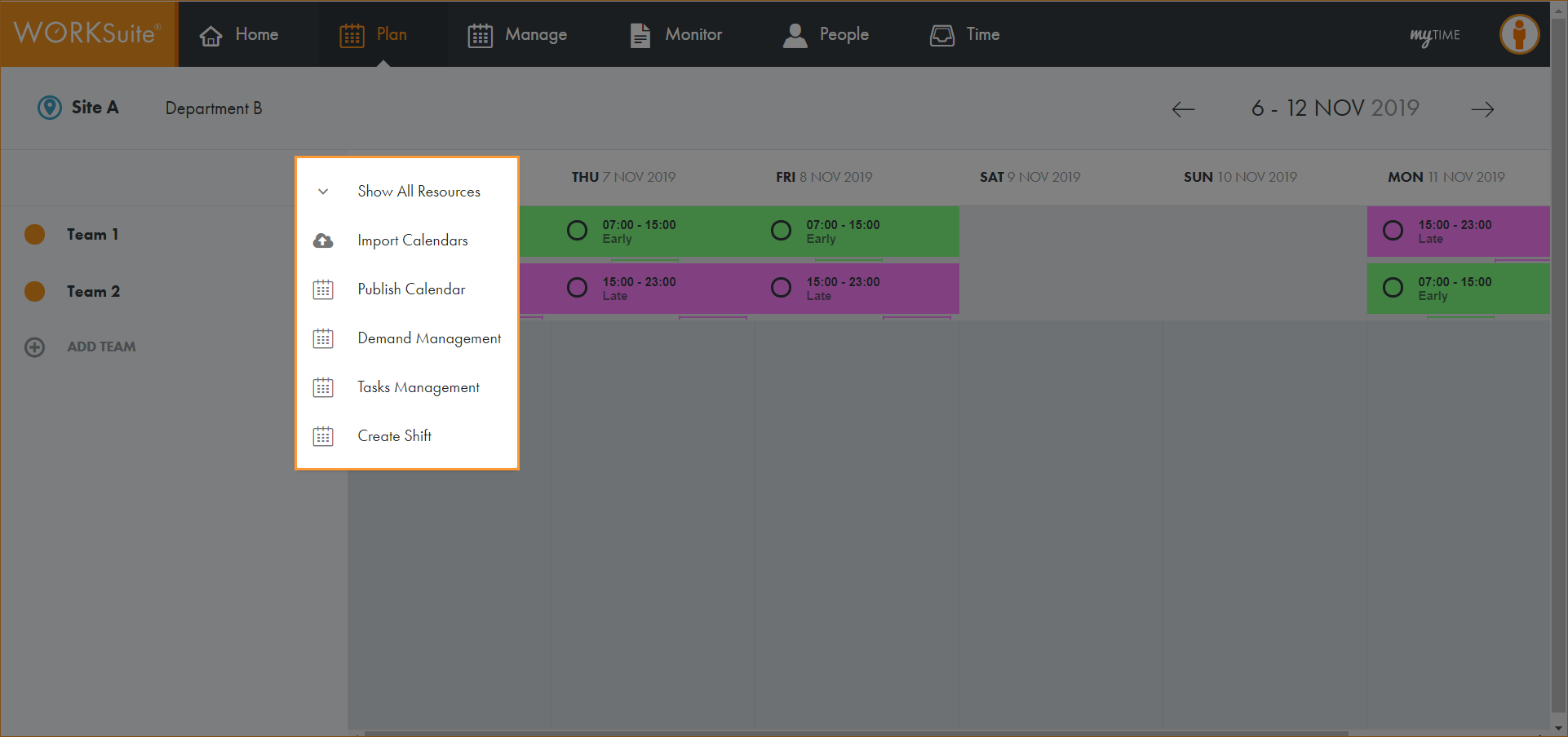
Click … in the calendar header:
-
Select Tasks Management.
-
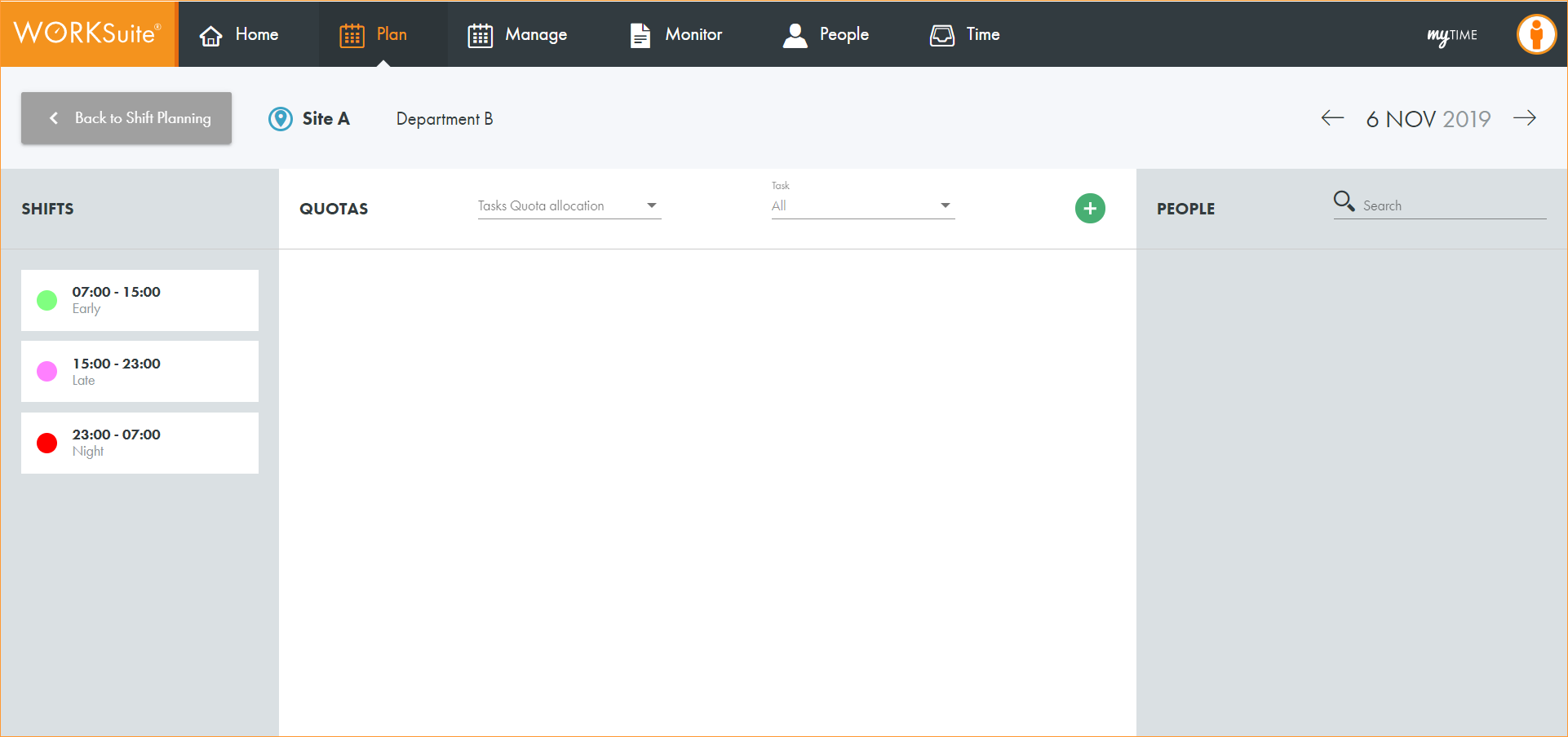
The Tasks Management screen is displayed:
-
Choose to:
-
 Add a project
-
Click
 .
. -
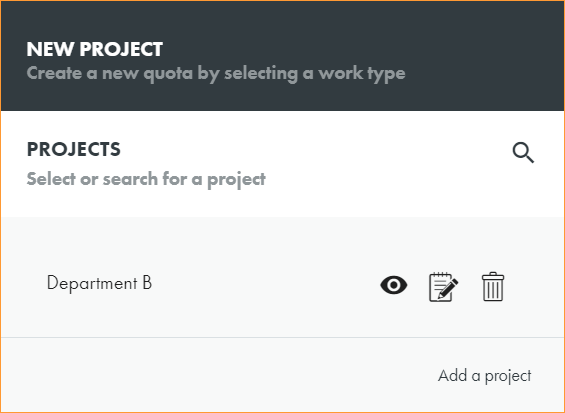
A pop-up window is displayed:
-
Click Add a project in the bottom right of the window.
-
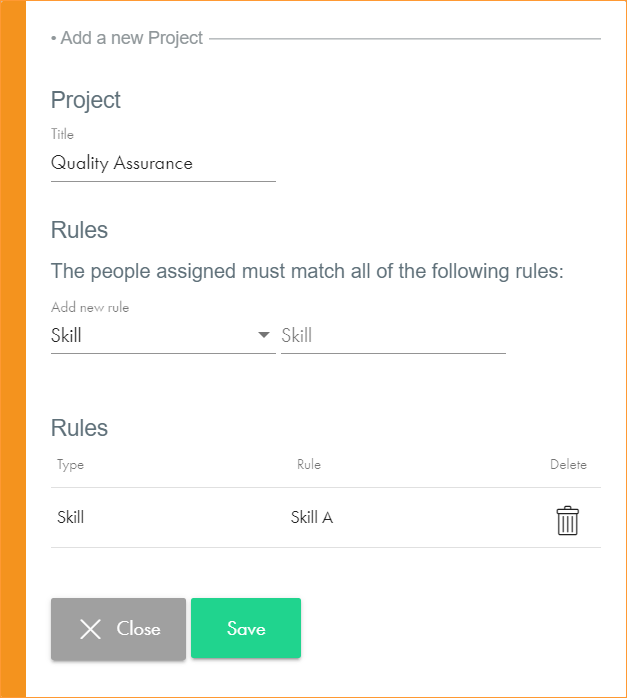
The Add a new Project pop-up window is displayed:
-
Enter a clear and concise Title for the project.
-
Add a Rule for the project. Filter rules using the left hand dropdown list and then select a rule to apply from the list on the right.
-
Rules are listed at the bottom of the window.
Only employees who comply to the rules can be selected for a task.
-
Apply as many rules as you require. Click
 to remove a rule that is not required.
 -
Click Save.
-
Add a Rule for the project. Filter rules using the left hand dropdown list and then select a rule to apply from the list on the right.
-
You can now add tasks to the project.
-
-
Add a task
Once projects have been set up, you can add tasks.
-
Click
. -
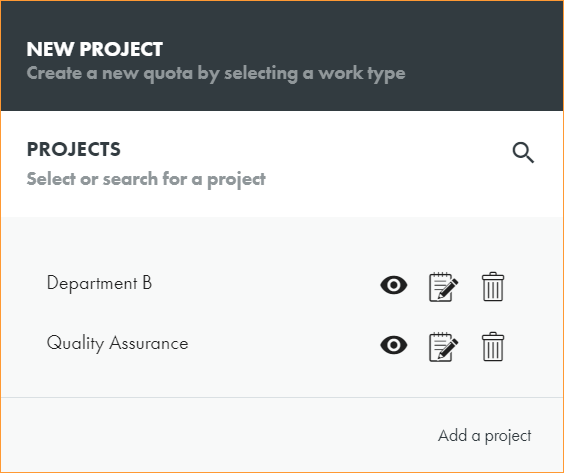
The project window is displayed:
-
Click
 in the project that you want to work with.
 -
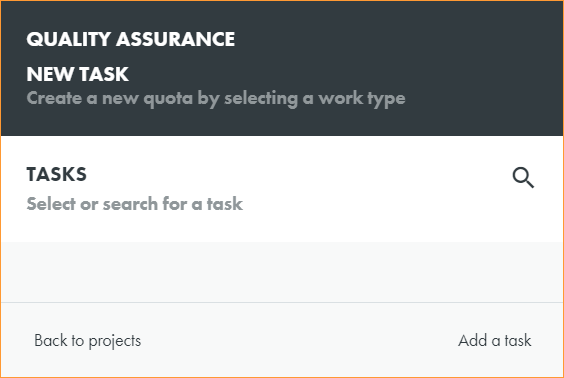
The task window is displayed:
-
Click Add a task in the bottom right of the window.
-
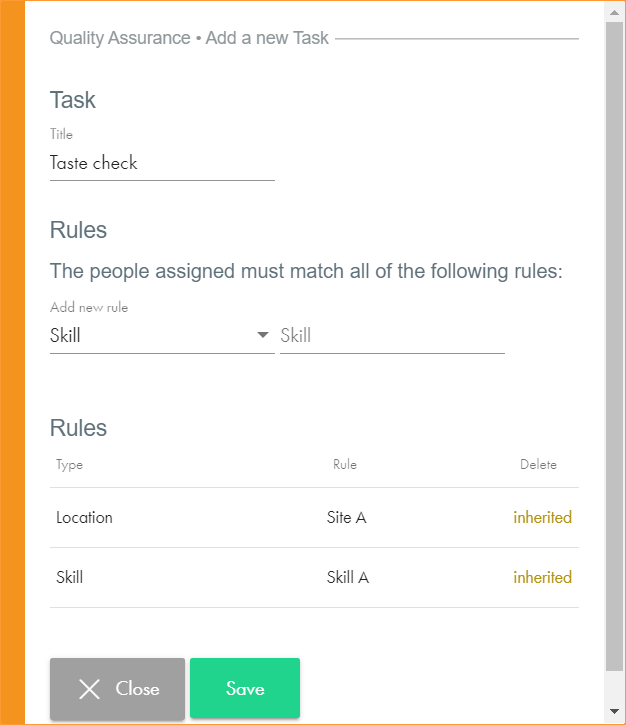
The Add a new Task pop-up window is displayed:
-
Enter a clear and concise Title for the task.
-
Add a Rule for the task. Filter rules using the left hand dropdown list and then select a rule to apply from the list on the right.
-
Rules are listed at the bottom of the window. Rules inherited from the project are also listed.
Only employees who comply to the rules can be selected for a task.
-
Apply as many rules as you require. Click
to remove a rule that is not required. -
Click Save.
-
You can now add a work type to the task.
-
-
Add a work type
Once tasks have been set up, you can add work types.
-
Click
. -
The project window is displayed:
-
Click
in the project that you want to work with. -
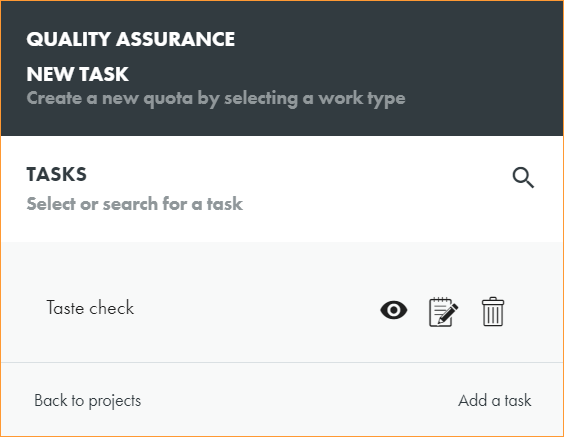
The task window is displayed:
-
Click
in the task that you want to work with. -
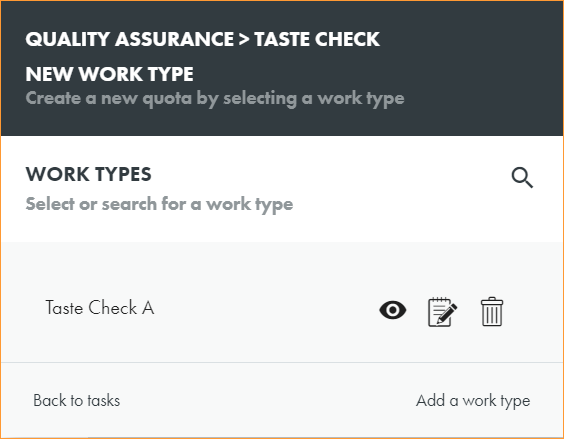
The work type window is displayed:
-
Click Add a work type in the bottom right of the window.
-
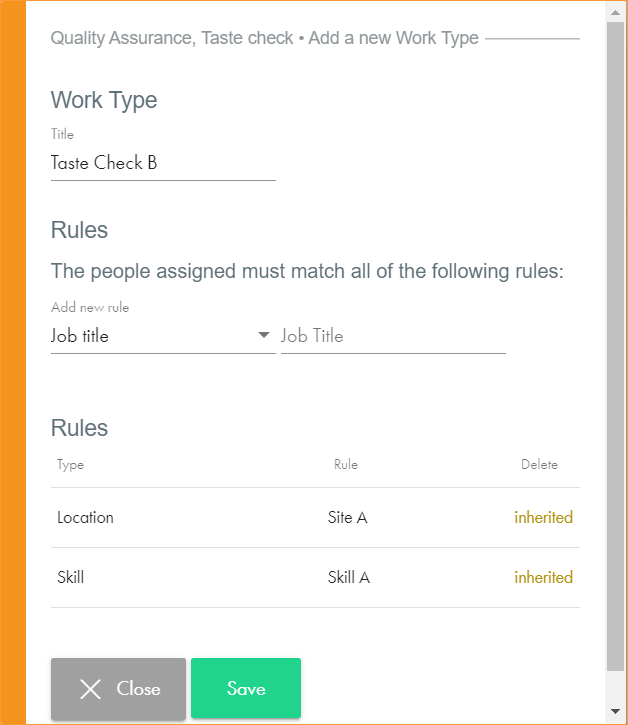
The Add a new Work Type pop-up window is displayed:
-
Enter a clear and concise Title for the work type.
-
Add a Rule for the work type. Filter rules using the left hand dropdown list and then select a rule to apply from the list on the right.
-
Rules are listed at the bottom of the window. Rules inherited from the project and task are also listed.
Only employees who comply to the rules can be selected for a task.
-
Apply as many rules as you require. Click
to remove a rule that is not required. -
Click Save.
-
You can now allocate shifts.
-
-