Asset Register - Group
Grouping in the Asset Register lets you group selected assets so they can be viewed on the Asset Register, or used in other areas of Asset Management, such as Overview > Planning.
Group Assets
To create an asset group:
-
Select the Asset Register tab from the Portfolio page.
-
If required, apply filters to find the relevant assets.
-
Select the checkbox for the each asset to include in the group.

-
Select Groups, and select Save Selected As Group from the context menu.
-
The Save Group dialog appears.
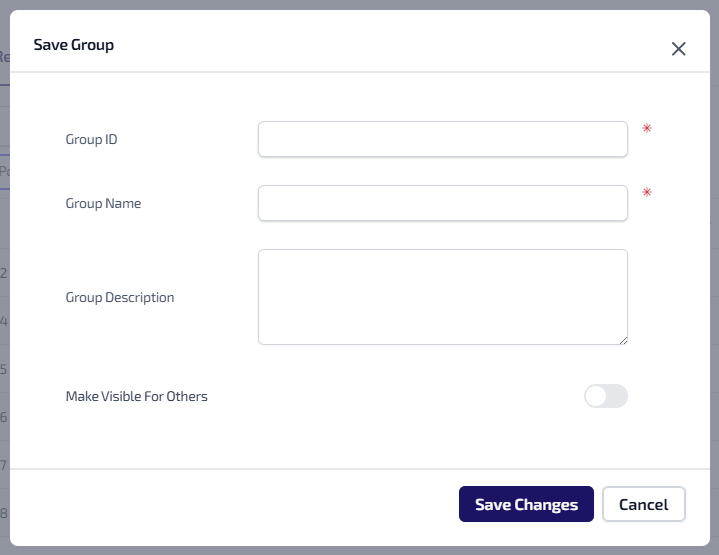
Enter the following:
-
Group ID* - a unique identification number. The ID entered must be unique, can be alphanumeric, contain symbols and have a maximum 64 character limit.
-
Group Name* - a name for the group.
-
Group Description - a description of the group.
-
Make Visible For Others - select the toggle to indicate whether the group will be visible for other users.
-
*These are required fields.
-
Select Save Changes.
View Asset Group
To view an asset group:
-
Select the Asset Register tab from the Portfolio page.
-
Select Groups, and select Open Group from the context menu.
-
The Group dialog appears.
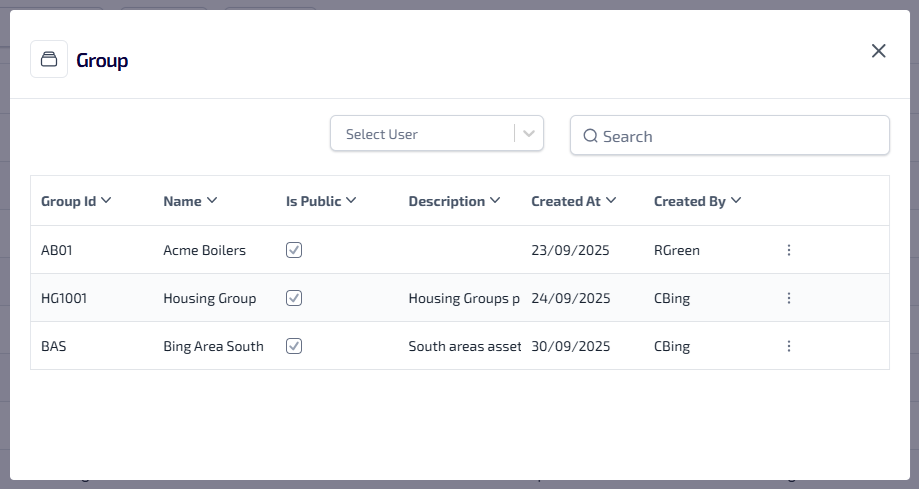
The following information is shown:
-
Group ID - the unique identification number for the group.
-
Name - the name of the group.
-
Is Public - indicates whether the group is available to other users.
-
 - this shows the group is available to other users.
 -
 - this shows the group is not available, and hidden from other users.
-
-
Created By - the name of the user who created the group.
-
 - select for the following options:
-
View Group - select to view the group of assets.
-
Edit Group - select to edit the group details.
-
Delete Group - select to delete the group.
-
-
Select User - select the dropdown to see a list of all the users who have public groups, then select a user to see all the groups they created and made public.
-
Search - enter the full, or partial, Group ID or Name into the Search field and press Enter on the keyboard to display all matching results in the Group dialog.
-
The Search field is a ‘begins with’ search, therefore ensure the text entered is always the beginning word/s of what you are searching for.
-
Select the
to open the context menu for the required group. -
From the context menu select View Group.
-
The Asset Register updates to show all the assets in the group.
Groups used in Overview > Planning to create a programme of work are removed from Groups, and are no longer available for use in other areas of Asset Management, for more details on Planning and creating programmes of work refer to Planning.