Planning
The Planning page lets you plan and manage programmes of work for groups of assets, these are then published to Job Management (Connect), which creates work orders for each asset.
In the Navigation menu Overview section, select Planning.
The Planning page displays with the Overview tab selected as default, letting you see and manage the programmes of work available.
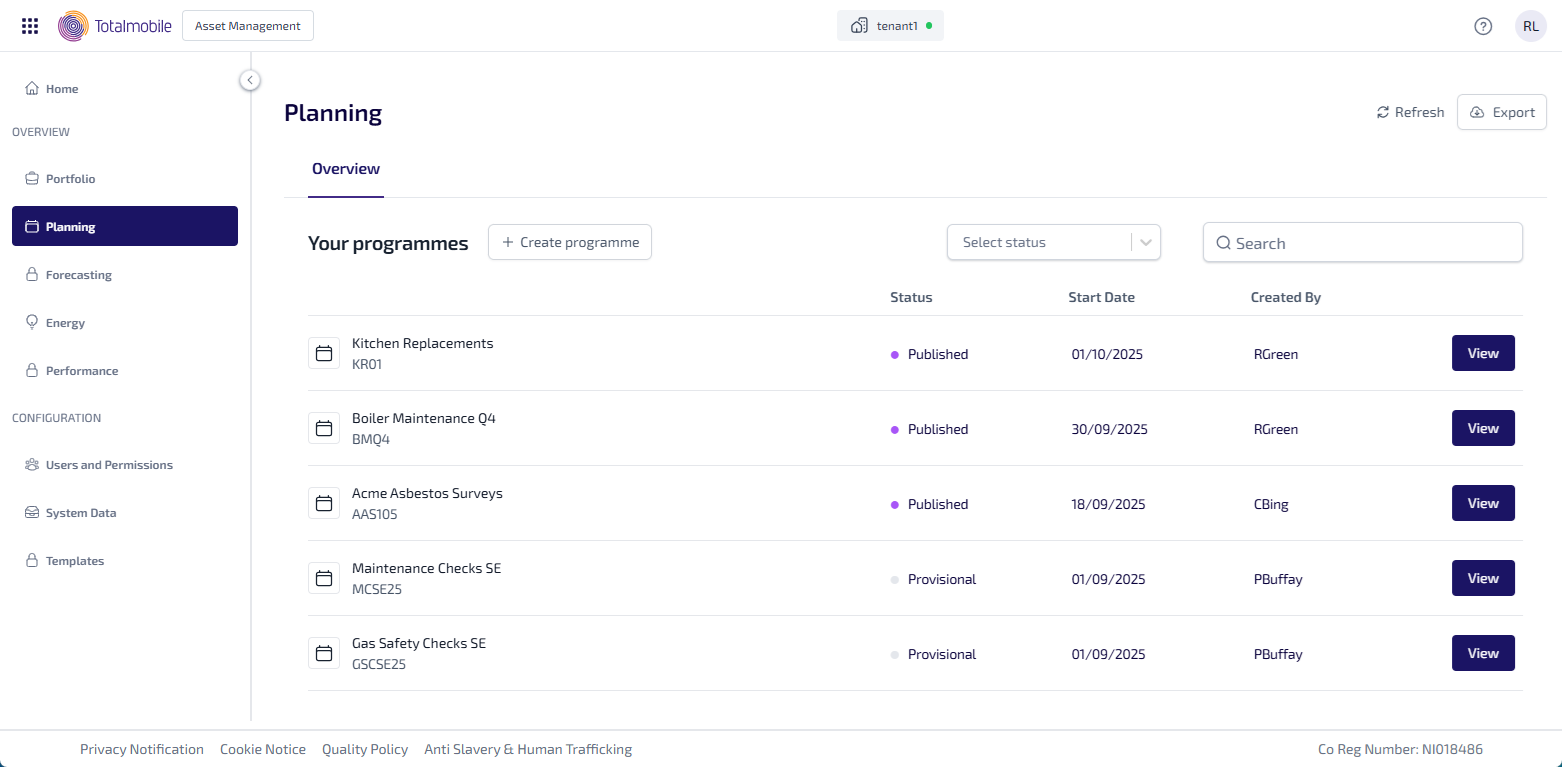
The following is shown for each programme in Your Programmes:
-
Programme Name and Programme ID - the name and unique identification number for the programme.
-
Status - the status of the programme, which will be one of the following:
-
Provisional - the programme of work is provisional, and has yet to be confirmed.
-
Confirmed - the programme of work has been confirmed.
-
Published - the programme of work has been published Job Management (Connect) and work orders have been created for the assets in the group.
-
In Progress - the programme of work is in progress.
-
Complete - the programme of work is complete.
-
-
Start Date - the date the programme of work due to start.
-
Created By - the user who created the programme.
-
View - select to open the programme and see the associated assets.
You can also do the following:
-
Refresh - select to refresh the information on the page.
-
Export - select to download the list in Your Programmes as a .csv to your browser download folder.
-
Create Programme - select to create a new programme of work.
-
Select Status - select the dropdown to see a list of the programme statuses, and then select a status, the Your Programmes list updates to show all the matching programmes. You can select the dropdown again to select additional statuses as required.
-
Search* - enter the full, or partial, Programme Name or Programme ID into the Search field and press Enter on the keyboard to display all matching results in Your Programmes.
The Search field is a ‘begins with’ search, therefore ensure the text entered is always the beginning word/s of what you are searching for.