Programme Details
When you select View against a programme in Overview > Planning > Overview the programme details are shown. This shows you a summary for the programme, with the associated assets and their work order details.
When viewing the programme details once the programme has been published, Asset Management synchronises with Job Management (Connect) automatically to update the work order information for each asset listed.
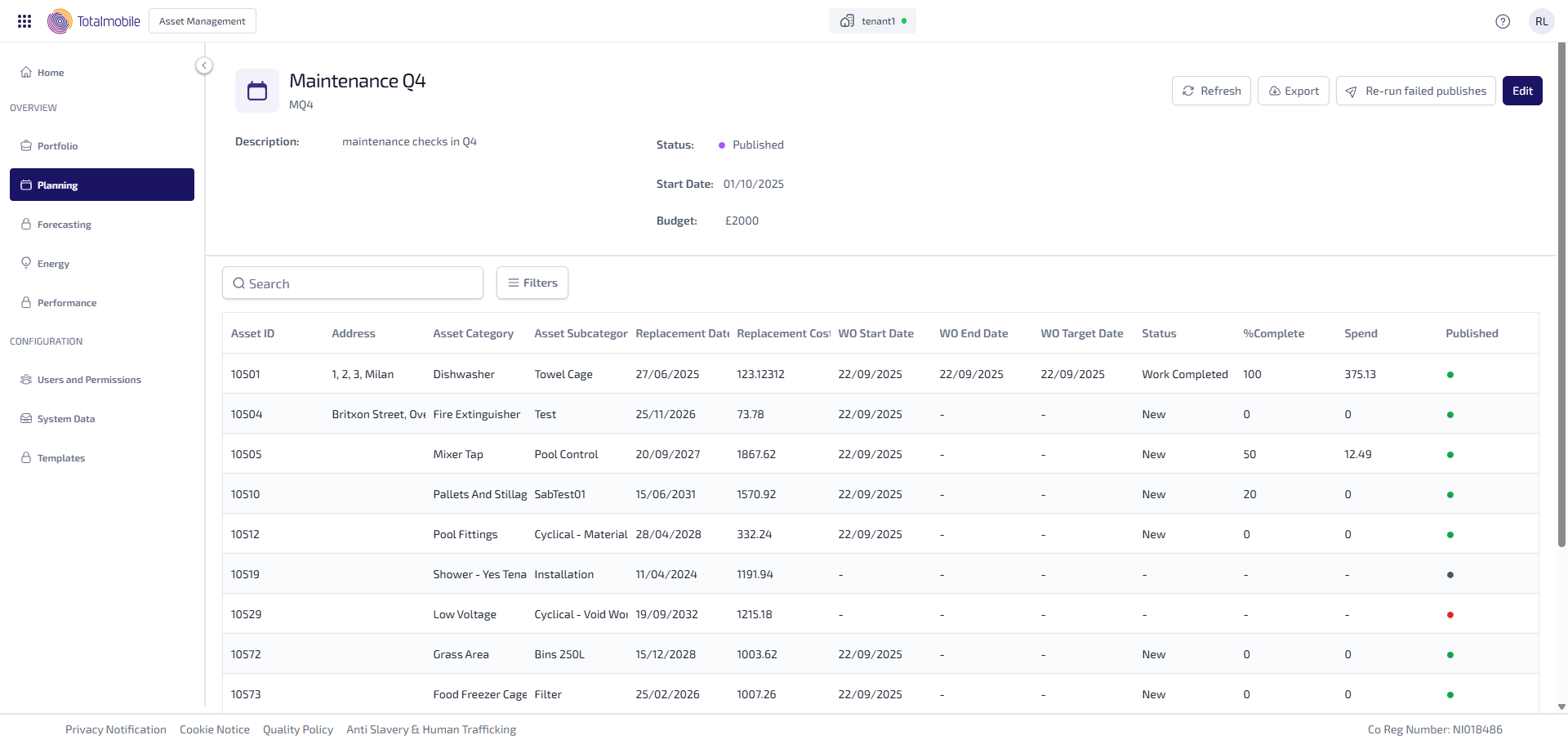
The summary at the top of the programme details provides you with some basic details about the selected programme.

The Programme Name and Programme ID are shown above the rest of the summary details. The following information is shown below:
-
Description - a description of the programme.
-
Status - the status of the programme. Once the programme has been published this can be manually updated as required, see Edit Programme for more information. The status will be one of the following:
-
Provisional - the programme of work is provisional, and has yet to be confirmed.
-
Confirmed - the programme of work has been confirmed.
-
Published - the programme of work has been published Job Management (Connect) and work orders have been created for the assets in the group.
-
In Progress - the programme of work is in progress.
-
Complete - the programme of work is complete.
-
-
Start Date - the date the programme of work due to start
-
Budget - the budget for the programme.
You can also do the following:
-
Refresh - select to refresh the information on the page. The date and time of the last refresh appears once the information is successfully updated.
-
Export- select to see the context menu and export the programme data.
-
Publish - this only appears when the programme has not yet been published to Job Management (Connect).
-
Re-Run Failed Publishes - this only appears if some assets in the programme were not successfully published to Job Management (Connect).
-
Edit- select to edit the programme details and associated assets.
The asset table below the summary, lists all the assets associated with the selected programme, and once it has been published, it also shows the work order progress for each asset.
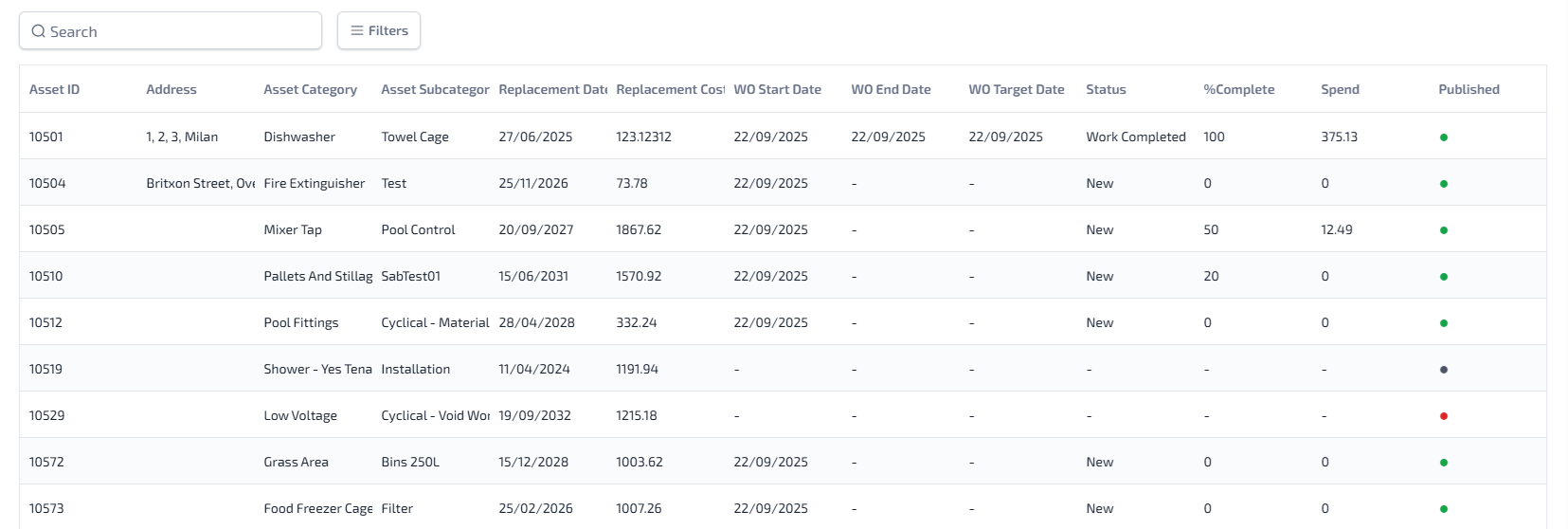
The following is shown for each asset:
-
Asset ID - the identification number given to the asset.
-
Address - the address where the asset is located.
-
Asset Category - the category assigned to the asset in Job Management (Connect).
-
Asset Subcategory - the sub category assigned to the asset in Job Management (Connect).
-
Replacement Date - the planned replacement date if the asset has one, otherwise it shows calculated replacement date.
-
Replacement Cost - the cost of replacing the asset.
-
WO Start Date - the start date for the work order.
-
WO End Date - the end date for the work order
-
WO Target Date - the target start date for the work order.
-
Status- the status of the work order in Job Management (Connect), which will be one of the following:
-
New
-
Planned
-
Work In Progress
-
Work Completed
-
Financially Completed
-
Awaiting Approval
-
Financially Approved
-
Invoiced
-
On Hold
-
Cancelled
-
-
%Complete - the percentage of jobs complete for the work order.
-
Spend - the cost associated with the work order.
-
Published - this column appears once the programme has been published, and shows whether the work order for each asset has been published to Job Management (Connect).
 - the work order is in the process of being published.
 - the work order has been successfully published.
 - the work order has failed to publish. This could be because it has timed out, or because there is no matching asset in Job Management (Connect).