List Control
The List control allows you to search and select one item from a list per form field.
Use the WebAdmin > Lists page to add and edit lists. For more details refer to Add a List.
Configure the List Control
-
In WebAdmin, select Forms.
-
Select an existing form, or select Add New Form to create a new one.
-
Navigate to an existing element within your form or select Insert a new Element
 .
-
Select Maintain element settings
 .
-
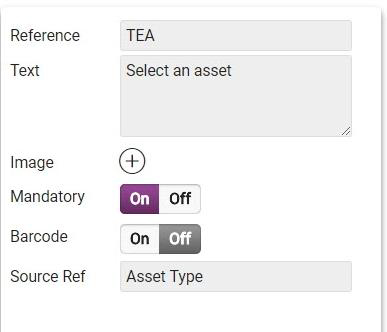
In the Update Element Details dialog:
-
Select the List control.
-
Select the Text field, and enter a description for the control.
-
Select the Source Ref field, and start typing the required list Reference. Select it when it appears.
-
To enable barcode and QR code scanning in the control, toggle Barcode to to On. For more details refer to Scan Barcode into List Control.
-
Configure other control options as required. For more details refer to Form Sections and Controls.
-
Select Save.
-
-
Save
 and Publish
 the form.
-
Ensure the form is assigned to an application or visit task within a solution.
Using the List Control
 On Android
-
On the device, navigate to the form.
-
Select the List control within the form.
-
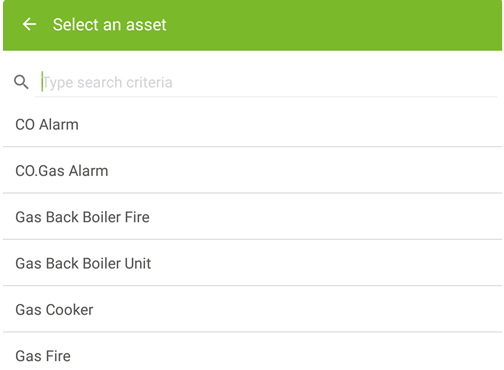
In the List screen:
-
Filter the items shown by typing in the search field.
-
Select an item as required.
-
-
Submit the form.
On iOS
-
On the device, navigate to the form.
-
Select the List control within the form.
-
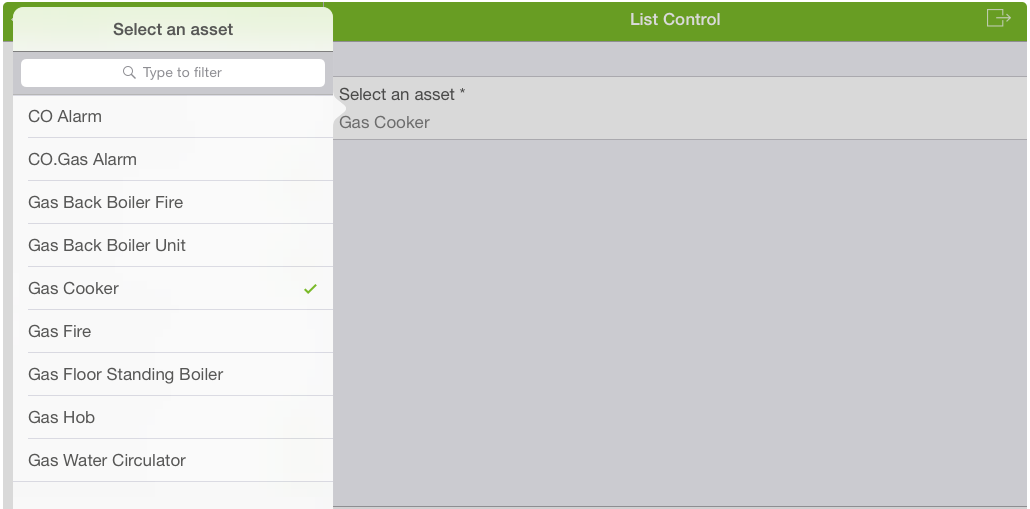
In the List screen:
-
Filter the items shown by typing in the search field.
-
Select an item as required.
-
-
Submit the form.