Multi Select List Controls
You can configure a form to select multiple choices that are sourced from a list. This includes hierarchical lists, in which list items can have scores that also be used in a subsequent Score control.
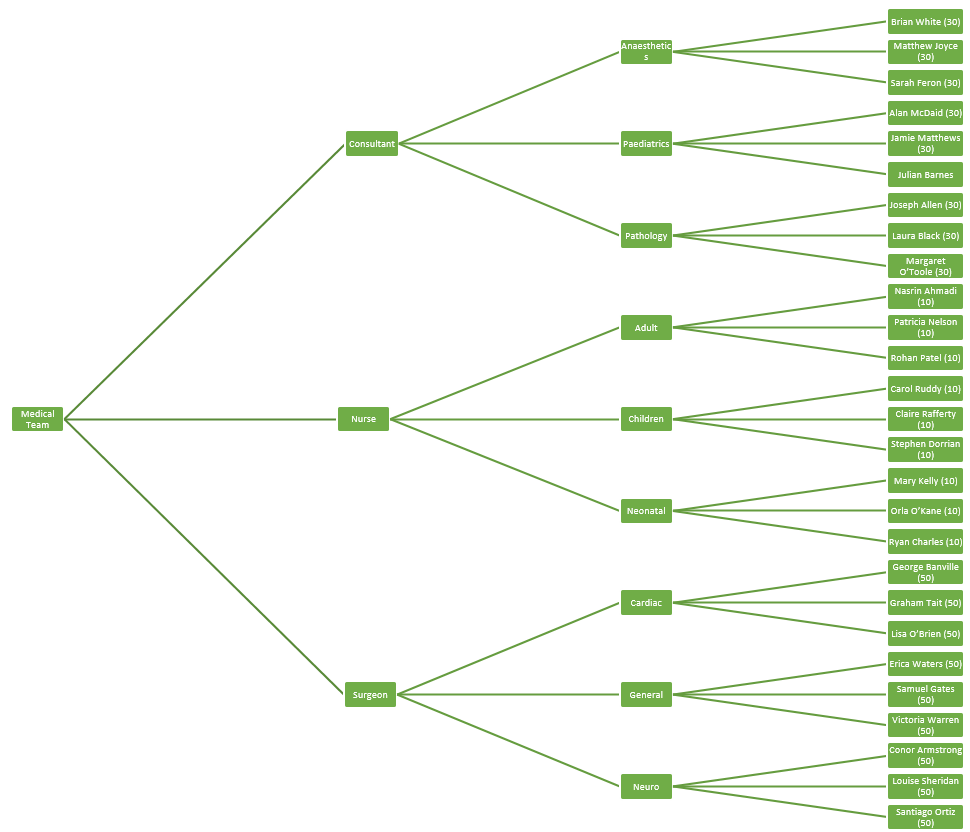
For example, you might have a medical team assembly form where you select the staff required in different jobs for a particular day. At the top level you choose the type of staff such as Nurse, Consultant or Surgeon. If you pick Consultant you then have to choose the type of consultant such as Anaesthetics, Paediatrics or Pathology, and after that selection you pick from the names of staff. These employee names in the list could have scores attached to them which are used as part of a calculation to decide whether or not the total staff you have selected is sufficient enough for a particular shift in your area of the hospital.
This is the example that will be used here to explain creating hierarchical lists with scores, creating a form with the Multi Select List control and a Score control that uses the list selections, and how it works on the device.
The diagram shows the list structure. This numbers in brackets indicate the score given to each of the staff.
For more details of creating a list, refer to Add a List and Add Items to a List.
Configure a Form with the Multi Select List Control and a Score Control
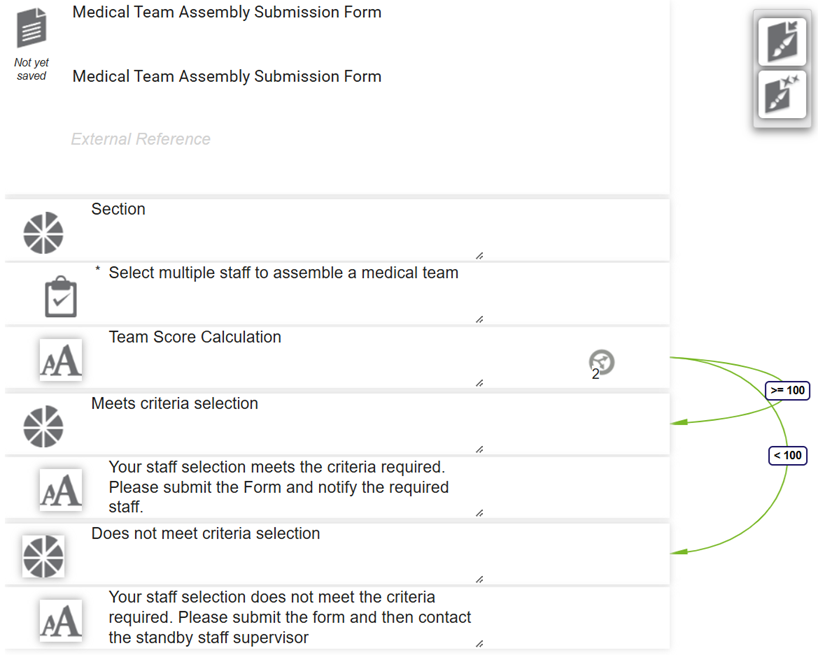
The procedure below shows an example form and the controls it consists of. In practice you would select multiple staff from the Multi Select List control, and the Score control calculates the sum of scores for the list items (staff) you have selected. Two conditions are applied to the Score control:
-
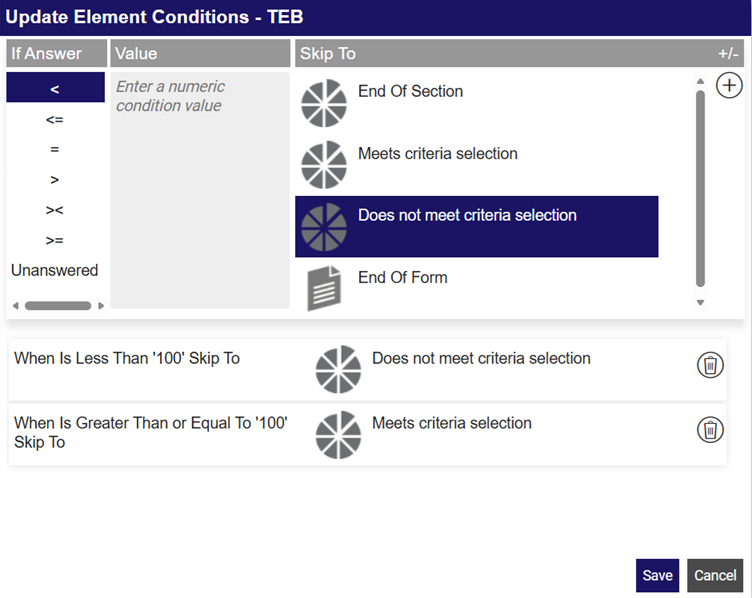
If the score is greater than or equal to 100, the form skips to a 'Meets criteria' section.
-
If the score is less than 100, the form skips to a 'Does not meet criteria' section.
Create a Form and Add a Multi Select List Control
-
In WebAdmin, select Forms.
-
Select Add New Form.
-
Select the Name* field and enter a form name.
-
Select the Description* field and enter a description for the form.
-
In the default Text control field, select Maintain Element Settings
 .
-
In the Update Element Details dialog:
-
Select the Multi Select List control.
The Reference field, which is automatically populated, will be used in the Score control.
-
Select the Text field, and enter a description for the new control.
-
Select the Source Ref field, and select your list from the dropdown, for example Medical Team.
-
Configure other control options as required. For more details refer to Form Sections and Controls.
-
Select Save.
-
Add a Score Control
-
In the Multi Select List element, select Insert a new Element
 .
-
In the new element, select Maintain Element Settings
. -
In the Update Element Details dialog:
-
Select the Score control.
-
Select the Text field, and enter a description for the new control, for example Team Score Calculation (100 or more is required)
-
In the Expression field, select Edit
 .
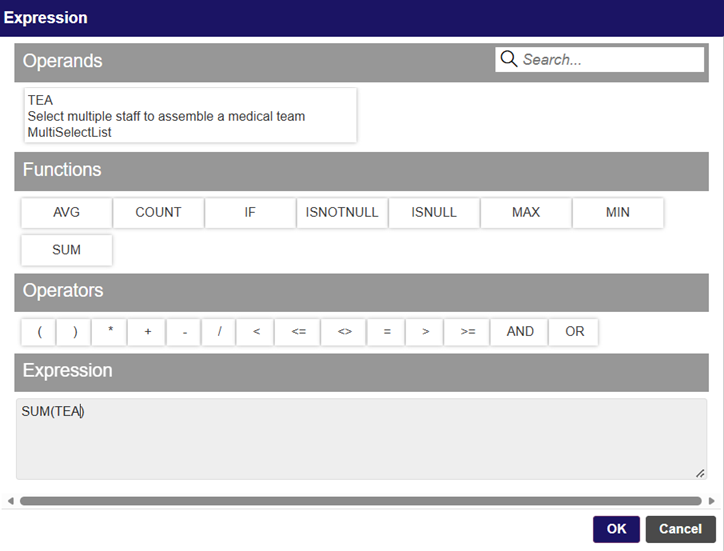
The Expression dialog appears.
-
In the Functions section, select SUM.
-
In the Operands section, select the reference for the Multi Select List control, for example TEA.
The completed expression displays in the Expression section.
-
Select OK.
-
Select Save.
-
For details of the other available settings in the Score control, refer to Configure the Score Control.
Add Conditions to the Score Control
-
In the form, create a new conditional section as follows:
-
In one of the existing elements, select Insert a new Element
. -
In the new element, select Promote Element
 .
-
Select Maintain Element Settings
. -
In the Update Element Details dialog, select the Conditional Section control.
-
Select the Text field, and enter a description for the new control, for example Meets criteria selection.
-
Select Save.
-
-
In the new section, select Insert a new Element
. -
In the new element, select Maintain Element Settings
. -
In the Update Element Details dialog:
-
Select the Label control.
-
Select the Text field, and enter a description for the new control, for example, Your staff selection meets the criteria required. Please submit the form and notify the required staff.
-
Select Save.
-
-
Repeat steps 1-4 to create another conditional section with a Label control, using a section description such as Does not meet criteria selection and a label description such as, Your staff selection does not meet the criteria required. Please submit the form and then contact the standby staff supervisor.
-
In the Score control, select Maintain Element Conditions
 .
-
In the Update Element Conditions dialog:
-
In the If answer section, select >=.
-
Select the Value field and enter 100.
-
In the Skip To section, select Meets criteria section.
-
Select Add
 .
-
In the If answer section, select <.
-
Select the Value field and enter 100.
-
In the Skip To section, select Does not meet criteria section.
-
Select Add
. 
-
Select Save.
-
Select Yes to confirm.
-
-
Save
 and Publish
 the form.
-
Ensure the form is assigned to an application or visit task within a solution.
Using the Multi Select List Control
 On Android
-
On the device, navigate to the form.
-
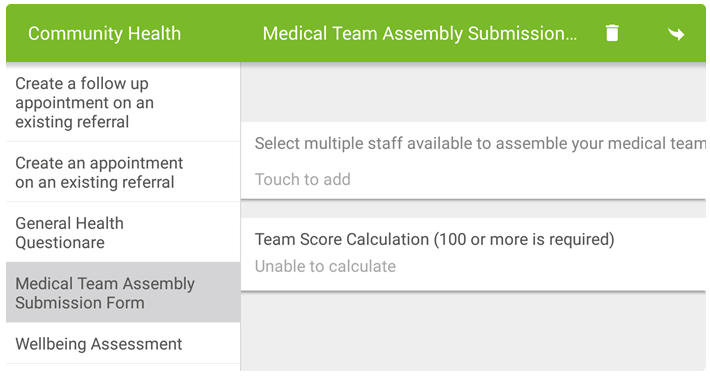
Select the Multi Select List control within the form, for example to add medical staff.
-
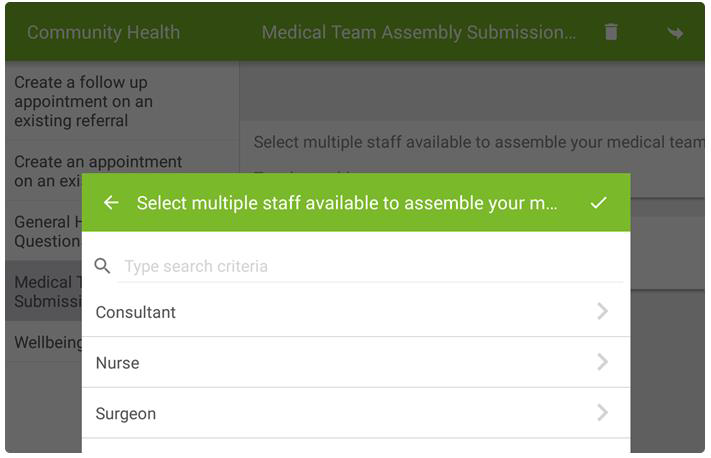
In the Multi Select List screen:
-
Type to search for top-level list items and/or select an item, for example Consultant.
-
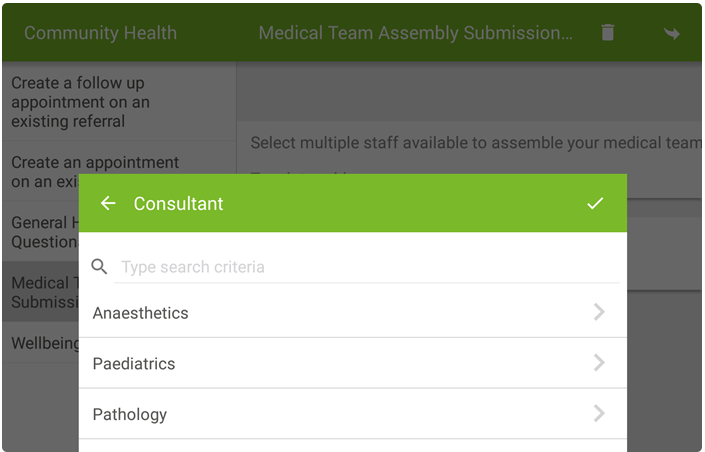
In the Consultant second-level list, type to search for list items and/or select an item, for example Paediatrics.
-
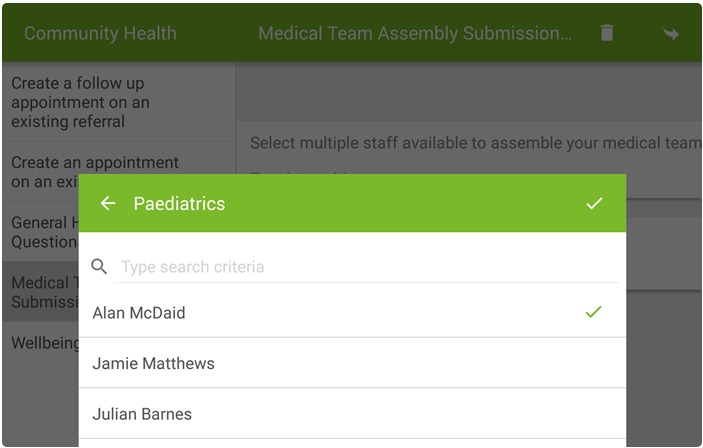
In the third-level list, type to search for list items and/or select staff names. A tick indicates that the list item has been selected along with the score.
-
Navigate to select other list items as required.
-
Select the tick icon in the Multi Select List control screen.
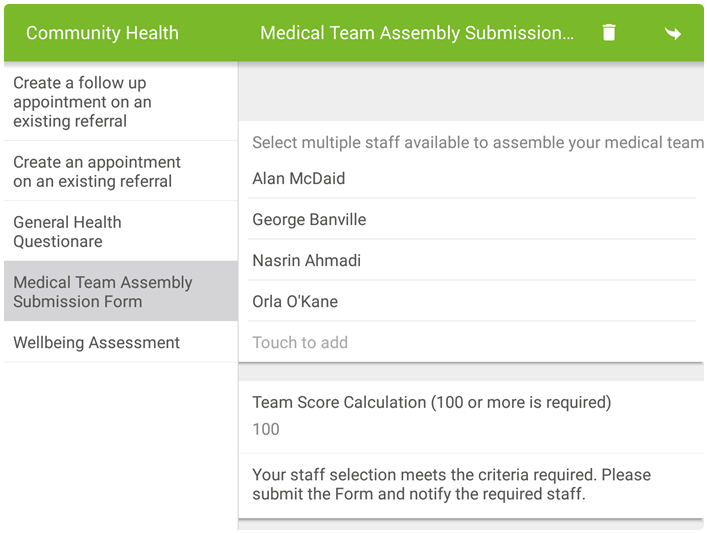
The view returns to the Form where the Multi Select List control displays the selected list items. The subsequent Score control automatically calculates the sum of the selected list items, and the Conditional Section with the Label displays based on the result of the Score control.
-
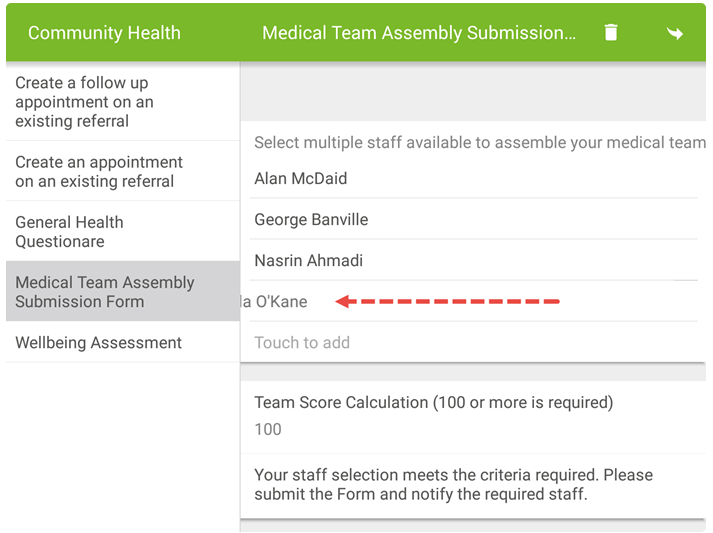
To delete a list item from the Multi Select List control, touch and swipe left on it.
-
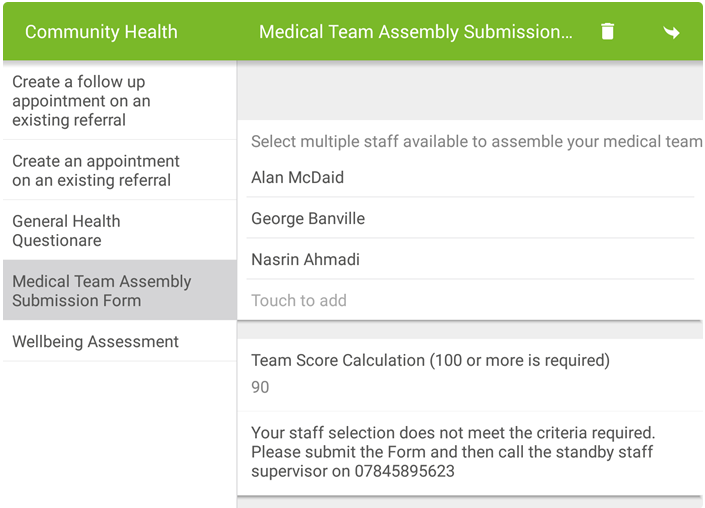
The Score control updates and if applicable based on the result, a different Conditional Section with Label is displayed.
-
On iOS
-
On the device, navigate to the form.
-
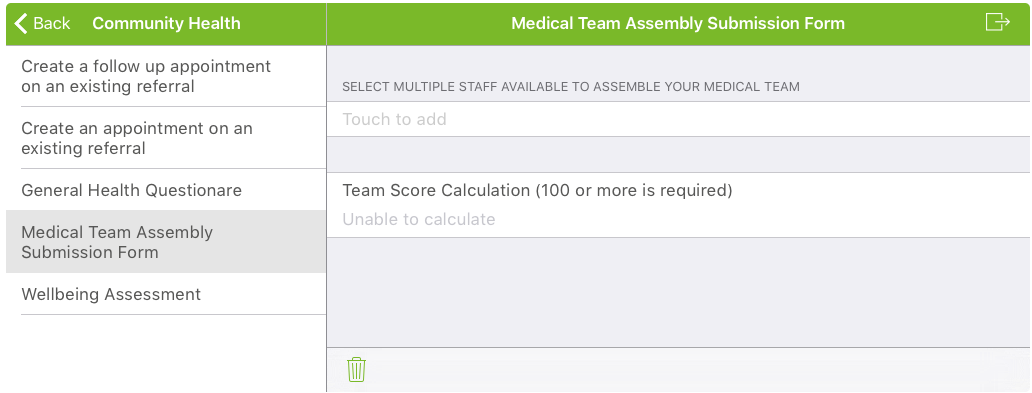
Select the Multi Select List control within the form, for example to add medical staff.
-
In the Multi Select List screen:
-
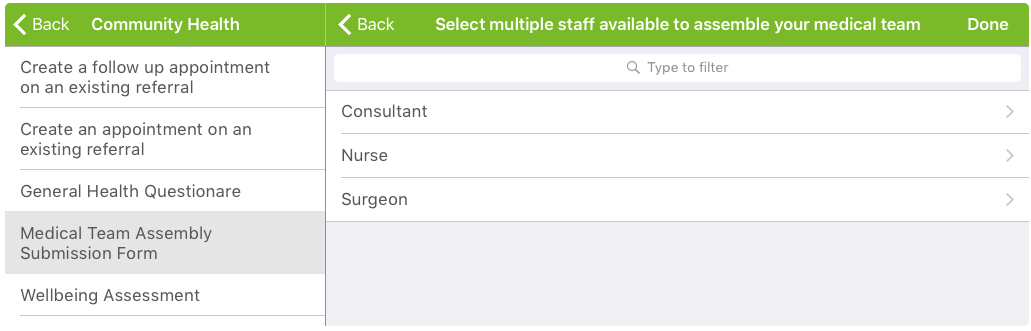
Type to search for top-level list items and/or select an item, for example Consultant.
-
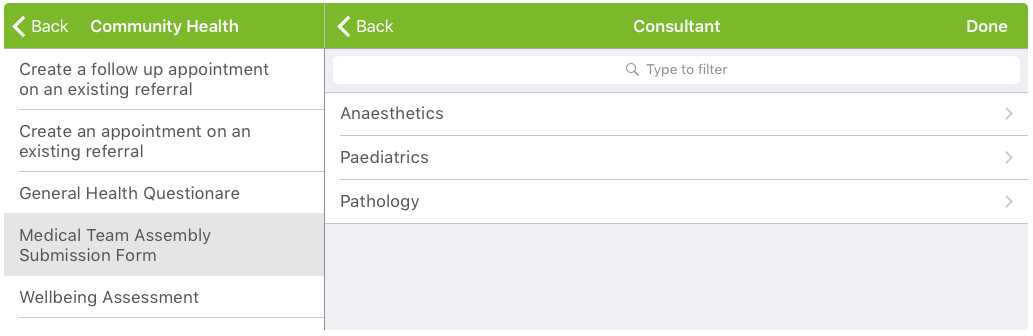
In the Consultant second-level list, type to search for list items and/or select an item, for example Paediatrics.
-
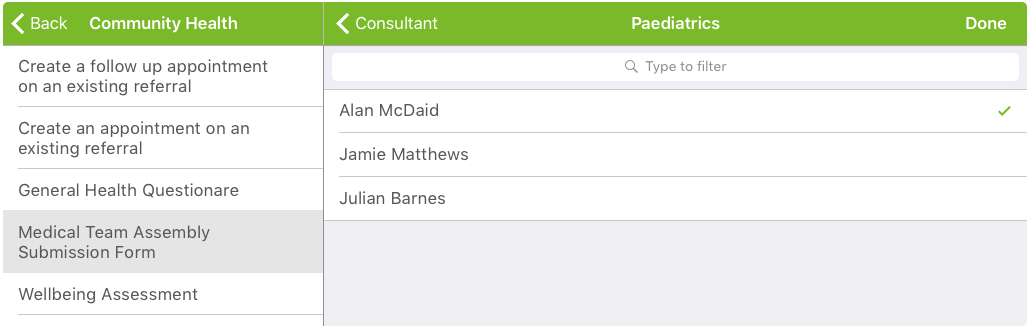
In the third-level list, type to search for list items and/or select staff names. A tick indicates that the list item has been selected along with the score.
-
Navigate to select other list items as required.
-
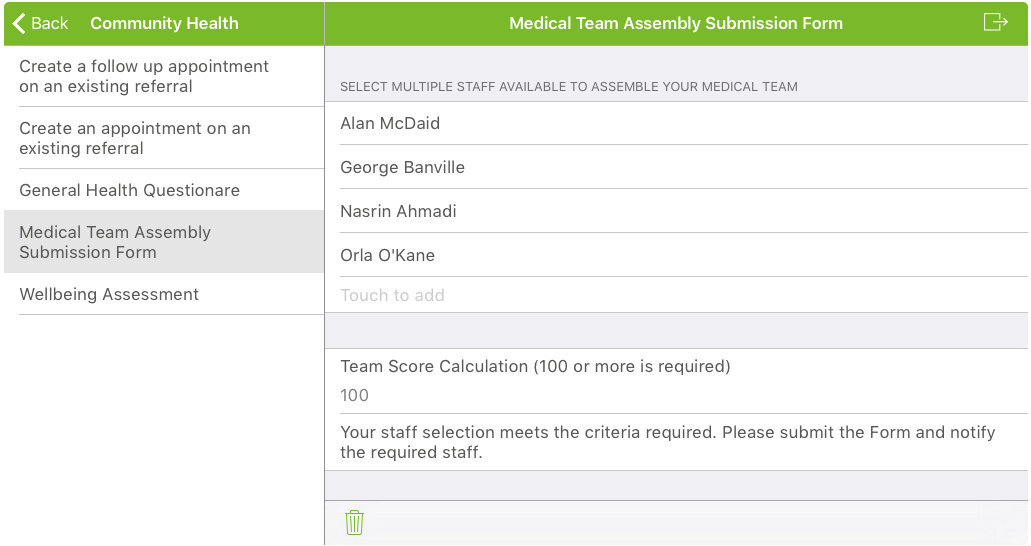
Navigate back or select Done.
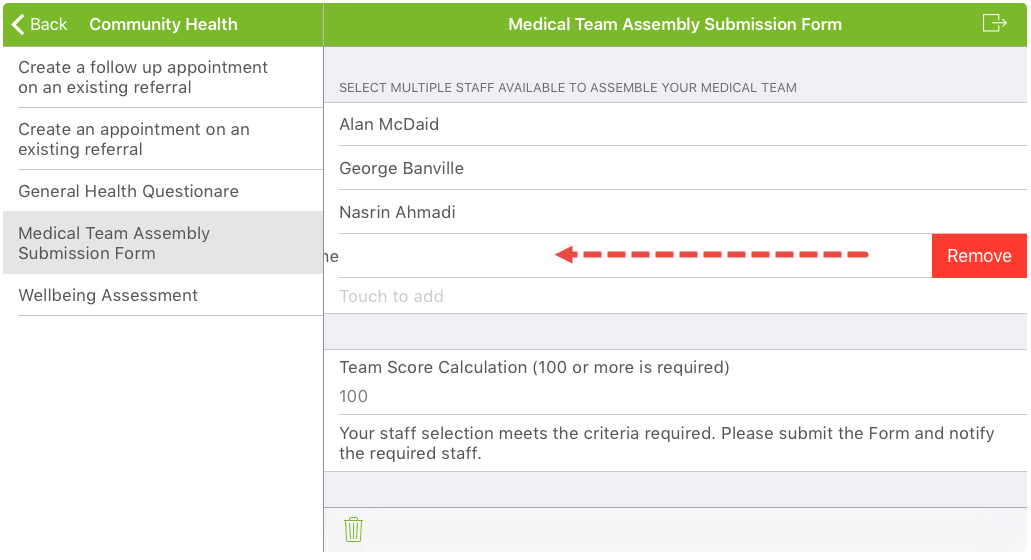
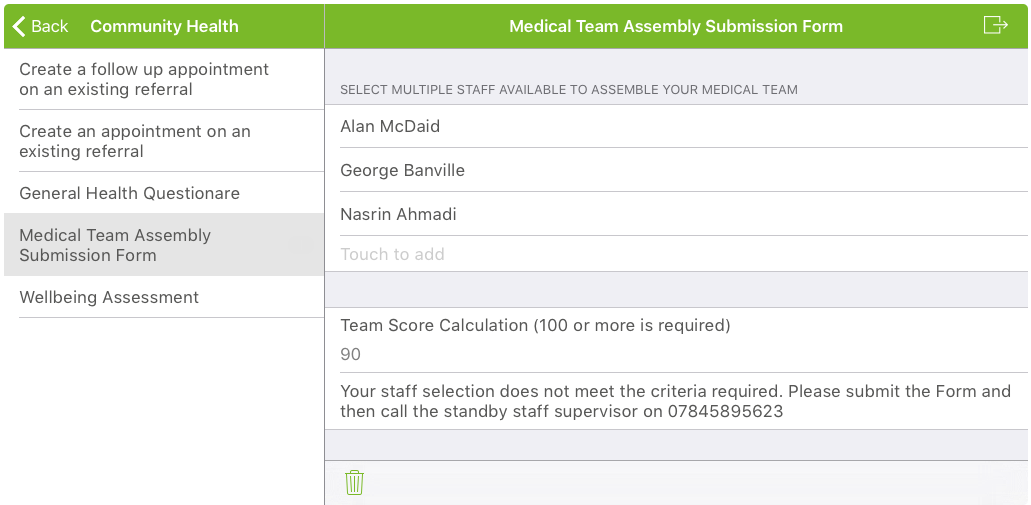
The view returns to the Form where the Multi Select List control displays the selected list items. The subsequent Score control automatically calculates the sum of the selected list items, and the Conditional Section with the Label displays based on the result of the Score control.
-
To delete an item from the Multi Select List control, swipe left on it and then select Remove.
-
The Score control updates and if applicable based on the result, a different Conditional Section with Label is displayed.
-