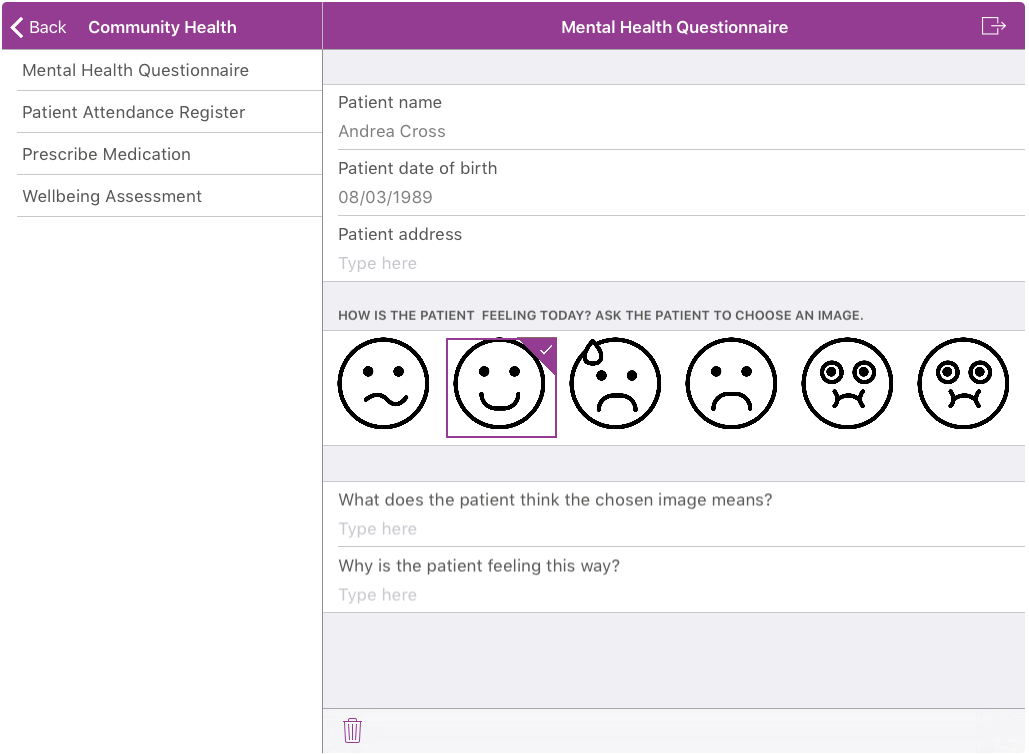
Multiple Choice Image Control
You can configure Multiple Choice Image controls which allow you to select one image from a multiple choice per form field. For example, you configure a Multiple Choice Image control in a mental health questionnaire form which allows you to show your patient a list of images displaying a variety of emotions and select the appropriate choice.
You upload images to the Image Library and assign the images to one or multiple categories. You then create image lists with images from the Image Library and source the lists when you configure Multiple Choice Image controls.
For more details of uploading images to the Image Library, refer to Add an Image.
For more details of creating image lists, refer to Image Lists.
Configure the Multiple Choice Image Control
-
In WebAdmin select Forms.
-
Select the required form.
-
Navigate to an existing element within the form or select Insert a new Element
 .
-
Select Maintain Element Settings
 .
-
In the Update Element Details dialog:
-
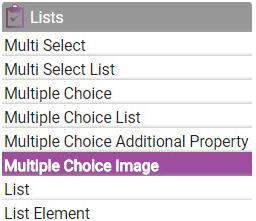
Select the Multiple Choice Image control.
-
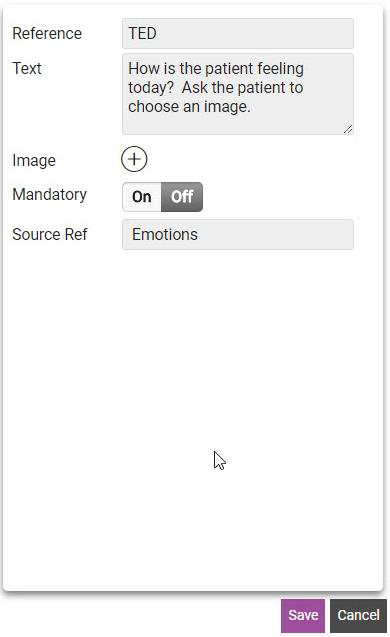
Select the Text field, and enter a description for the new control.
-
Select the Source Ref field, and select an image list from the dropdown.
-
Configure other control options as required. For more details refer to Form Sections and Controls.
-
Select Save.
-
-
Save
 and Publish
 the form.
Using the Multiple Choice Image Control
 On Android
-
On the device, navigate to the form.
-
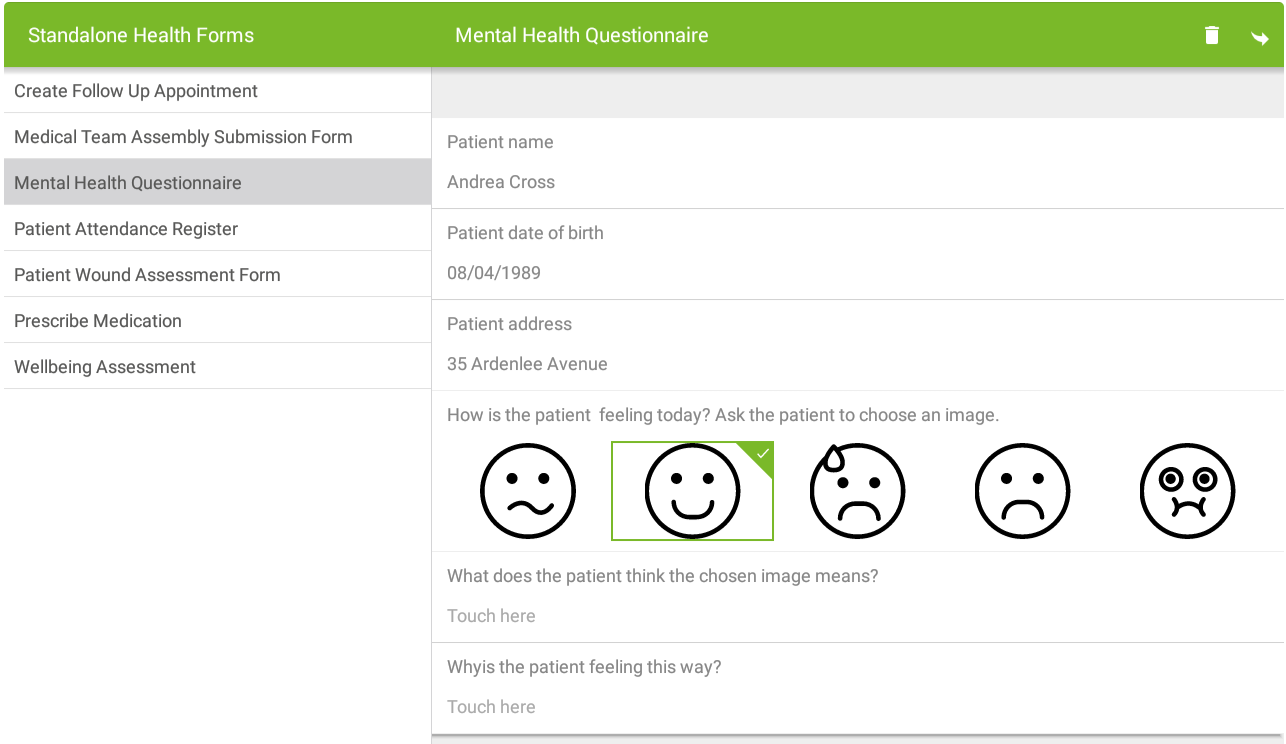
Navigate to the Multiple Choice Image control.
-
Select a List Image in the control.
On iOS
-
On the device, navigate to the form.
-
Navigate to the Multiple Choice Image control.
-
Select a List Image in the control.