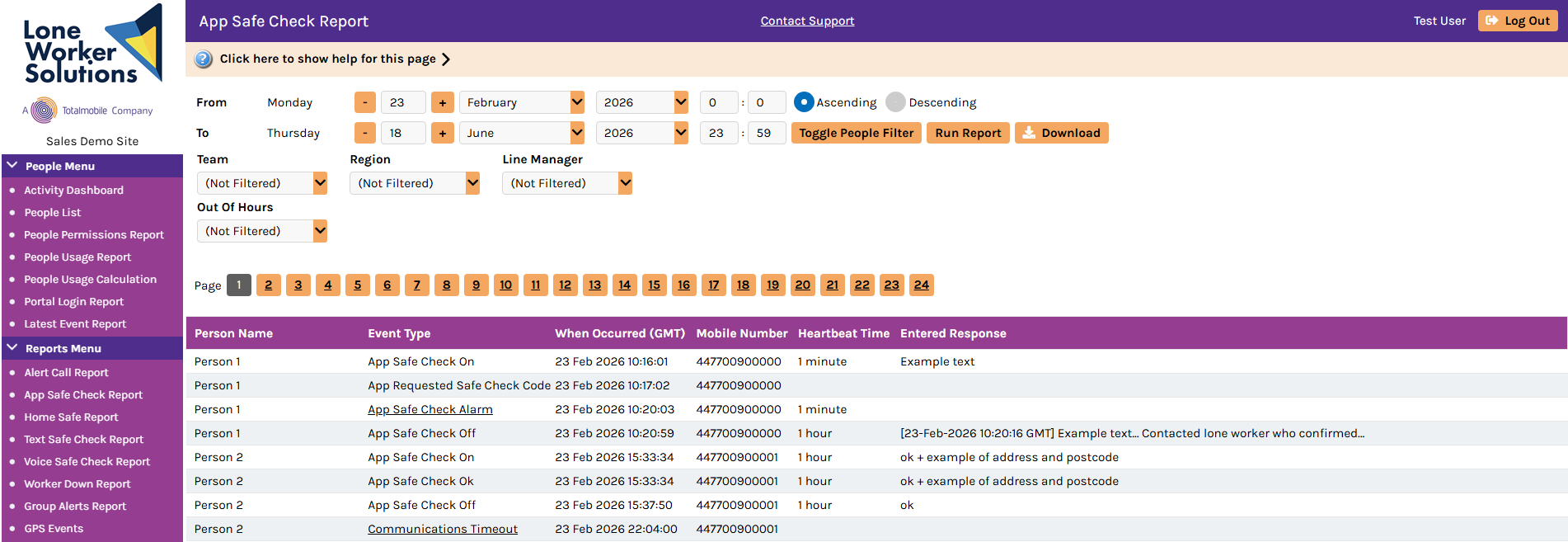
App Safe Check Report
The App Safe Check Report provides a log of all App Safe Check events by the specified date range and other filter options.
You can access it by selecting App Safe Check Report in the Reports Menu or from the App Safe Check Module menu in the navigation menu.
To view App Safe Check data, select the dates and any fields that you want to filter the report data on, and then select Run Report.
It provides the following filter options:
-
From and To date range — run the report between different dates
-
Toggle People Filter — select and choose individual people to report on
-
Hierarchy categories — the available filter options may depend on the particular configuration for your organisation; an example is grouping people by office or region
The report provides the following data:
-
Person Name — the name of the person (lone worker) using the Safe Check app
-
Event Type — the type of event that the Safe Check App logged, such as the following (this is not a complete list):
-
Safe Hub App Started
-
App Safe Check On
-
App Safe Check Ok
-
App Safe Check Off
-
App Requested Safe Check Code
-
App Safe Check Alarm
-
Communications Timeout
-
-
When Occurred (GMT) — the time and date that the event occurred
-
Mobile Number — the mobile number of the person (lone worker) that is linked to the Safe Check app
-
Heartbeat Time
-
Entered Response — the text that the user has entered in response to the App Safe Check request