Asset Register - Asset Info
Select an asset in the Portfolio > Asset Register tab to open the Asset Info panel. The Asset Info panel opens to the right of the page and displays an overview of the asset details.
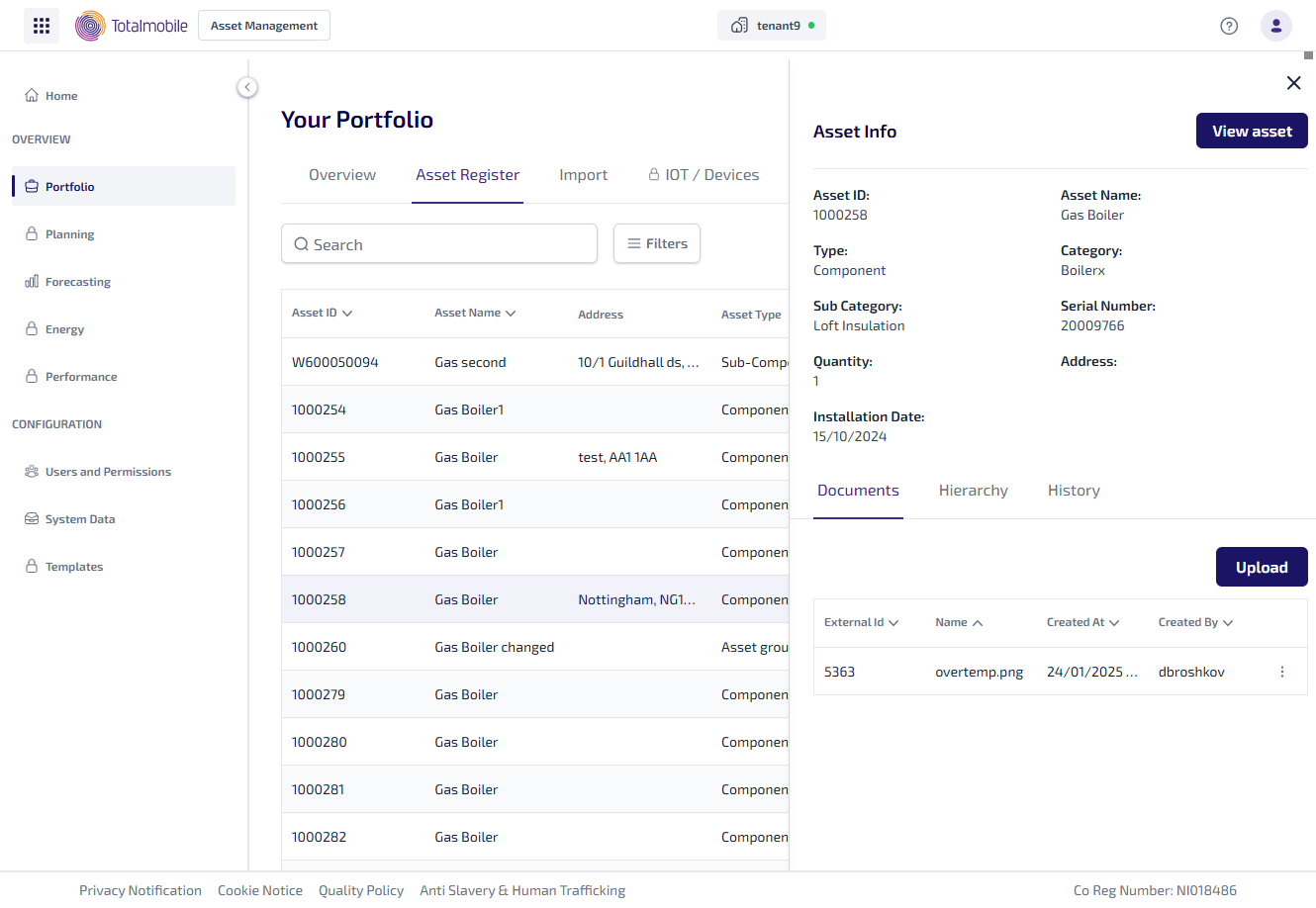
The Asset Info panel shows you the following information:
-
Asset ID - the identification number given to the asset.
-
Asset Name - the name given to the asset.
-
Type - the type of asset. This will be one of 5 options, being either Component, Sub-Component, Asset Grouping, Compliance Item, or Third Party Owned.
-
Category - the category assigned to the asset in Job Management (Connect).
-
Sub Category - the sub category assigned to the asset in Job Management (Connect).
-
Serial Number - the asset serial number.
-
Quantity - the number of these assets.
-
Address - the address where the asset is located.
-
Installation Date - the date the asset was installed.
The following tabs are available:
-
Documents - lists any documents associated with the asset, and lets you upload additional documents.
-
Hierarchy - this shows the parent asset and all associated child assets.
-
History - this shows a history of any changes against the asset, such as the assets status changing from ‘Pending’ to ‘Disposed’.
Select View Asset to see the full details and data associated with the asset, for more details see Asset Details.