Asset Details
When you select View Asset from the Asset Register, either from Asset Info or for an asset in the Hierarchy view, the Asset Details are shown. This shows you a summary for the asset, with tabs for all the additional associated information and data.
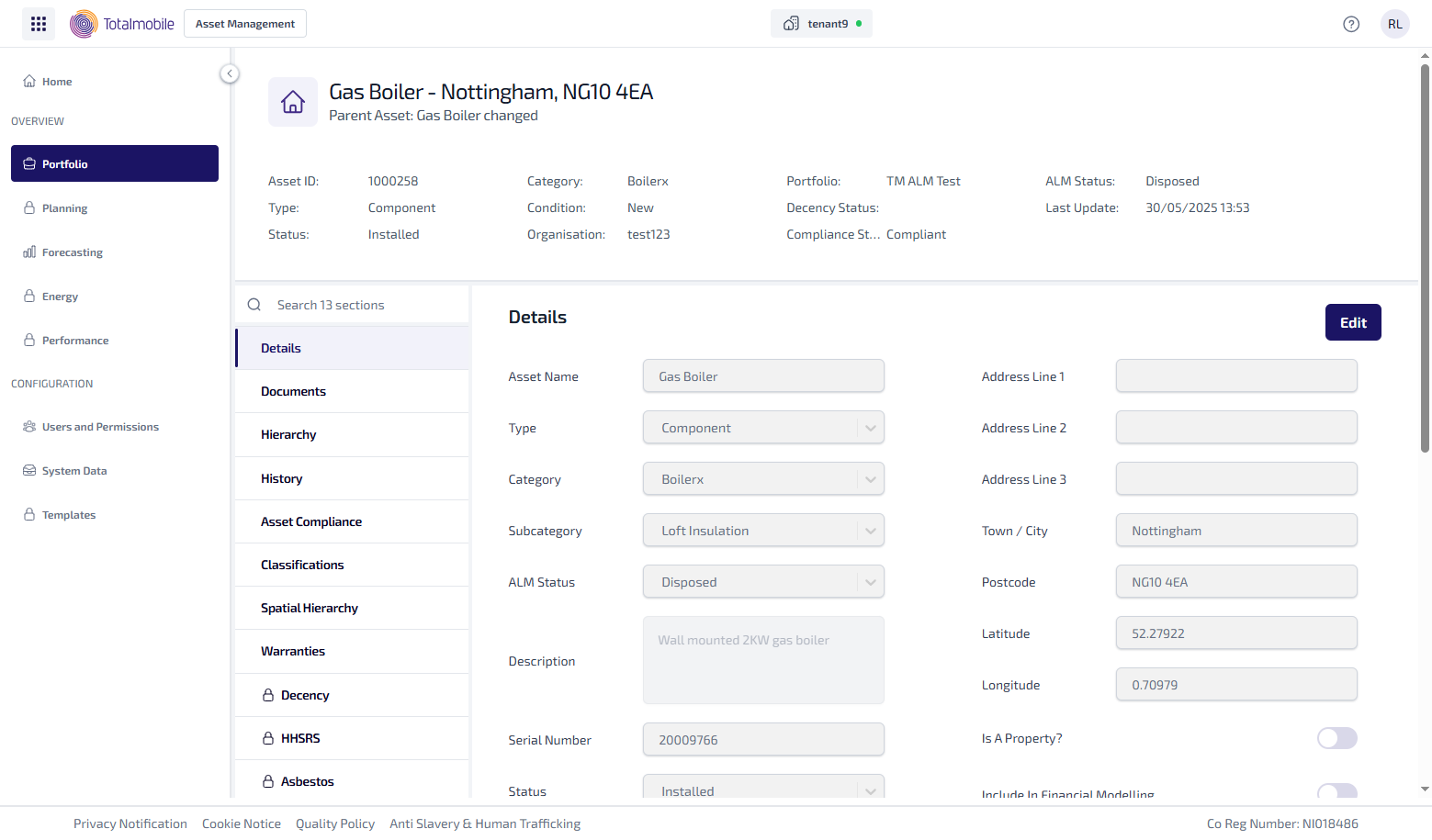
The summary at the top of the Asset Details provides you with some basic details about the selected asset.

The name of the asset, along with the address, and if relevant the name of the parent asset assigned to this asset, are shown above the rest of the summary details. Below this is the following information:
-
Asset ID - the identification number given to the asset.
-
Type - the type asset. Which will be one of 5 options, being either Component, Sub-Component, Asset Grouping, Compliance Item, or Third Party Owned.
-
Status - the asset status, whether it is Not Installed, Installed, or Removed.
-
Category - the category assigned to the asset in Connect.
-
Condition - the condition of the asset, assigned to the asset in Connect.
-
Organisation - the organisation assigned to the asset.
-
Portfolio - the portfolio assigned to this asset.
-
Decency Status - whether the asset is in a sufficient condition and meets the housing regulation rules.
-
Compliance Status - whether the asset is Compliant, Non-Compliant, or Requires Action.
-
ALM Status - the asset lifecycle status, which is going to be one of the following:
-
Pending
-
Commissioned
-
Operational
-
Under Maintenance
-
Decommissioned
-
Disposed
-
-
Last Update - the date and time the asset was last updated.
Below the summary are the following tabs:
-
Details
-
Documents
-
Hierarchy
-
History
-
Asset Compliance
-
Classifications
-
Spatial Hierarchy
-
Warranties
-
Custom Data
-
Asbestos
-
Decency
-
HHSRS
You can use the search field at the top of the tabs list to find a specific tab. Start typing the tab name into the search field, and the list of tabs updates to show all matching results.