Hierarchy Settings
Hierarchy Settings are linked to directly to People, Profiles, Actions, Escalation stages, and Report pages.
-
Sending an escalation to a hierarchy when a person raises an alarm causes all other people who share the same hierarchy item to receive a message.
-
Hierarchy categories and their items appear within drop-down lists at the top of report pages, allowing portal users to filter the people that appear in reports. To learn more about using hierarchy filters in report pages, refer to Hierarchy and People Filters.
You can optionally assign hierarchy categories in the Hierarchy Settings on a Person profile.
To limit the people that a person can see when they are logged in to the portal, you can configure the Hierarchy Restriction settings for a Person.
Assigning Hierarchy Settings for a Person
You can optionally assign one or more hierarchy categories (and their associated settings) to a person when you add a new person or amend the settings of a person who already exists in the system.
To do this, select and open the People List from under People Menu in the navigation menu.
Adding a new person
-
From the People List page, select Add New Person.
-
Configure and save the settings for Common Settings, Personal Details, profiles, and portal login as appropriate. For information about these areas, refer to Adding a user.
-
Scroll down to Hierarchy Settings For This User.
-
To assign an item, select an item from the drop-down list for a category.
-
Once you have finished selecting the hierarchy settings, select Save Hierarchy Settings.
Amending settings for an existing person
-
From the People List page, locate and select the person's name to load their Person page.
-
Select Settings. The Settings page for the person opens.
-
Scroll down to Hierarchy Settings For This User. To assign an item, select an item from the drop-down list for a category.
-
Once you have finished selecting the hierarchy settings, select Save Hierarchy Settings.
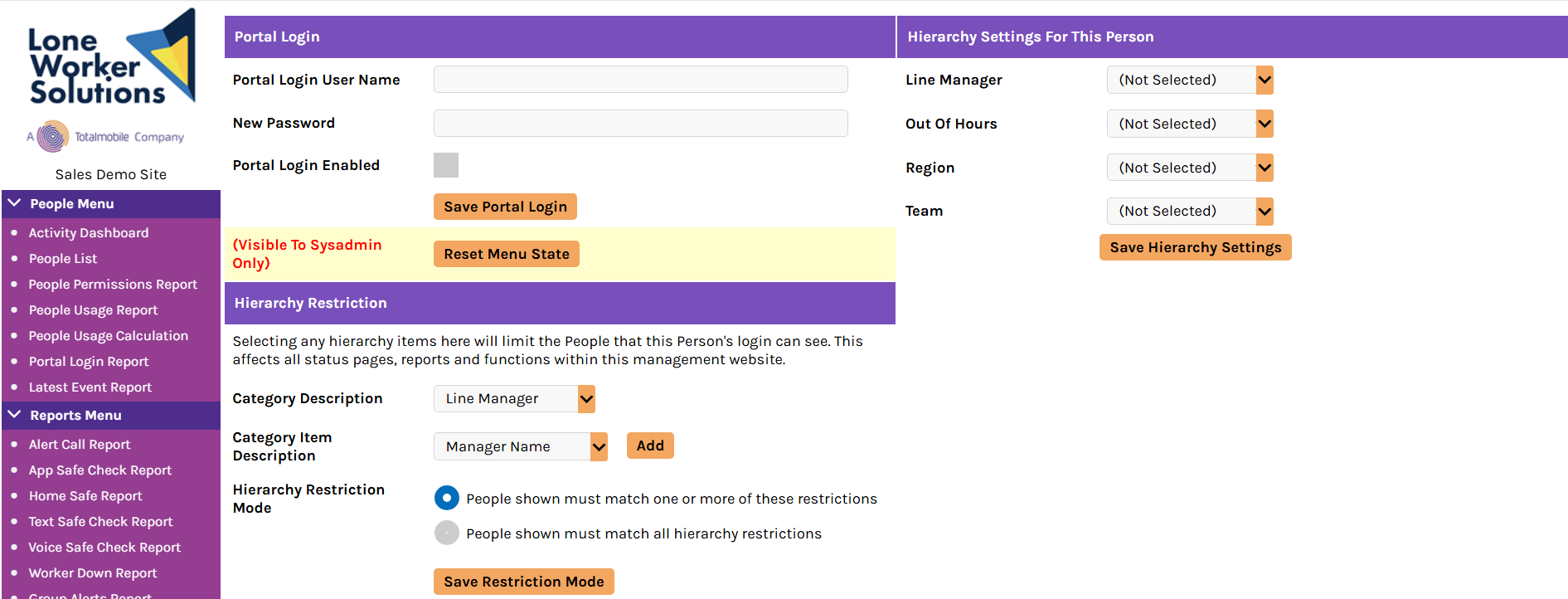
Hierarchy Restriction
You can also configure the Hierarchy Restriction settings for the person, which limit the people that a person can see when they are logged in to the portal. This affects all status pages, reports and functions within the Management Portal.
If you select or change any settings in the Person page, select Save Restriction Mode when you are finished.