Operator Escalation Instructions
Operator Escalation Instructions provide information and instructions to ARC (Alarm Receiving Centre) operators in the event that there is an escalation. For example, a Yellow Alert or Red Alert.
You must add Operator Escalation Instructions for a person when you add their details in the Management Portal. You can also amend the instructions for a person who already exists in the portal.
Configuring Operator Escalation Instructions for a Person
To configure the Operator Escalation Instructions:
-
Open the People List from under People Menu in the navigation menu.
-
Adding a new person: From the People List page, select Add New Person. Enter their name before you proceed. Configure and save the settings for Common Settings, Personal Details, profiles, and portal login as appropriate. For information about these areas, refer to Adding a user.
-
Amending settings for an existing person: From the People List page, locate and select the person's name to load their Person page. Select Settings.
-
-
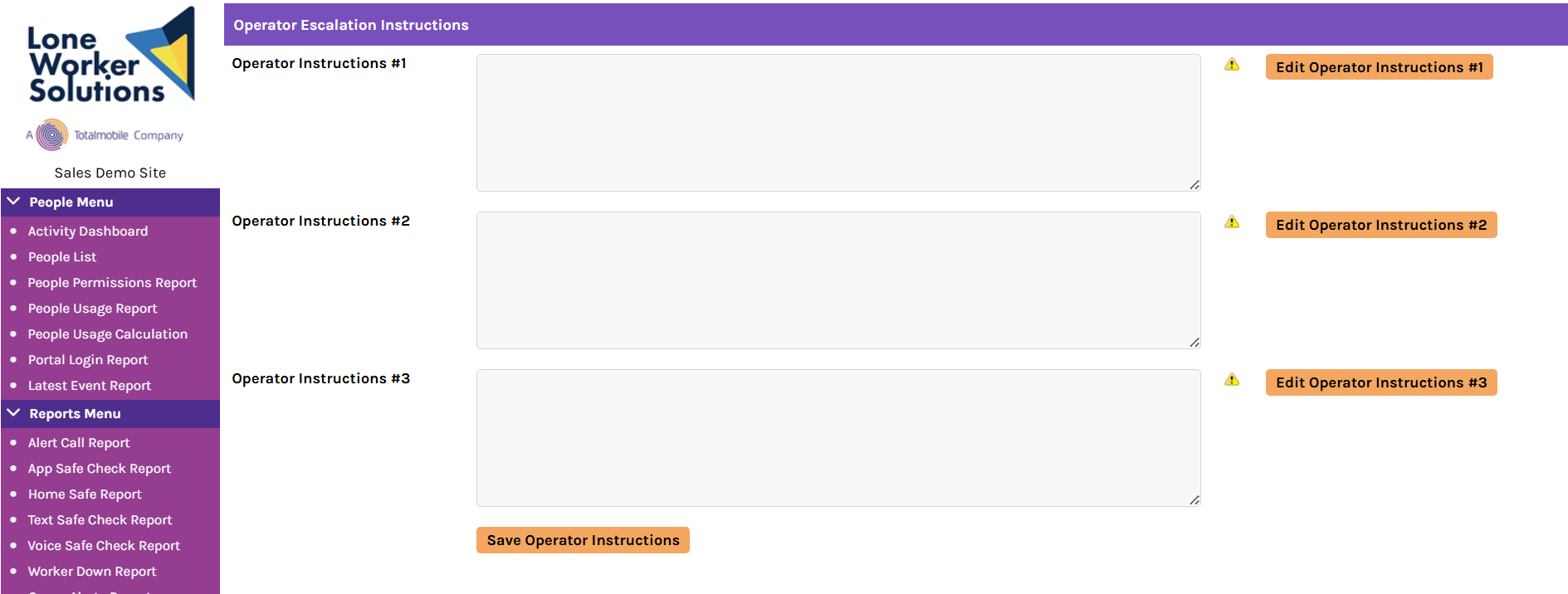
Scroll down to Operator Escalation Instructions and enter the operator actions in each Operator Instruction field. You can also do the following:
-
Use Substitution Tags to automatically enter information that is already populated on the person's profile, such as those in Available Substitution Tags.
-
Select Edit Operator Instructions to access granular settings for each Operator Instruction field.
-
-
When you have finished configuring each Operator Instruction, select Save Operator Instructions.
Example Operator Escalation Instructions
In the following example, the operator instructions include a combination of free text and Substitution Tags.
| Example Instruction | Description |
|---|---|
|
Contact Lone Worker on device #GPSNUMBERS# then mobile #MOBILENUMBER# |
Instructs the action to contact the Lone Worker on their registered GPS Device and Mobile Number. In the person's Settings page, GPS Settings contains the Assigned GPS Devices information; Common Settings contains Mobile Number. |
| Check Yellow alert or Safe Check for any additional information |
Instructs the operator to check the named reports for information; to do this, they can run the Alert Call Report and App Safe Check Report. |
Substitution Tags
You can also use substitution tags to automatically enter information that is already populated on the person's profile, such as those in Available Substitution Tags.
Where you specify a tag in an operator instruction, the system references the data from field for the associated setting. This functionality enables you to reuse generic instructions, instead of having to manually locate and enter each unique detail for each person.
For example, #MOBILENUMBER# is replaced by the number in the Mobile Number field in the Common Settings section of the person's Settings page.
These tags fall into the following categories.
-
Default Substitution Tags: Person-level tags that represent and reference data from the Settings page for the specific Person.
-
Hierarchy-level Substitution Tags: Tags that represent and reference data from the hierarchy settings that are associated with the specific Person on their Settings page.
-
Site-level Substitution Tags: Tags that represent and reference data based on the site settings.
-
Custom Substitution Tags: Custom tags that may be available for your site, depending on your configuration.
The available tags depend on the configuration of your site (Management Portal).
Default Substitution Tags
These tags represent and reference data from the Settings page of the specific Person that the Operator Escalation Instructions concern.
| Tag | Field to substitute data from |
|---|---|
| #MOBILENUMBER# | Mobile Number |
| #EMAILADDRESS# | E-Mail Address |
| #STAFFID# | Staff ID Number |
| #GPSDEVICES# | GPS Device (if applicable, in GPS Settings) |
| #GPSNUMBERS# |
The phone number of the assigned GPS Device (if applicable, in GPS Settings) |
| #PERSONALMOBILENUMBER# | Personal Mobile Number |
| #DOB# | Date Of Birth |
Example Hierarchy Substitution Tags
The available Hierarchy Substitution Tags depend on the hierarchy categories for your site. The operator instruction depends on the specific hierarchy category item for the person in their Settings page.
| Tag | Hierarchy category to substitute data from |
|---|---|
| #Outofhours# | Out Of Hours |
| #region# | Region |
| #Team# | Team |