SLA Details
You can define Service Level Agreement (SLA) details to ensure that customers receive notifications about upcoming scheduled jobs in line with their service agreements.
The defined SLA details are then used in the following places:
-
Automatic job scheduling. Mendel recognises SLA data configured against jobs and ensures those jobs are scheduled before the start of the notification period to allow time for the customer to be notified before arrival.
-
The SLA Automatic Commit background job. If enabled, this automatically commits jobs with SLAs in a defined period before the customer is due to be notified. For more details refer to Background Job Settings.
-
Committing a job. When you commit a job that matches the specified contract reference and/or work type in the SLA details, the job is validated to check it is being committed before the start of the customer's notification period. For more details refer to Commit Jobs in the Schedule User Guide.
-
Manually scheduling a job. When you schedule a job that matches the specified contract reference and/or work type in the SLA details, the job is validated to check it is being scheduled before the start of the customer's notification period. For more details refer to Manually Scheduling Jobs in the Schedule User Guide.
Add SLA Details
You must have the SLA Details permission for this procedure. For more details refer to Permissions.
To add SLA details:
-
In WebAdmin select Optimise Admin.
The Universal Settings and Worlds page appears.
-
In the Universal Settings section, select SLA Details.
The SLA Details page appears.
-
Select Add New SLA Details
 .
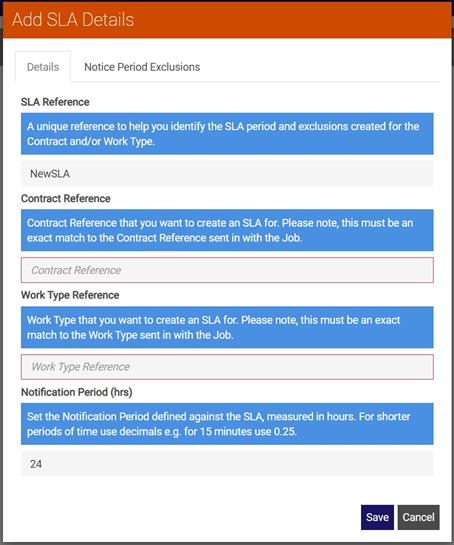
.The SLA Details dialog appears with the Details tab open.
-
On the Details tab:
-
Select the SLA Reference* field, and enter a unique reference for the SLA.
-
Select the Contract Reference field and enter the contract reference that applies to the SLA, if available.
If you leave this field blank, the SLA will apply to all contracts.
-
Select the Work Type Reference field, and enter the work type reference associated with the SLA, if available.
If you leave this field blank, the SLA will apply to all work type references.
The Contract Reference and Work Type Reference combination must be unique for each SLA.
-
Select the Notification Period* field, and enter the notification period, in hours, defined for the SLA.
This is the length of time between the job's scheduled time, and when the customer should be notified of the job allocation. The default is 24 hours.
-
-
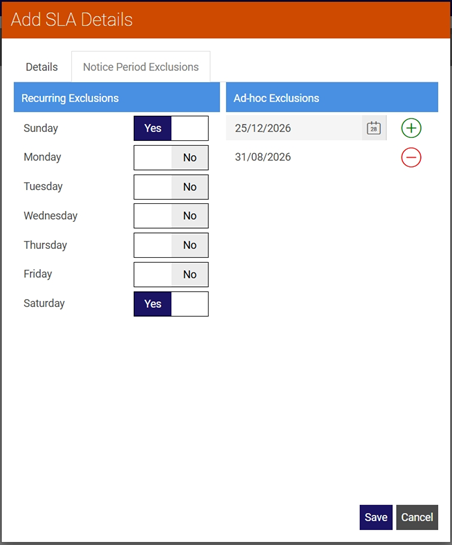
Select the Notice Period Exclusions tab.
-
Under Recurring Exclusions, use the toggles to select days that should be excluded when calculating the notification date and time.
For example, if a customer requires 24 hours' notice and does not work weekends, exclude Saturday and Sunday to ensure that any jobs scheduled for a Monday have a notification sent on Friday rather than Sunday.
-
Under Ad-hoc Exclusions:
-
Select the calendar field, then select a date from the calendar that should be excluded when calculating the notification date and time.
For example, you might want to exclude bank holidays to ensure they are ignored if they fall within a notification period.
-
Select Add Date
 .
.
-
-
Select Save.
* Required field.