Acting Up fields to record Duty and Overtime hours
Users can record Acting Up activity against both standard duty and overtime, including full or partial shifts, while capturing the applicable type, grade and reason for the claim.
Acting Up claims follow existing authorisation workflows and integrate directly with Payroll by providing all the required information to support pay calculations and threshold tracking. The Overtime Claims report also displays the Grade that someone worked at when working overtime with Acting Up.
When the Acting Up feature is enabled:
-
Staff can flag and record full or partial shifts and hours as 'Acting Up' on time sheets in GRS Web > My GRS > Time and Attendance. For an overview, refer to Submitting and Authorising Acting Up Claims summary. For detailed information, refer to Time Sheets.
-
Managers/authorisers can review Acting Up claims and Overtime from the Acting Up tab in GRS Web > My Staff > Time Sheet Authorisation. For an overview, refer to Submitting and Authorising Acting Up Claims summary. For more information, refer to Time Sheet Claim Authorisation and Overtime Approval.
Enabling Acting Up claims summary
To enable Acting Up, an administrator must do the following:
-
Define the Acting Up Reasons in Time Sheet Definitions. Refer to Define the Acting Up Reasons.
-
Enable the appropriate Acting Up setting on a time sheet that uses the Time Sheet Style of Islands of Duty in Time Sheet Layouts. Refer to Define a Time Sheet with Acting Up claims.
-
Set up a system option if you would like to convert Acting Up claims to Processed when they have been authorised by an Authoriser.
Define the Acting Up Reasons
An administrator must define the Acting Up Reasons that are available to select in the Time Sheet Definition for users submitting Acting Up claims in GRS Web via Time Sheets.
To define the Acting Up Reasons:
-
In Main Client, navigate to Time Sheets, select Time Sheet Definitions, and then Acting Up Reasons.
-
The Acting Up Reasons page appears. Select Add.
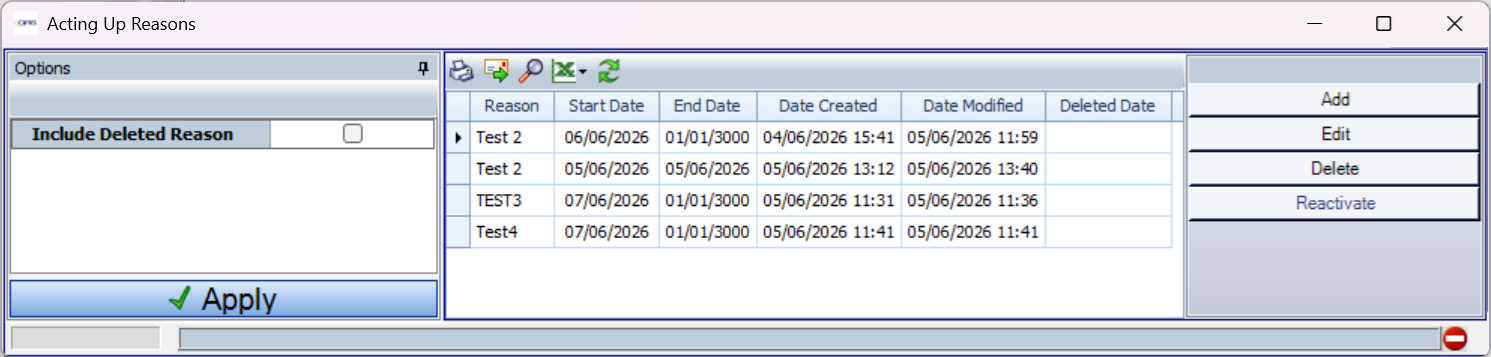 To edit an existing reason, select the Reason in the list and select Edit. It is also possible to view previous, deleted reasons by selecting the check box next to Include Delete Reason and then Apply. The Acting Up Reasons screen displays deleted reasons in the list, highlighted in red-coloured text, and provides the option to select a reason and Reactivate it.
-
The Define Acting Up Reason screen appears. Configure the following fields:
-
Reason — the name of the reason, which must be unique
-
Start Date — the default setting is the current date
-
End Date — the default setting is that the Reason is open-ended, which you can configure to leave as open-ended or select an end date as you require
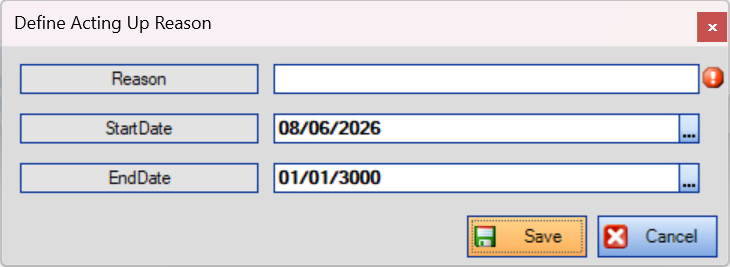 The Reason name must be unique. The system validates the name and prevents using the same name more than once.
-
-
Select Save. Alternatively, if you do not want to save the Reason, select Cancel.
The Reason is will now be available to select in the Acting Up claim form on Time Sheets.
Define a Time Sheet with Acting Up claims
To define a Time Sheet with Acting Up fields in Main Client:
-
Navigate to the Time Sheets category and select Time Sheet Definitions.
-
Select Time Sheet Layouts.
-
The Time Sheet Layouts page appears. To edit an existing time sheet, select it from the list and then select Edit. To create a new layout, select Add — you also need to set other options in the definition before setting the Acting Up settings in the next step.
-
Select Advanced Options.
-
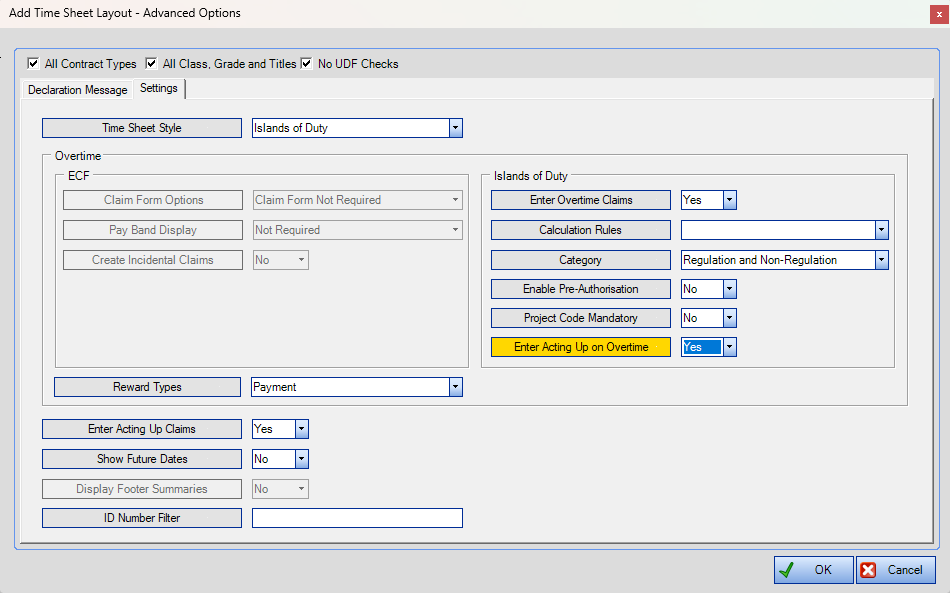
Ensure that the Time Sheet Style setting is Islands of Duty; otherwise, the Acting Up fields are not available.
-
Select the appropriate Acting Up settings from the following fields:
-
Enter Acting Up Claims — select Yes or No (the default setting is No).
-
Enter Acting Up on Overtime (in the Islands of Duty section) — select Yes or No (the default setting is No). This option is available only when Enter Overtime Claims is set to Yes.
-
-
Select OK to save the settings and close the page.
Submitting and Authorising Acting Up Claims summary
An administrator must configure this option using one of the following settings:
-
Yes — ensures that when a manager authorises an Acting Up claim it automatically updates its status to Processed.
-
No — ensures that when a manager authorises an Acting Up claim it updates its status only to Authorised, which requires the system to process the claim separately.
When a time sheet is configured for Acting Up claims:
-
Personnel can submit Acting Up claims via My GRS > Time Sheets. For more information, refer to Time Sheets.
-
A manager can view and authorise or reject Acting Up and overtime claims via GRS Web via My Staff > Time Sheet Claim Authorisation.
Authorise and Process Acting Up Claims
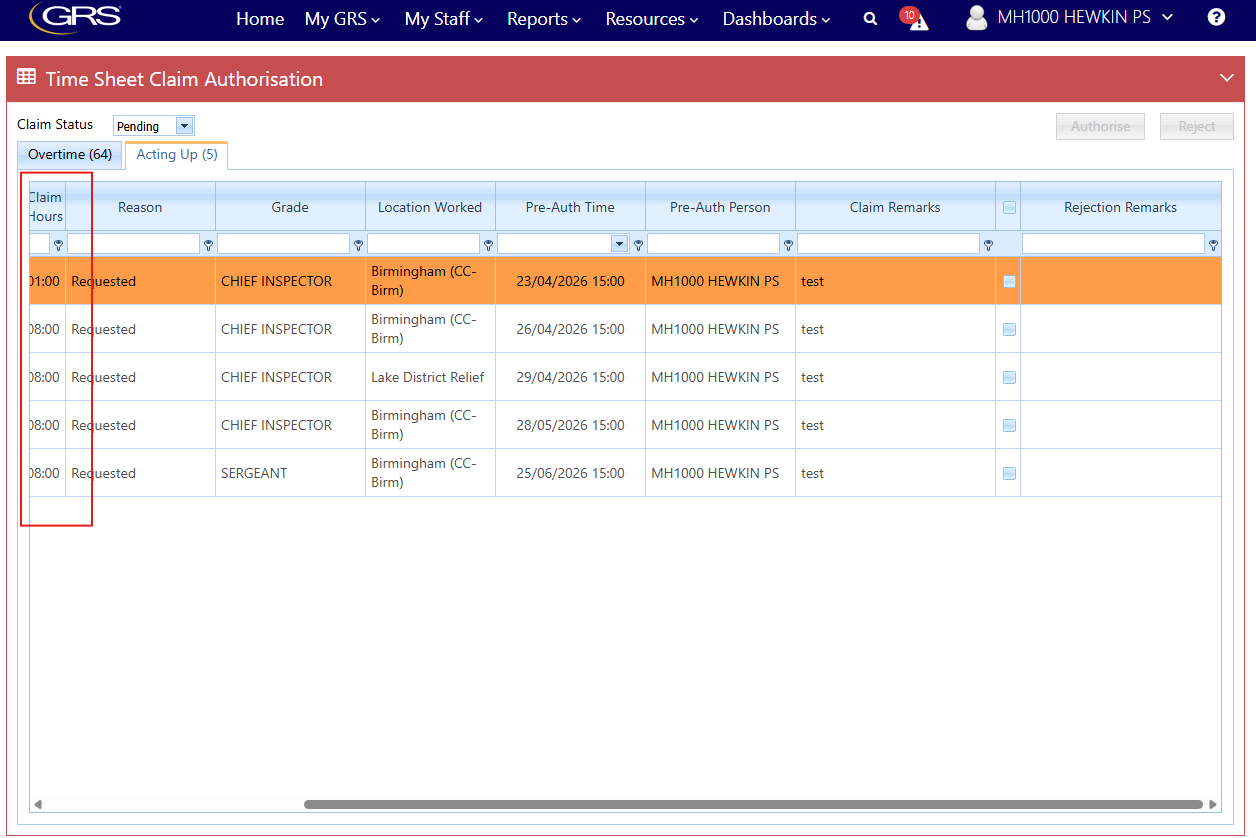
A manager can authorise Acting Up claims via the Time Sheet Claim Authorisation page, which provides detailed information from user claims on two tabs:
-
Overtime
-
Acting Up
Each tab displays a number in brackets to indicate the number of pending claims. In the following example, the page is on the Overtime tab and displays tabs for Overtime (7) and Acting Up (1).

The table in the Acting Up tab displays fewer columns and does not display the Project Code menu.
For more information, refer to Time Sheet Claim Authorisation.