Time Sheets
The GRS Web Time Sheets (or Electronic Claim Forms, ECF) allow a user to view their time entries, modify the time entries to reflect their actual working hours and to submit these times for authorisation. Depending on your organisation's requirements you may also be able to submit claims for mileage and subsistence via the time sheet/ECF.
Time Sheets table overview
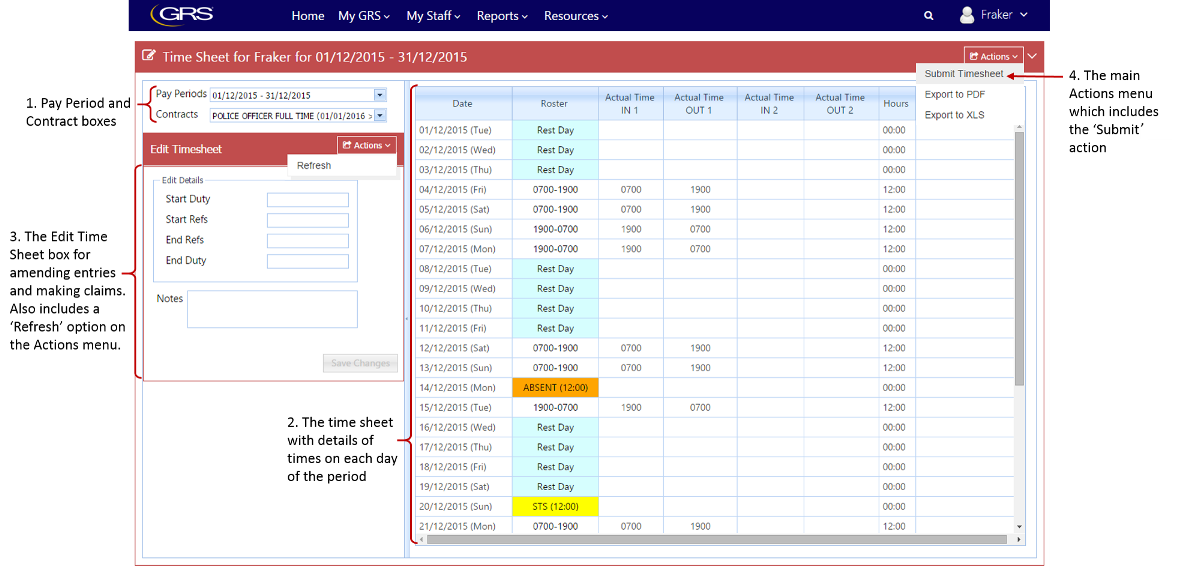
The Time Sheet page contains four key areas:
-
Pay period (or flexi period) and contract selection boxes.
-
Time sheet itself, with rows for each day and columns containing the daily time information.
-
Edit Time Sheet box, for amending the entries, making claims and refreshing the time sheet.
-
Actions menu which has export options and, specifically on the time sheets page, contains the Submit option.
Time sheets that are enabled for the Acting Up feature allow personnel to create an Acting Up claim to flag a shift or part of a shift as Acting Up.
Columns in the table
The time sheet includes a number of columns, which an administrator can configure in the Time Sheet layout. For example:
-
Roster — indicates the activity for the given day; for example, a rostered shift period, Rest Day, absence, or otherwise.
-
Shift Date — the date of the shift.
-
Planned Location — the planned location of the work.
-
Actual Hours — the actual hours of work.
-
OT x1 — indicates an instance of overtime. The time sheet may include further OT columns, for example OT x1.5, OT x2.
-
TOIL x1 — indicates an instance of TOIL. The time sheet may include further TOIL columns, for example TOIL x1.5, TOIL x2.
-
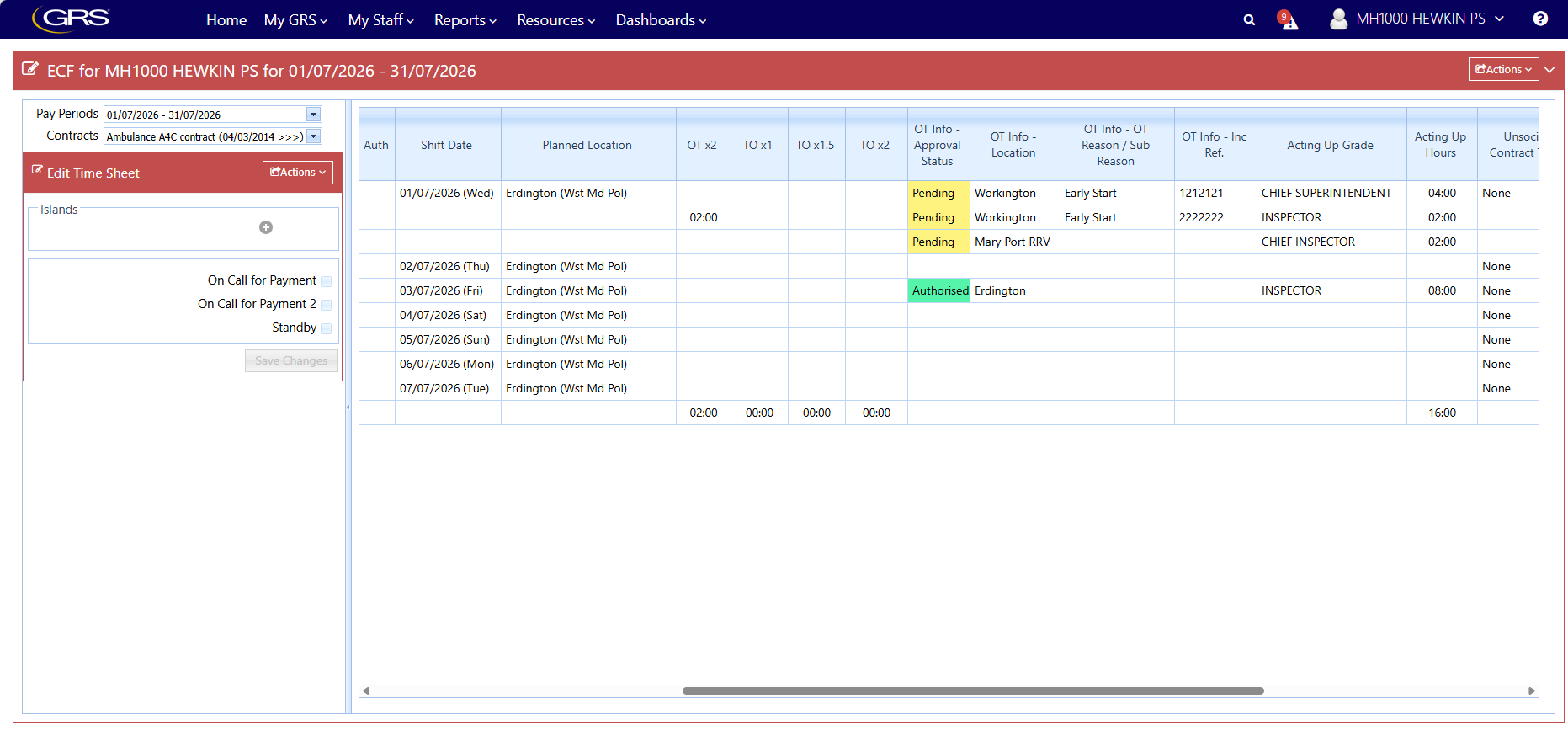
Claim Info - Approval Status — shows the current status of Overtime and Acting Up claims; Pending, Not Authorised, Authorised, or Processed. If a claim has a status of Not Authorised (Rejected), you can hover over or select the status to display the associated Rejection Remark in a tool tip.
-
Claim Info - Location Worked — the location that the person worked the hours, whether standard duty hours, Acting Up, or overtime.
-
Claim Info - Incident Ref — the incident reference.
-
Claim Info - OT Reason/Sub-Reason — the overtime reason and any selected sub-reason.
-
Acting Up Grade — indicates whether a shift was worked as Acting Up.
-
Acting Up Hours — shows the number of hours claimed, calculated from the duration between the claim start and end times.
The following image shows Time Sheet information without Acting Up columns:
The following image shows Time Sheet information including Acting Up Grade and Acting Up Hours columns:
Creating an Acting Up claim
To submit an Acting Up claim for hours worked on a standard shift:
-
In the Islands section of the time sheet, select the Island drop-down menu and select Create Acting Up Claim.
-
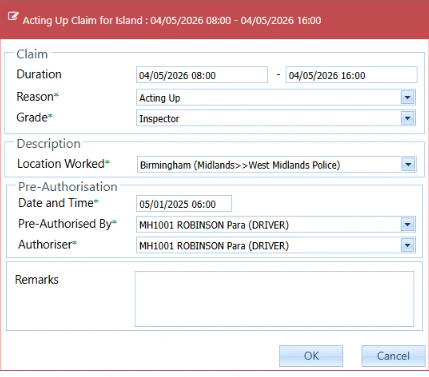
The Acting Up Claim for Island screen appears. Specify the Acting Up details:
-
Duration — the start date and time and the end date and time.
-
Reason — select Acting Up from the drop-down menu.
-
Grade — select an appropriate personnel grade that is higher than your own. Grades that are equal to or lower than your grade or associated with a different class are not available to select.
-
Location Worked — the location of the overtime work that the overtime claim relates to.
- Date and Time — the date and time of the pre-authorisation.
-
Pre-Authorised By — person associated with the pre-authorisation.
-
Remarks — optionally add remarks regarding the claim.
-
-
Select OK.
The following example is of the Acting Up Claim for Island page showing the Acting Up fields.
The claim is subject to the authorisation flows that an organisation has configured. For claims that require approval, an authoriser/manager must review the claim in My Staff > Time Sheet Authorisation page in GRS Web. If they approve the claim it updates the status of the claim to Authorised.
Creating an Overtime claim with Acting Up
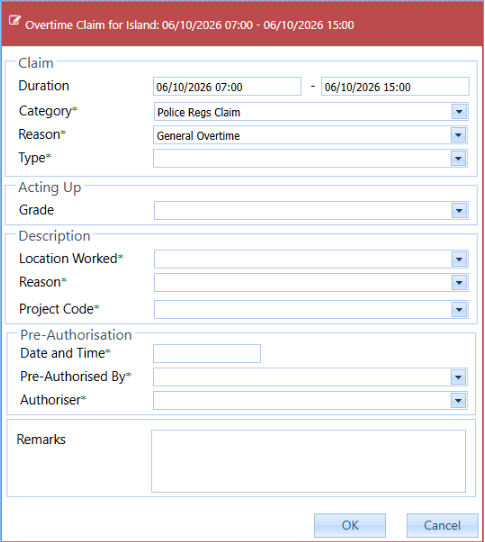
The Overtime Claim for Island form displays an additional Acting Up section when the time sheet layout has the Enter Acting Up on Overtime option set to Yes in Main Client.
To submit an Acting Up claim for overtime:
-
Select the option to create a new overtime claim. The Overtime Claim for Island form appears.
-
Provide the appropriate details in the Claim panel.
-
The Acting Up panel section contains an optional Grade field, which allows you to select a Personnel Grade that is higher than your own. You can optionally choose to select a Grade or select the blank value at the top of the list if you want to clear the field. Grades that are equal to or lower than a logged-in user's grade, or those associated with a different Class, are not available to select. This field is optional.
The available grades are displayed in the hierarchy order defined in Main Client via Personnel > Personnel Definitions > Personnel Grades, with the highest grade shown at the top of the list, and the lowest at the bottom. -
Provide the appropriate details in the Description and Pre-Authorisation panels.
-
Select OK to save the claim.
The following example is of the Overtime Claim for Island page showing the Acting Up fields.
Senior Officer Hours Claim Information
Senior Officers should use the TOIL claim process to submit TOIL. The system ensures that additional hours are automatically transferred into a dedicated Senior Officer Hours (SOH) absence account.
Any unused Senior Officer Hours in the pot become unavailable to use after 'X' days, where 'X' is the number of days as determined by the organisation. You can track balances within GRS Web.
To view debit records, navigate to:
-
My GRS > Time and Attendance > Time Owing Claims
-
My Staff > Overtime > Time Owing Report
-
My GRS > Absences > My Leave Records > TOIL tab
To view credit records, navigate to: My GRS > Absences > My Leave Records > Absence Accounts