Home
Once you have accessed Asset Management from within Field First, the Home page displays.
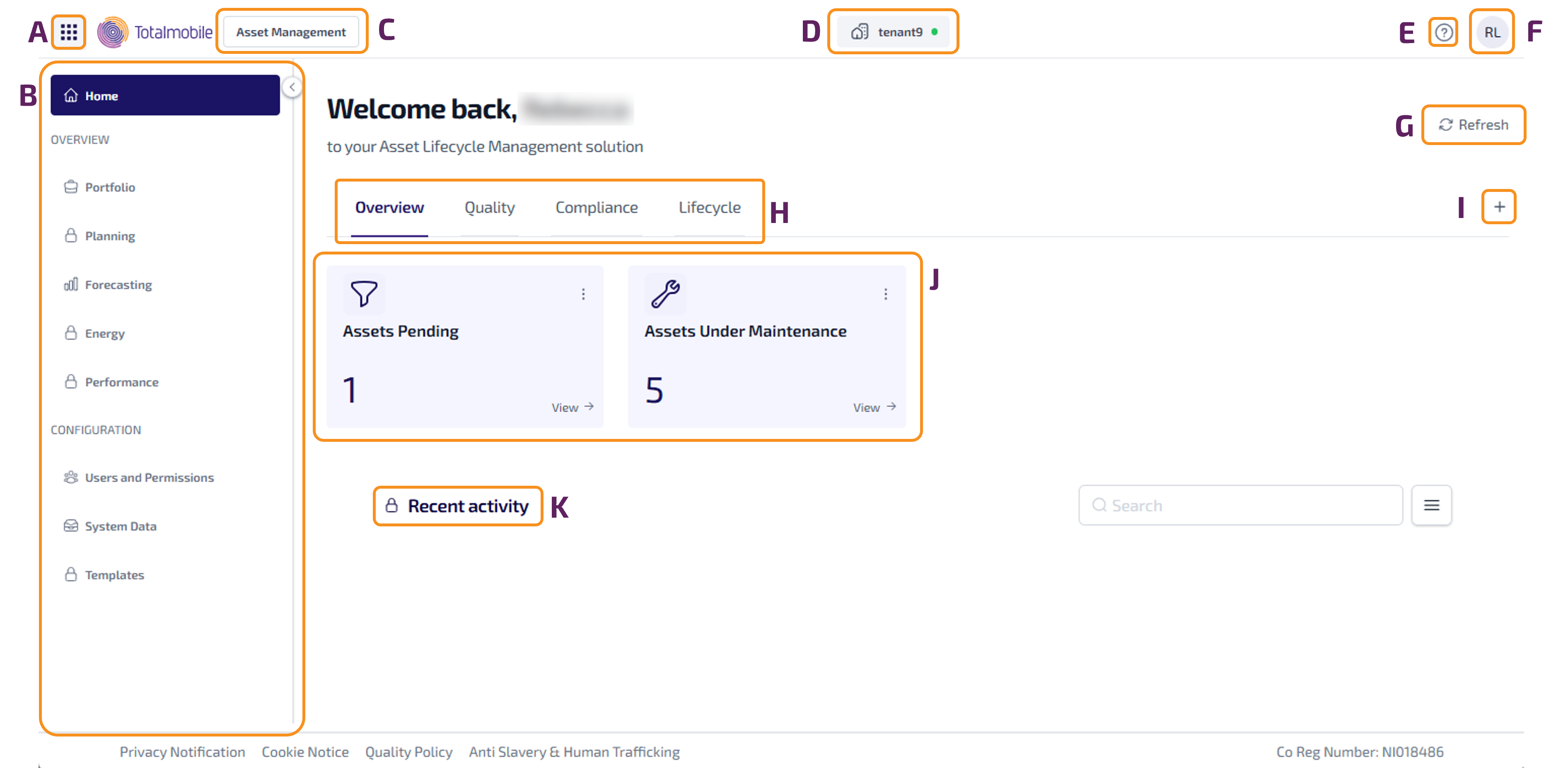
The Home page contains the following:
-
 - select to open the Platform menu, which provides access to Your apps, Your shortcuts and Recommended for your team.
 -
Navigation menu - displays to the left of the screen and provides access to the Home page, Overview, and Configuration (if applicable).
-
Capability - the capability you are currently logged onto.
-
Tenant - the environment you are currently logged onto.
-
 - select to open the Help & Support menu, which provides access to the Product Documentation, Release Notes, Customer Support, and Privacy Policy.
 -
 - User menu - displays initials of the current user. Select to display the Sign Out option.
 -
Refresh - select this refresh the information shown on the page.
-
Overview, Quality, Compliance, Lifecycle tabs - these tabs provide access to overviews related to each of the respective tab names.
-
Add New Widget - select to configure and add a new widget, click Widgets for more information.
-
Widgets - these show information based on their configuration, for example the number of assets under maintenance. Select View on a widget to see a list of those assets.
-
Recent Activity (coming soon)