Create a Referral
You can create new referrals for new or existing service users.
Create a referral for an existing user
To create a new referral for an existing service user:
-
On the Referrals tab, select Create New Referral.
-
Select Select Service User.
The Service Users dialog appears.
-
Search for and select a service user.
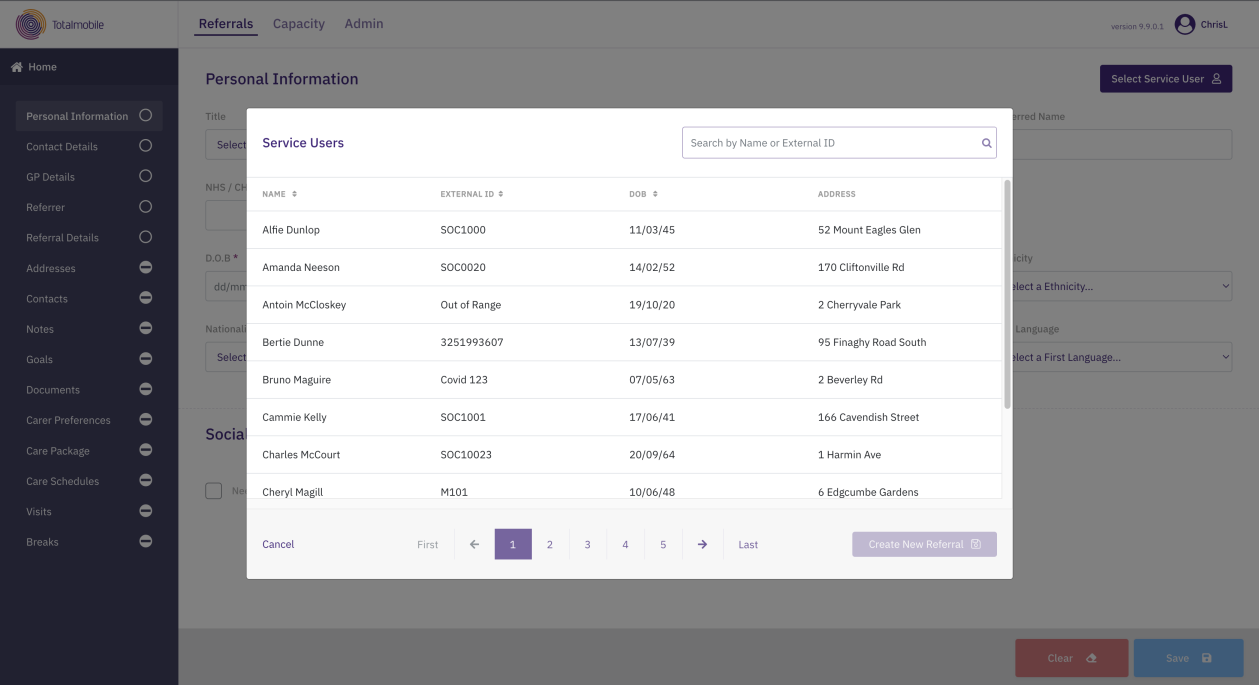
-
Select Create New Referral.
-
Select Yes to confirm. This populates the new referral with the service user's details. The icons on the navigation menu indicate which areas have been populated:
-
A tick icon indicates that the fields for this area have been sufficiently populated.
-
A yellow exclamation mark icon indicates that this area requires editing before the referral can be submitted.
-
A no access icon indicates that this area is unavailable until the new referral has been submitted.
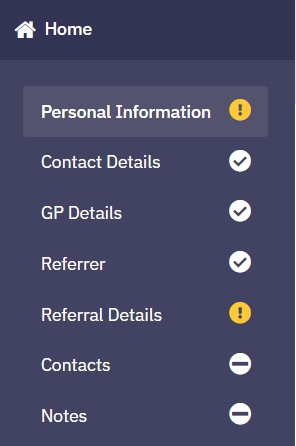
-
-
On the navigation menu, select Referral Details to record additional information for this referral. For more details refer to Manage Referral Details.
-
Select Save.
Create a referral for a new user
To create a new referral for a new service user:
-
On the Referrals tab, select Create New Referral.
-
Fill in the following areas of the new referral:
-
Personal Information
-
Contact Details
-
GP Details (optional)
-
Referrer (optional)
-
Referral Details
-
-
Select Save.