Asset Register
Select the Asset Register tab on the Portfolio page, by default the List view is shown, which has a table listing all the assets you maintain.
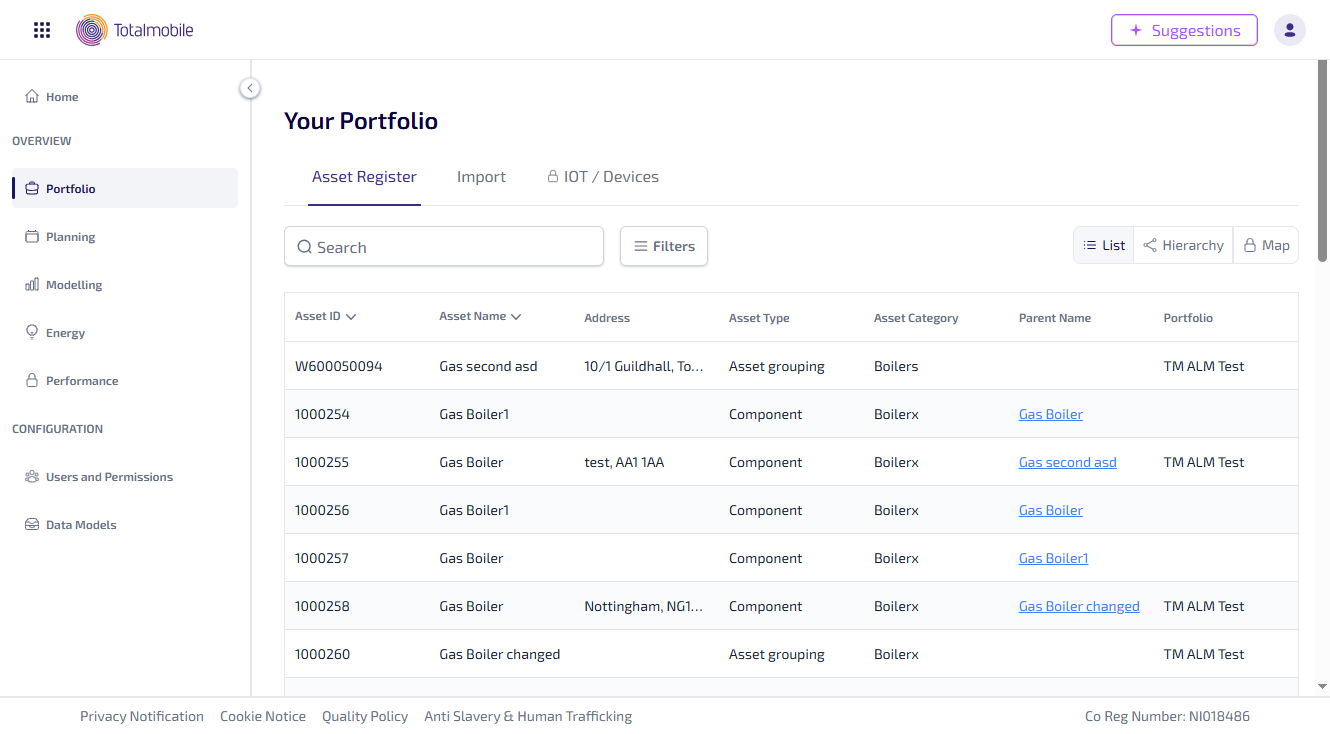
The Asset Register defaults to showing you all the assets you currently have within your portfolio. The table can be viewed in the following ways:
-
List View - this is the default view.
-
Hierarchy View - shows the assets in a structured tree with parent assets and their associated child assets.
You can also do the following in the Asset Register:
-
Search* - enter the full, or partial, Asset ID or Asset Name into the Search field and press Enter on the keyboard to display all matching results in the Asset Register.
-
Filters- select to configure filters and use saved filters.
-
Groups - select to save selected assets as a group and use saved groups.
-
Export - select to export a list of assets in .csv format.
*The Search field is a ‘begins with’ search, therefore ensure the text entered is always the beginning word/s of what you are searching for.
List View
By default, when the Asset Register is selected it is displayed in the List view. The table lists all of your assets in a non-hierarchy view, meaning all parent and child assets are listed.
The List view shows the following for each asset:
-
Asset ID* - the identification number given to the asset.
-
Asset Name* - the name given to the asset.
-
Address - the address where the asset is located.
-
Asset Type - the type of asset. This will be one of 5 options, being either Component, Sub-Component, Asset Grouping, Compliance Item, or Third Party Owned.
-
Asset Category - the category assigned to the asset in Job Management (Connect).
-
Parent Name - the name of the parent asset assigned to this asset. Select this to open the Asset Details for the parent asset, for more information see Asset Details. If blank, there is no parent asset assigned.
-
Portfolio - the portfolio assigned to this asset.
*These columns can be sorted in ascending or descending order by selecting the column heading. The arrow to the right of the heading shows whether the column is sorted in ascending order (arrow pointing up), or descending order (arrow pointing down).
Selecting an asset opens the Asset Info panel, which appears on the right of the page, for more information see Asset Register - Asset Info.
Hierarchy View
When Hierarchy is selected, the Asset Register the assets are shown in a structured tree with parent assets and their associated child assets.
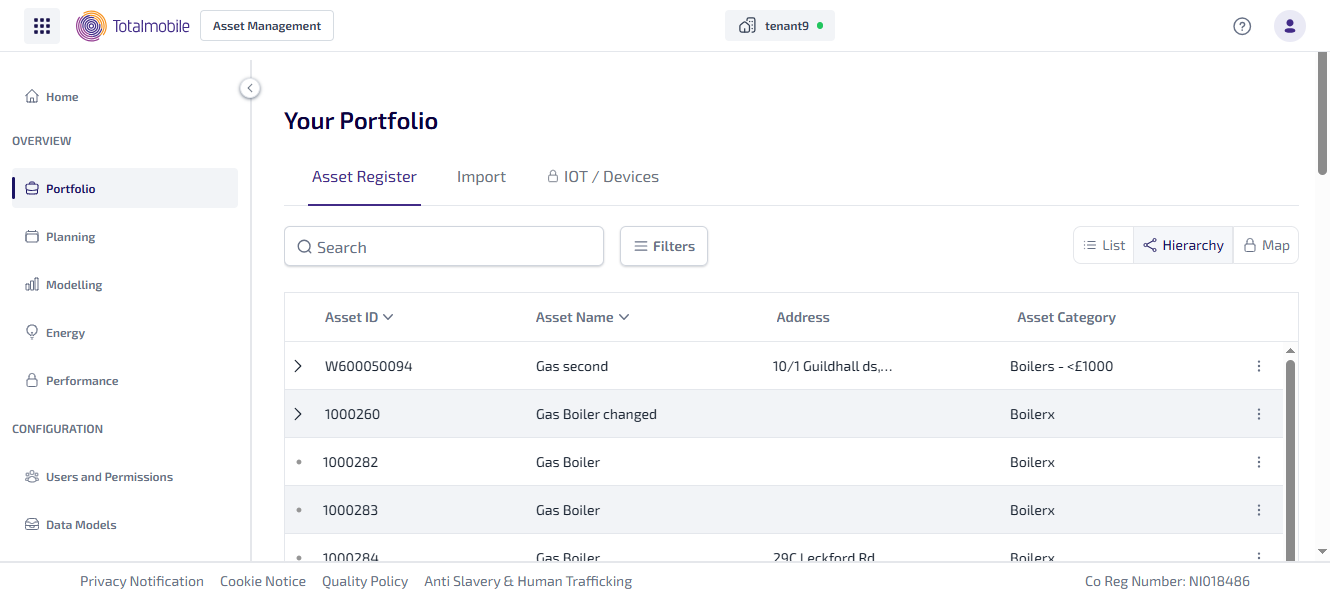
The Hierarchy view shows the following for each parent asset, and when expanded, each child asset:
-
Asset ID* - the identification number given to the asset.
-
Asset Name* - the name given to the asset.
-
Address - the address where the asset is located.
-
Asset Category - the category assigned to the asset in Job Management (Connect).
*These columns can be sorted in ascending or descending order by selecting the column heading. The arrow to the right of the heading shows whether the column is sorted in ascending order (arrow pointing up), or descending order (arrow pointing down).
To expand a parent asset select the  next to it, all the child assets are listed below:
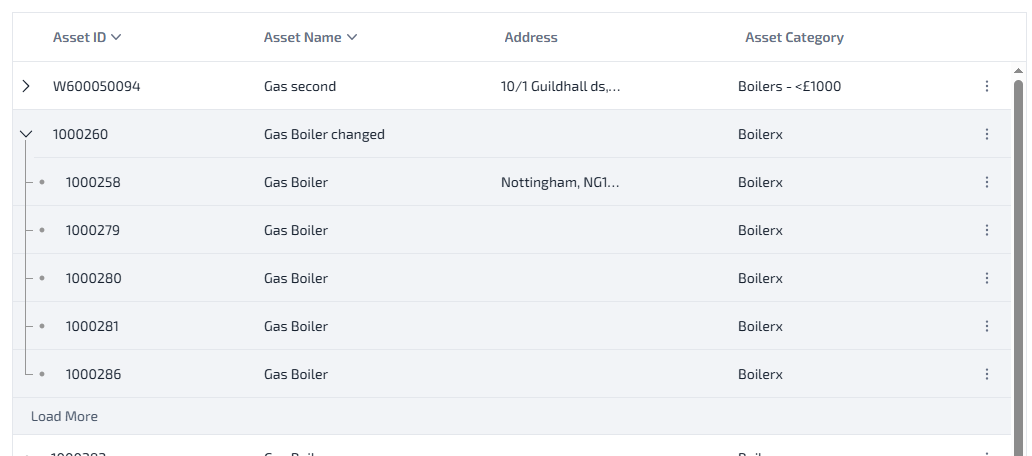
If there are more than 5 child assets assigned Load More appears at the bottom of the list, select it to show the next 5 assets and so on.
To collapse a parent asset select the , all the child assets are then hidden from view.
Selecting an asset opens the Asset Info panel, which appears on the right of the page, for more information see Asset Register - Asset Info.