Users
Users can be created directly within Field First, for those who are not using Active Directory and Federated Authentication to add their users to Field First.
When configured against your tenant, users which are added, edited or deleted are synchronised with the relevant applications. This can be enabled for the following applications:
-
Mobile Working (Mobilise)
-
Dynamic Scheduling (Optimise)
-
Job Management (Connect)
-
Referral Management (Carelink)
-
Workforce Rostering (WORKSuite)
-
Field Service Intelligence (Insight)
Users of any other applications are not automatically synchronised when they are added, edited, or deleted.
If the user has not been added to the applications, they will not automatically be signed into them when the applications are accessed from Field First.
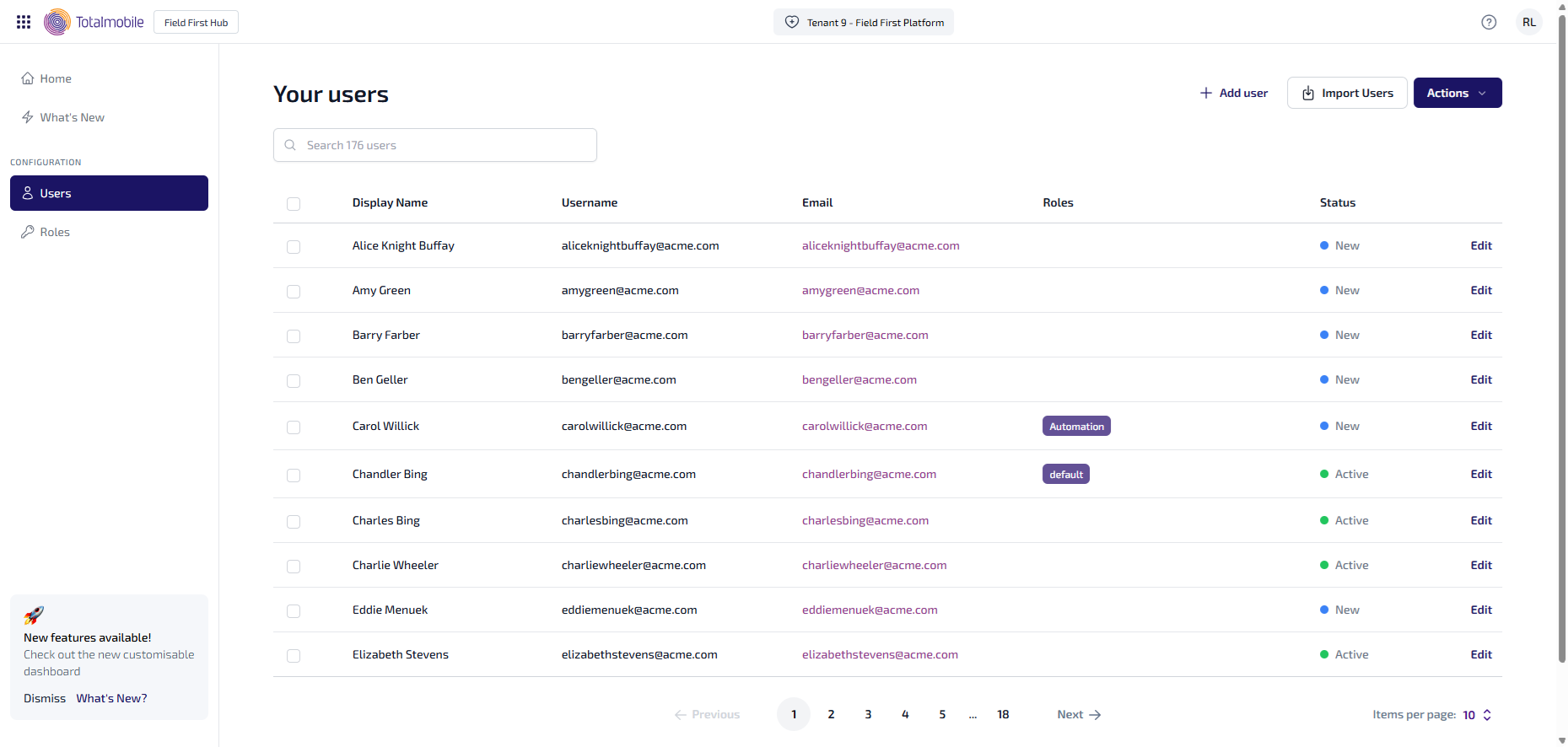
The User Management page lists all the users currently setup within Field First. The following information is shown for each user:
-
Display Name - first name and surname.
-
Username - typically this is the users email address.
-
Email - email address.
-
Roles - if applicable, the role assigned to the user.
-
Status - the status of the user, which will be one of the following:
-
New - the user has been created in Field First and is yet to set their password.
-
Active - the user was added via an external identity provider, or if created in Field First, has set their password.
-
Inactive - the user has been made inactive in the external identity provider.
-
You can also do the following in Your Users:
-
Search - enter the full, or partial, Display Name, Username, or Email into the Search field, the Your Users pages updates automatically to show all matching results.
-
Add User - select this to add an individual user.
-
Import Users - select to import multiple users from a .csv file. This can be to used add new users, or edit existing users in bulk.
-
Actions - select to see the following options:
-
Assign Roles - this is only active when users are selected. Select to assign roles to multiple users.
-
Close - select to close the context menu.
-
-
Edit - select to see the users details, and make changes such as adding or removing roles, deleting the user, and changing passwords.